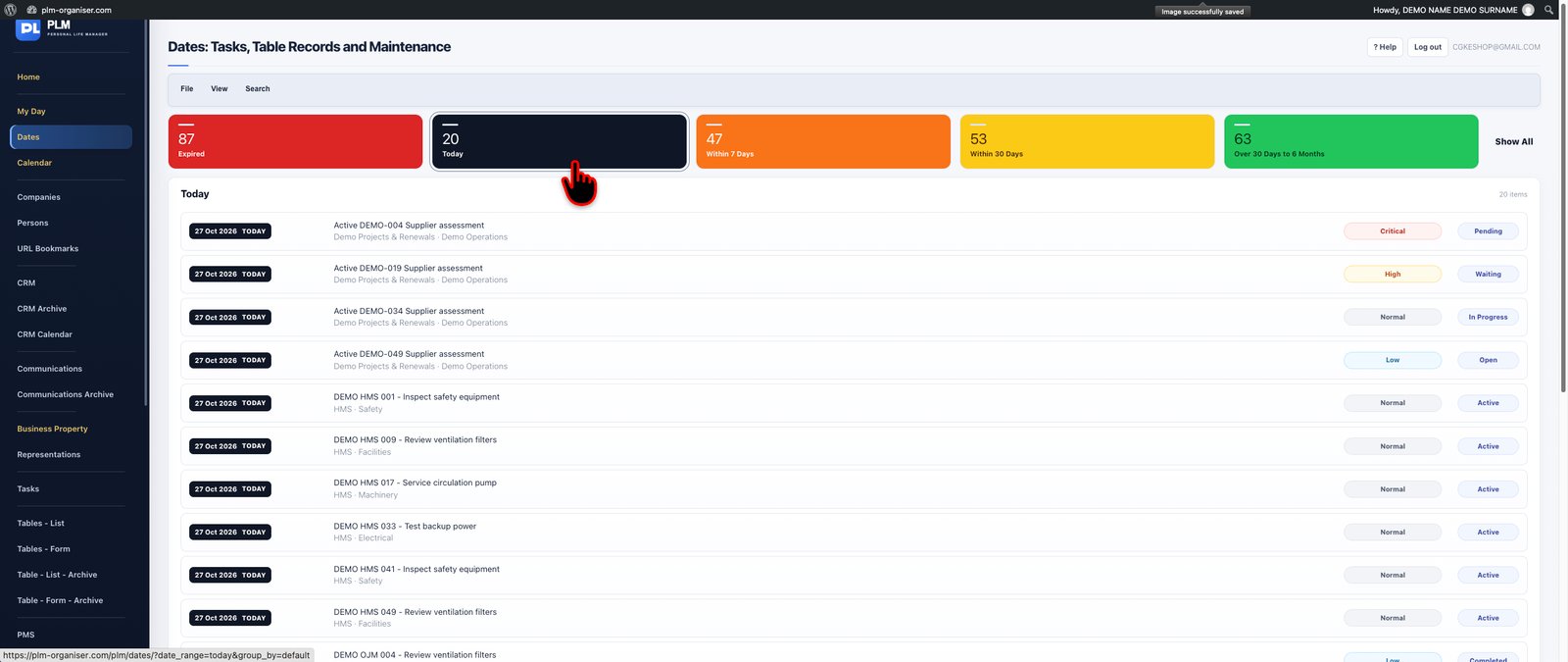
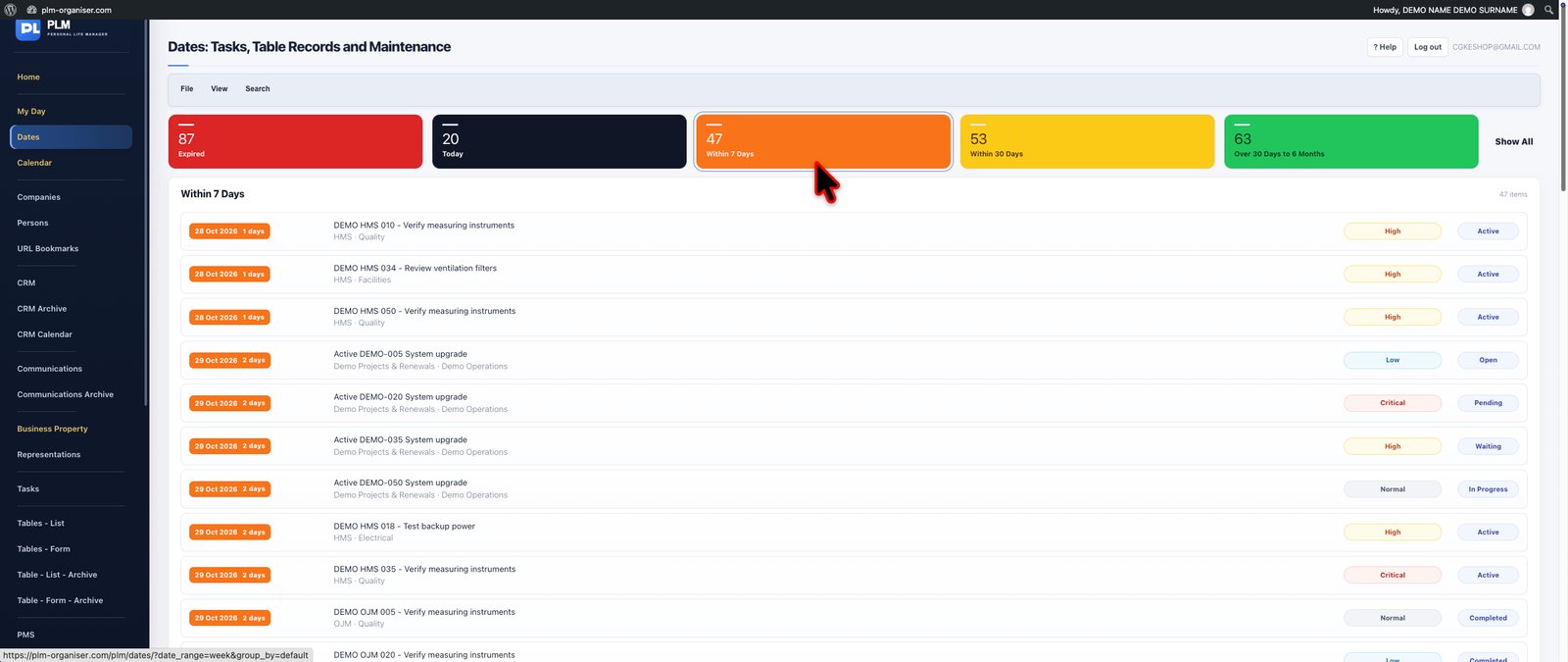
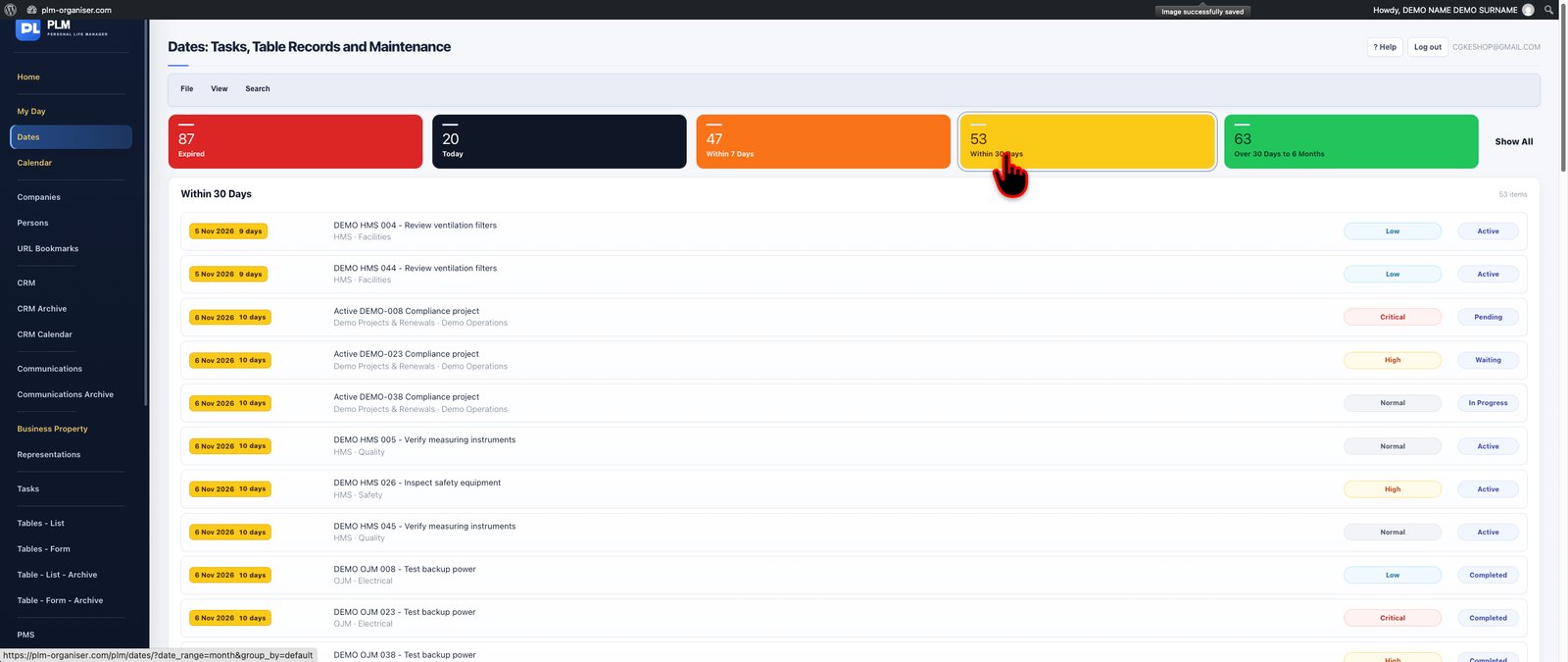
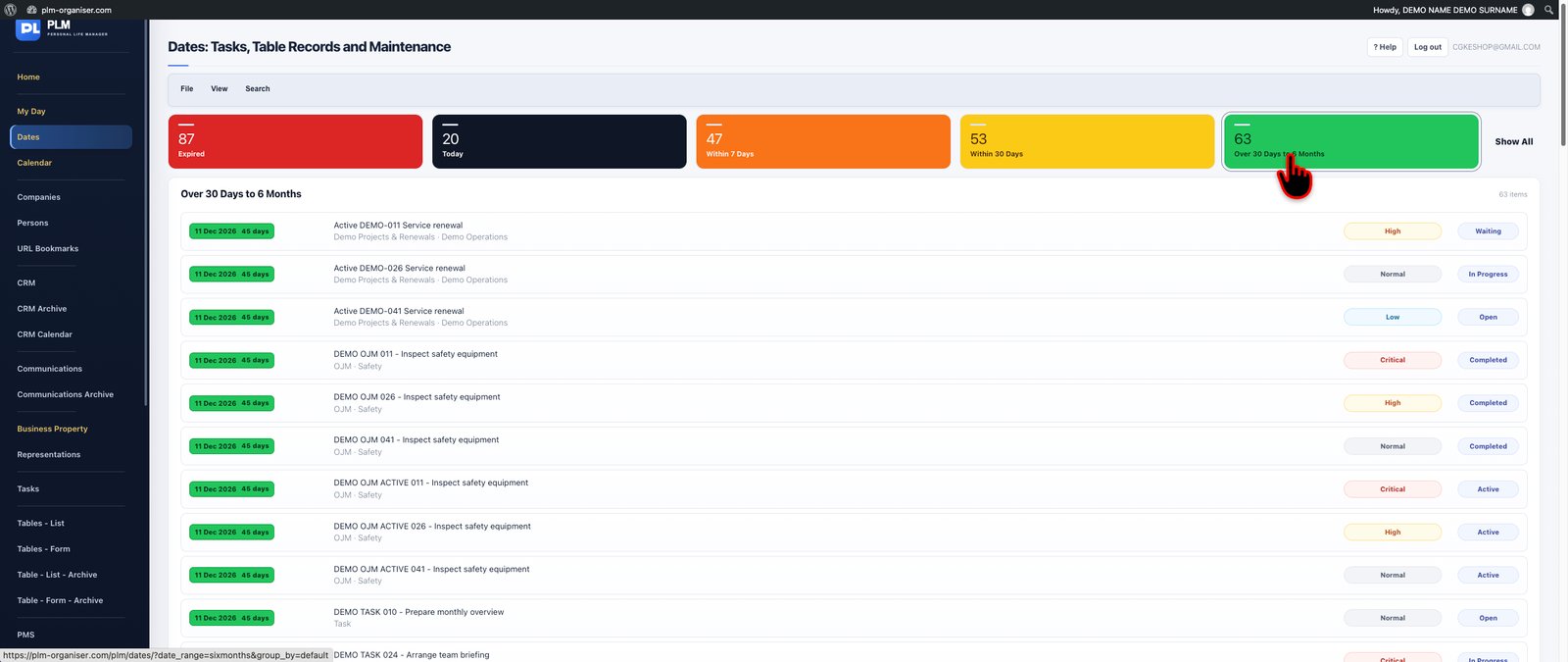
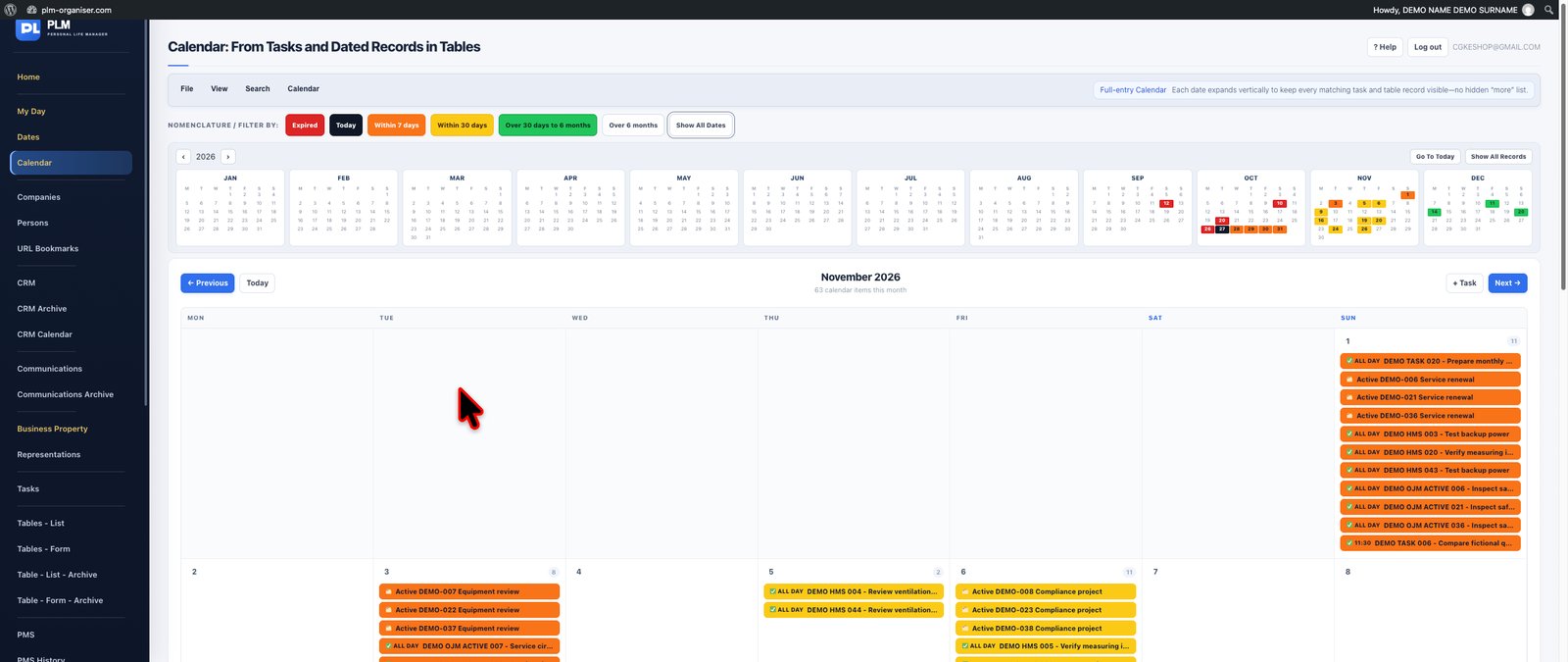
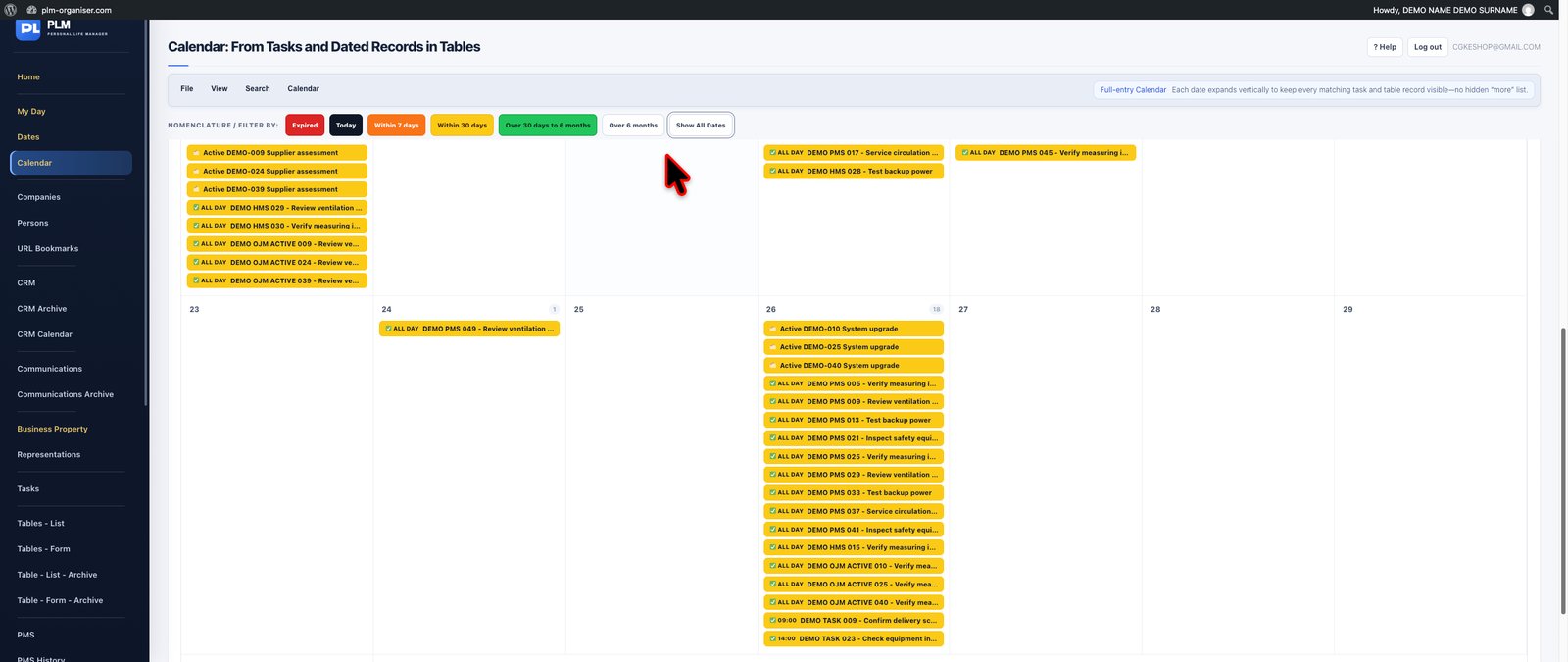
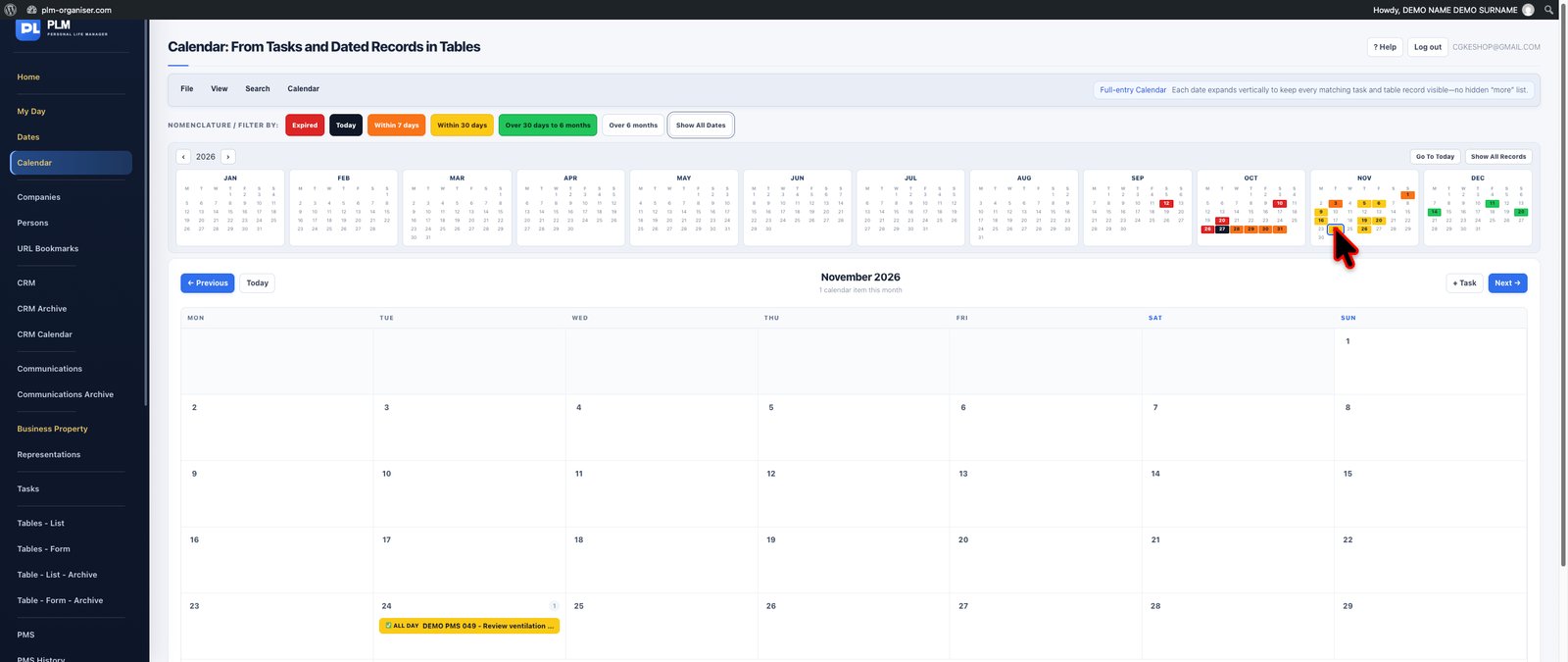
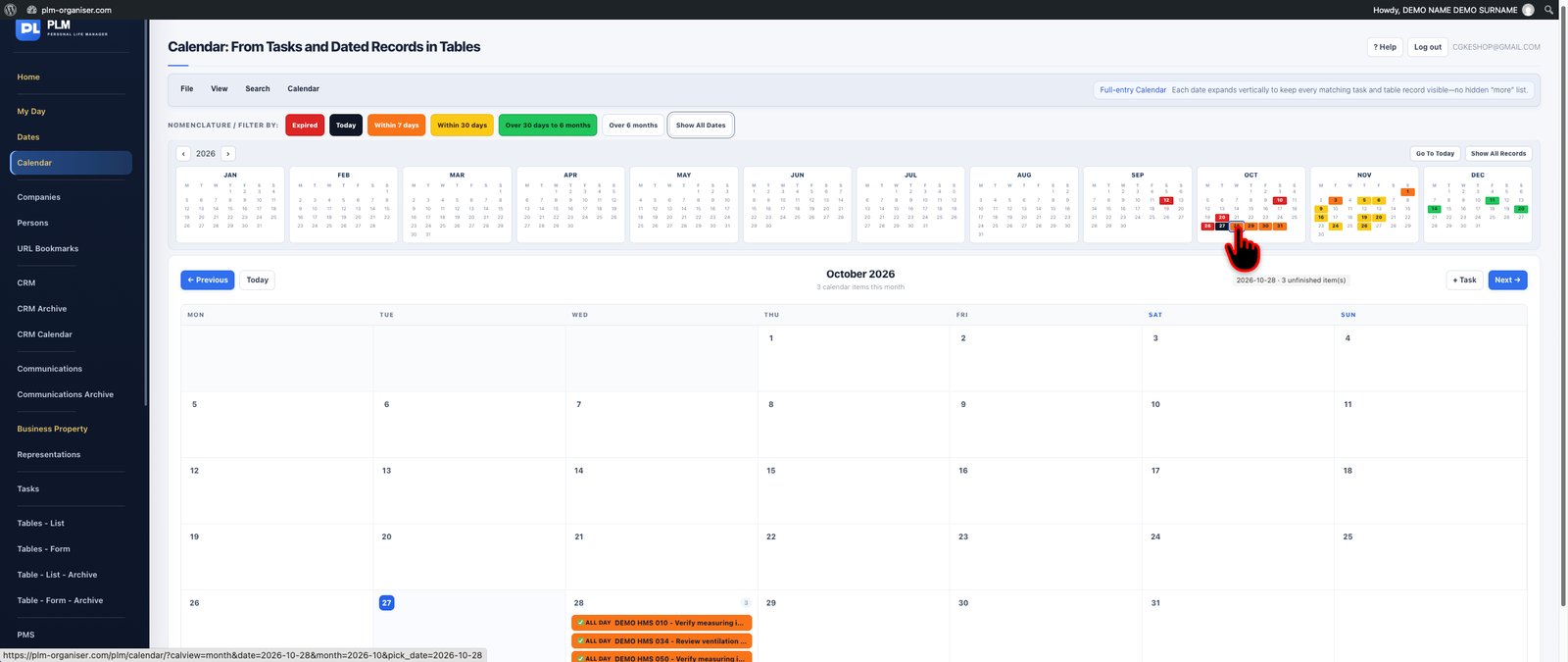
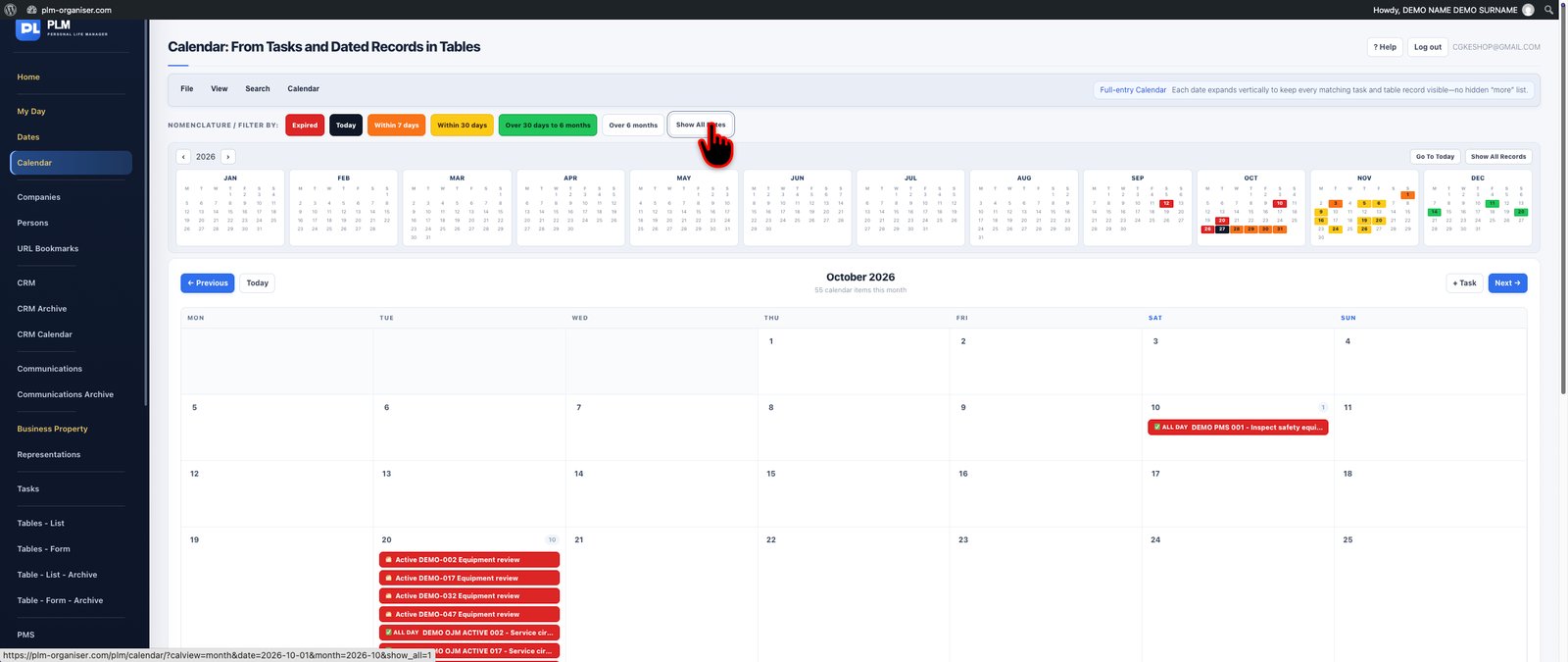
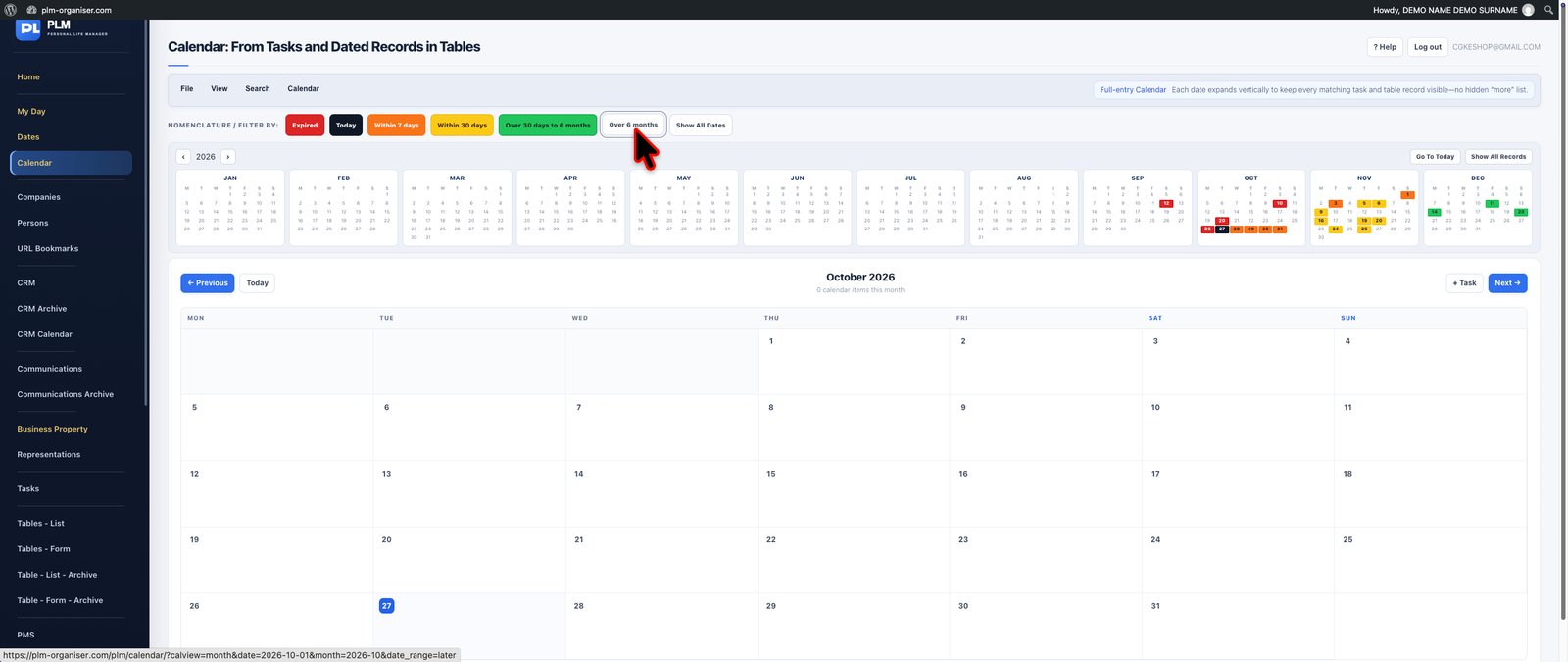
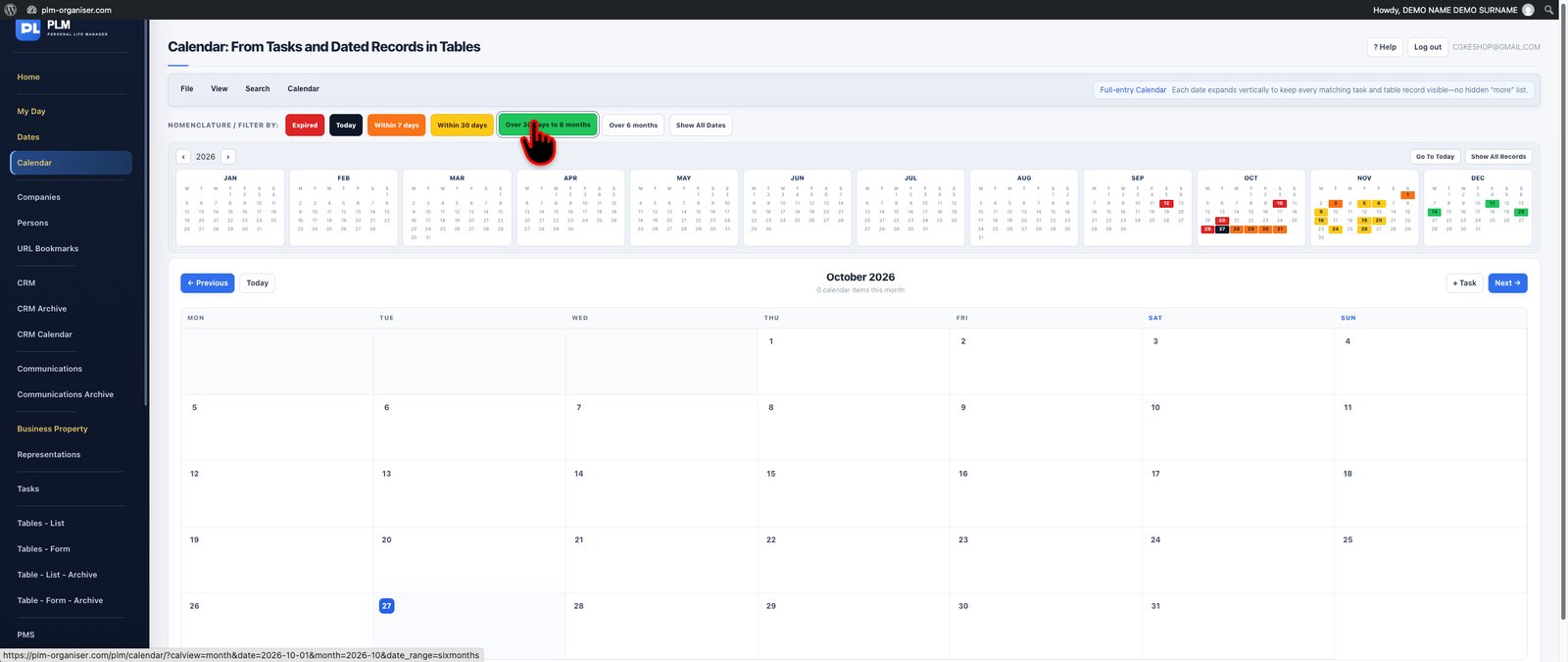
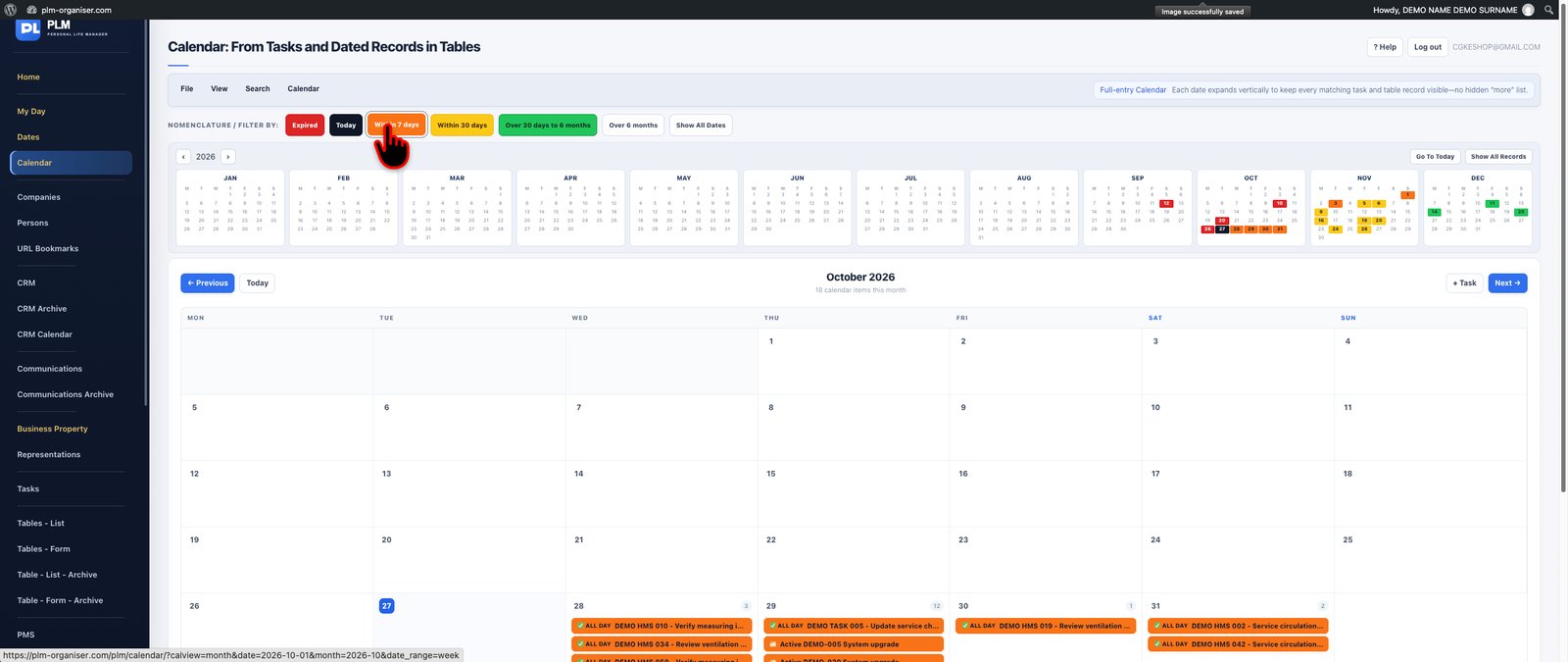
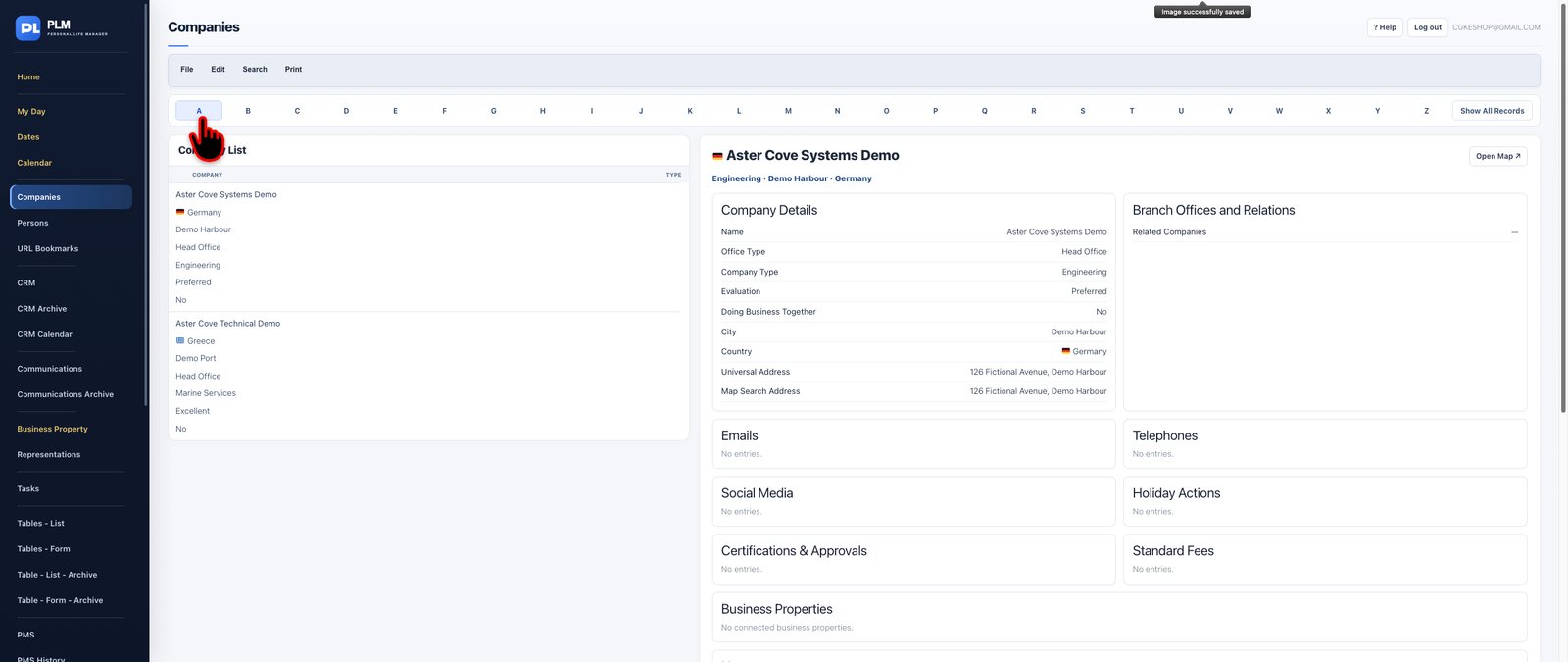
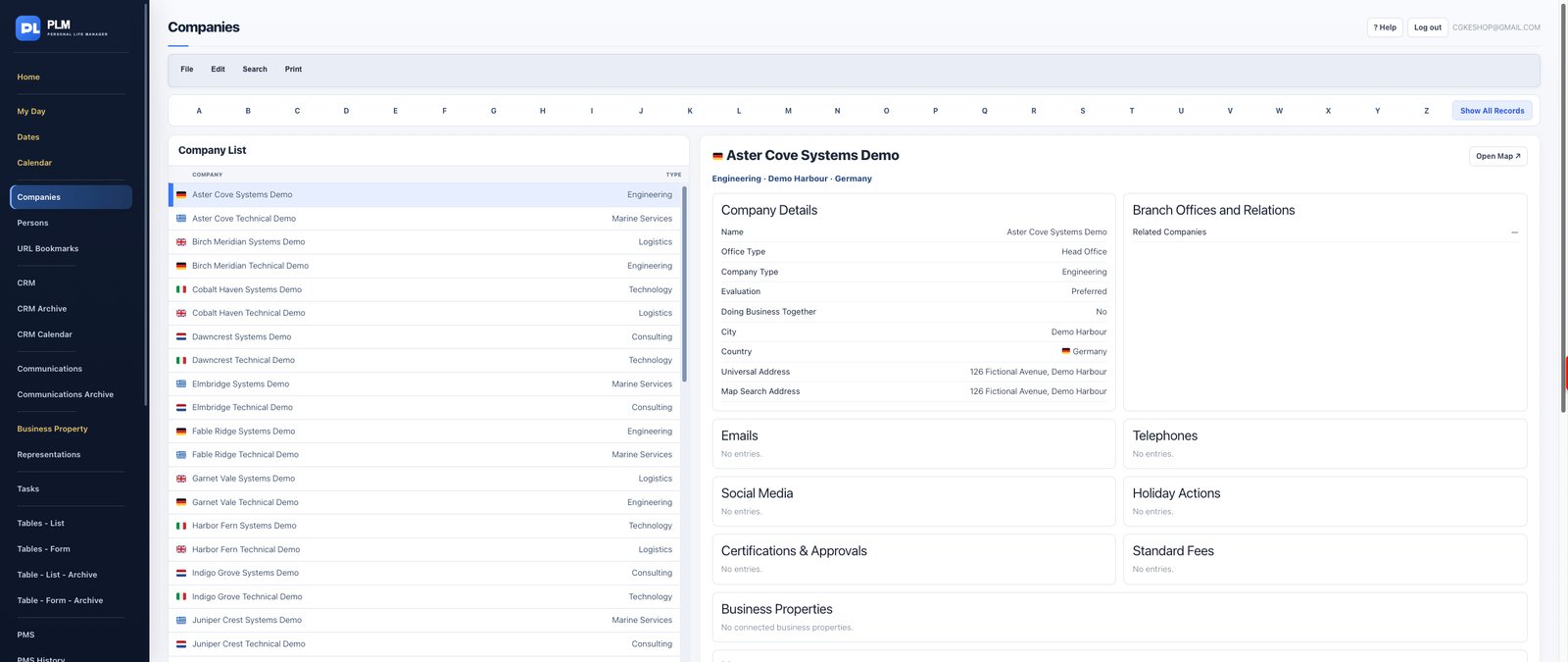
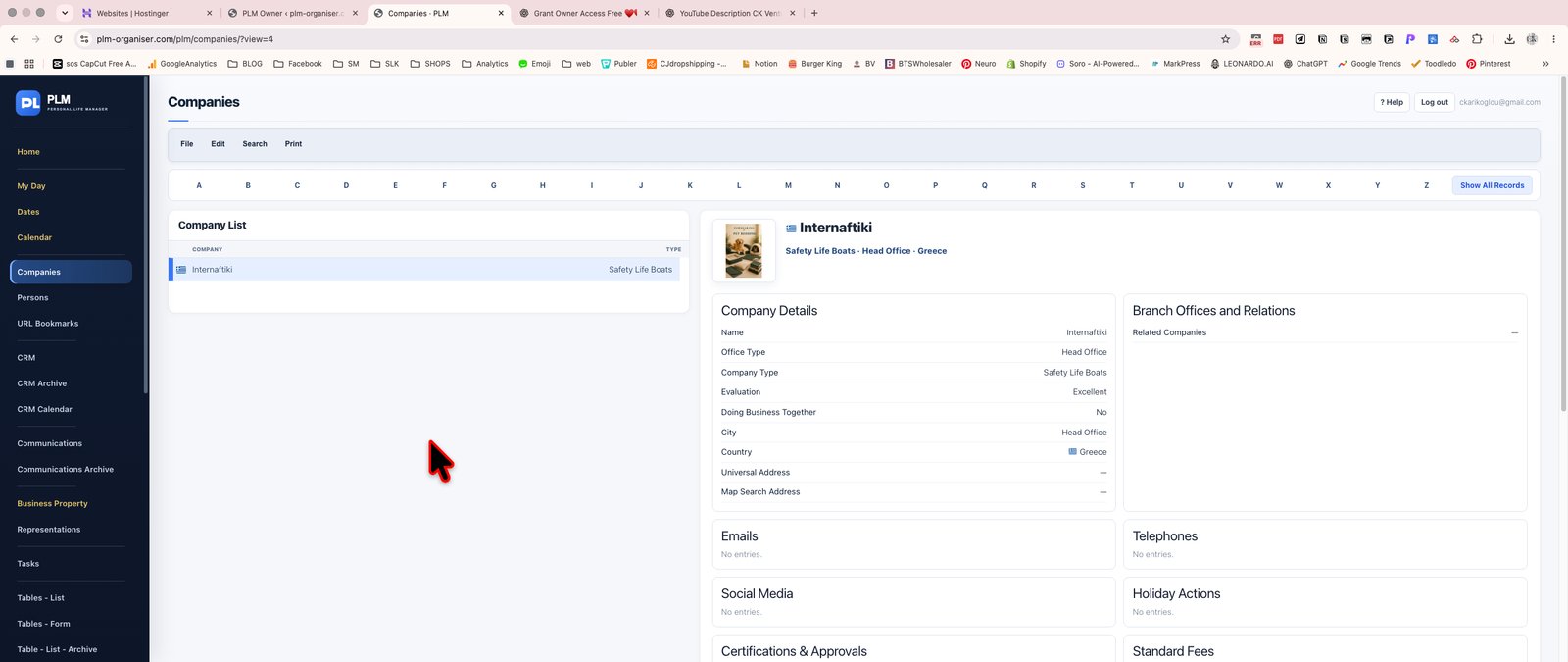
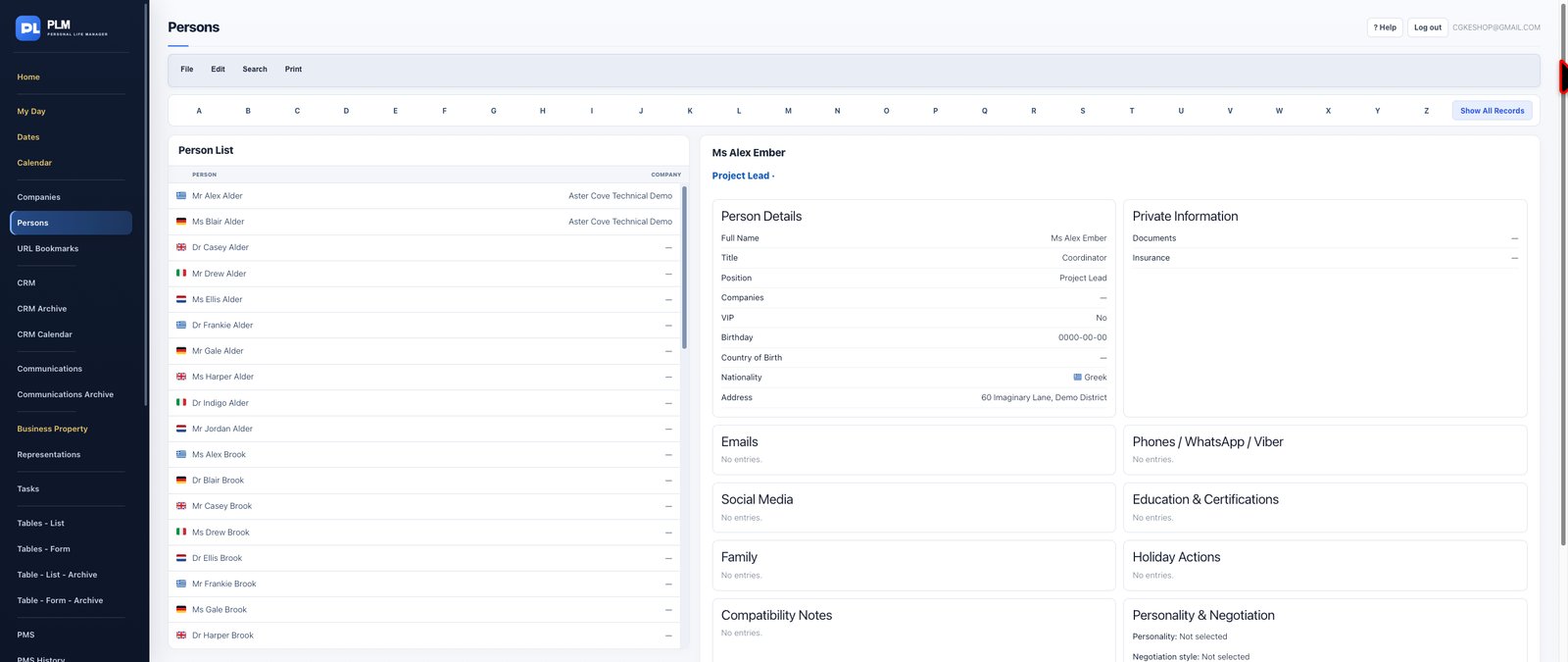
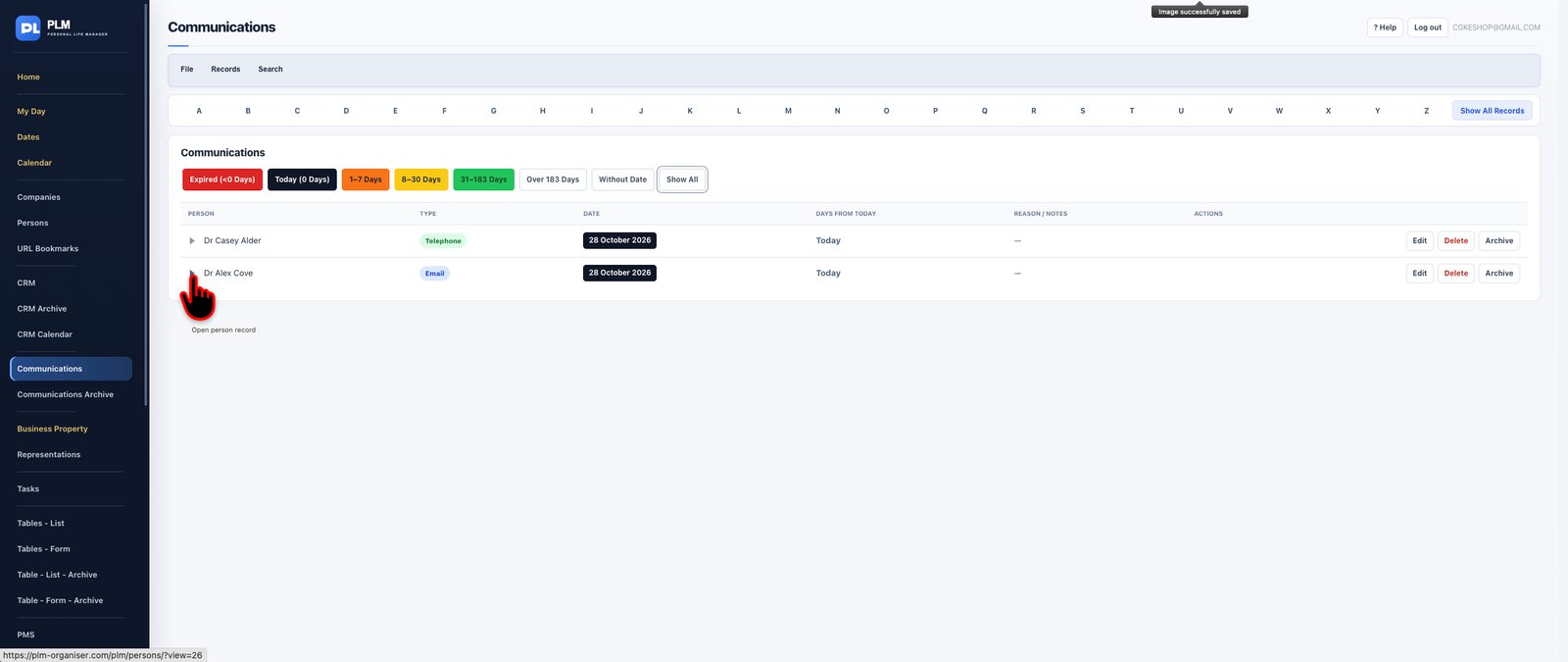
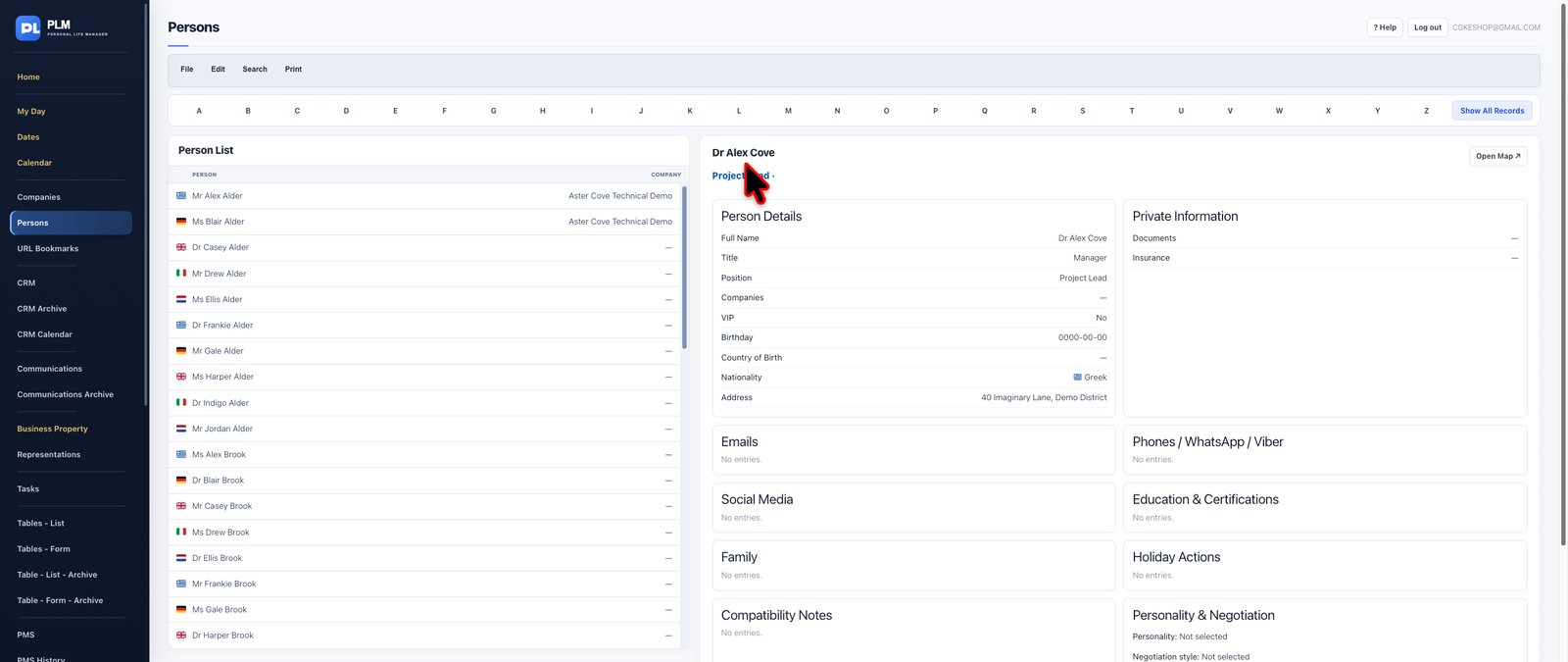
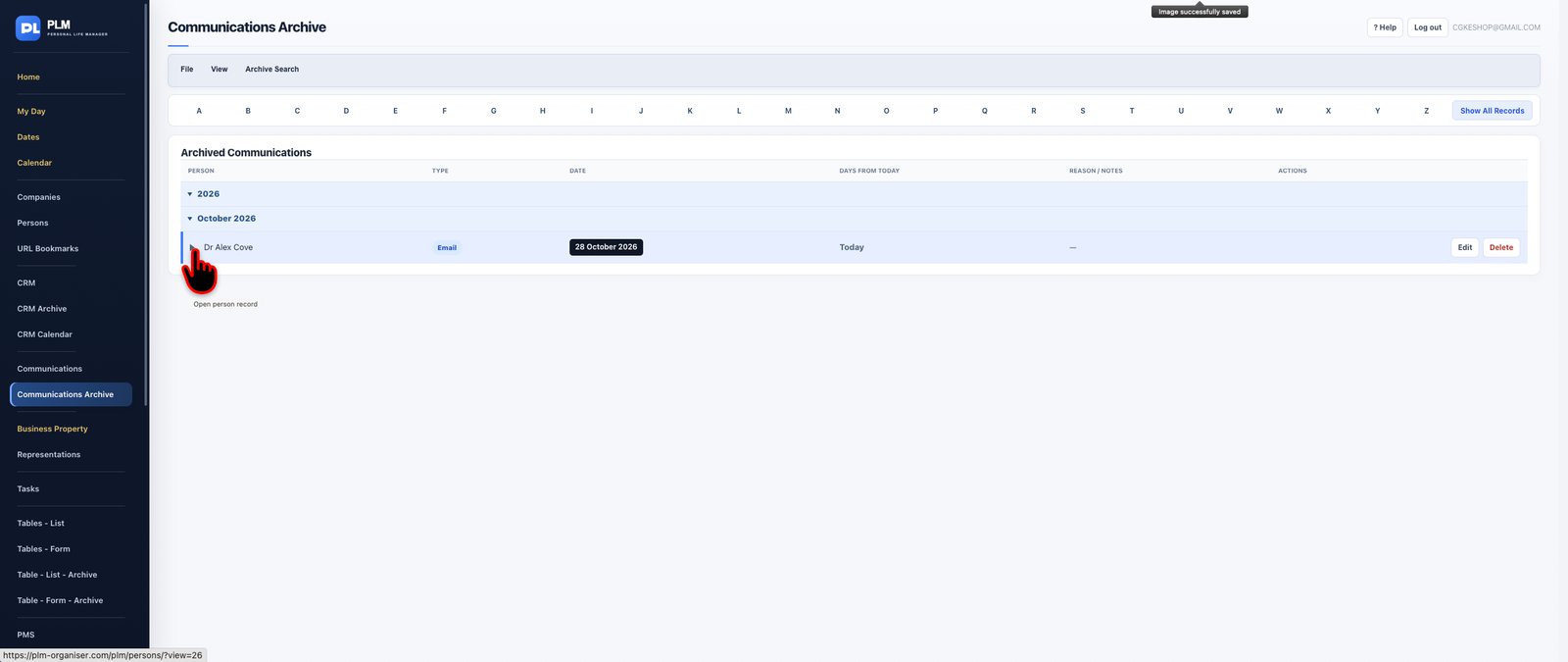
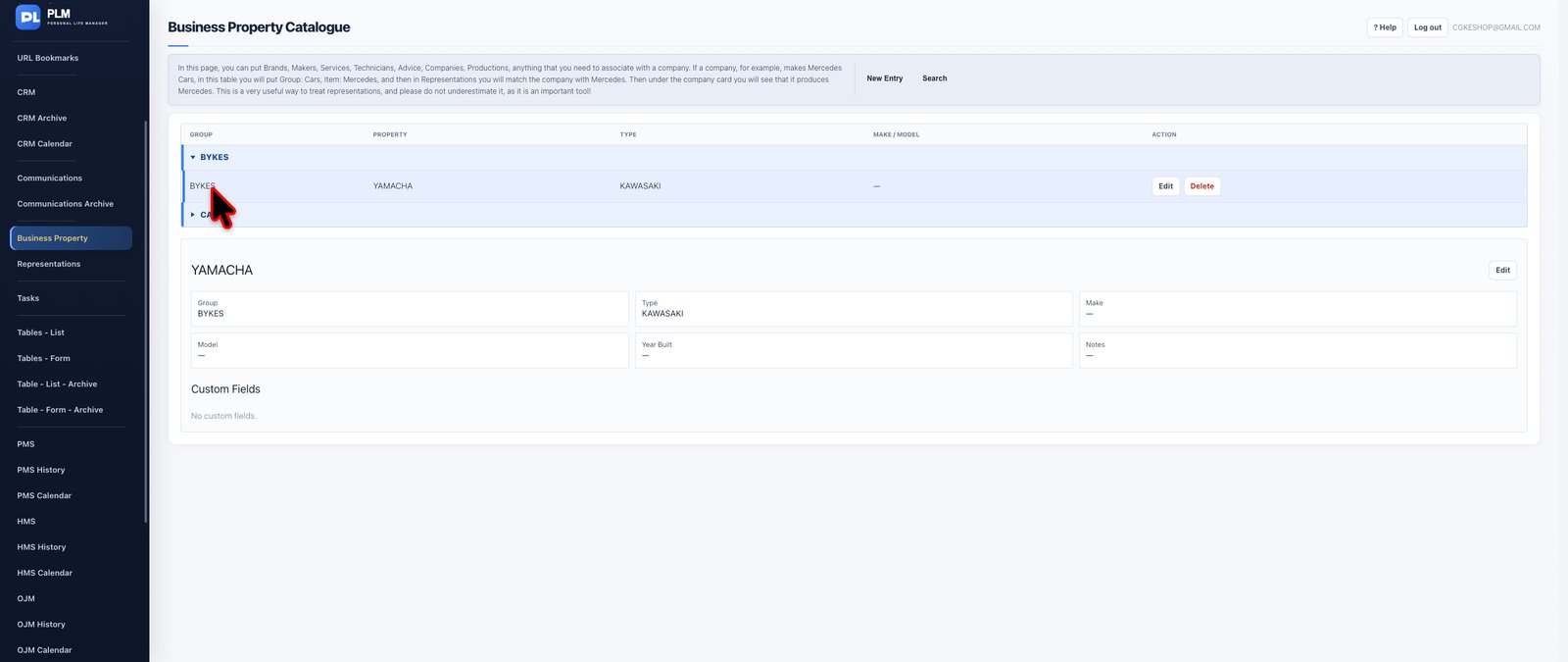
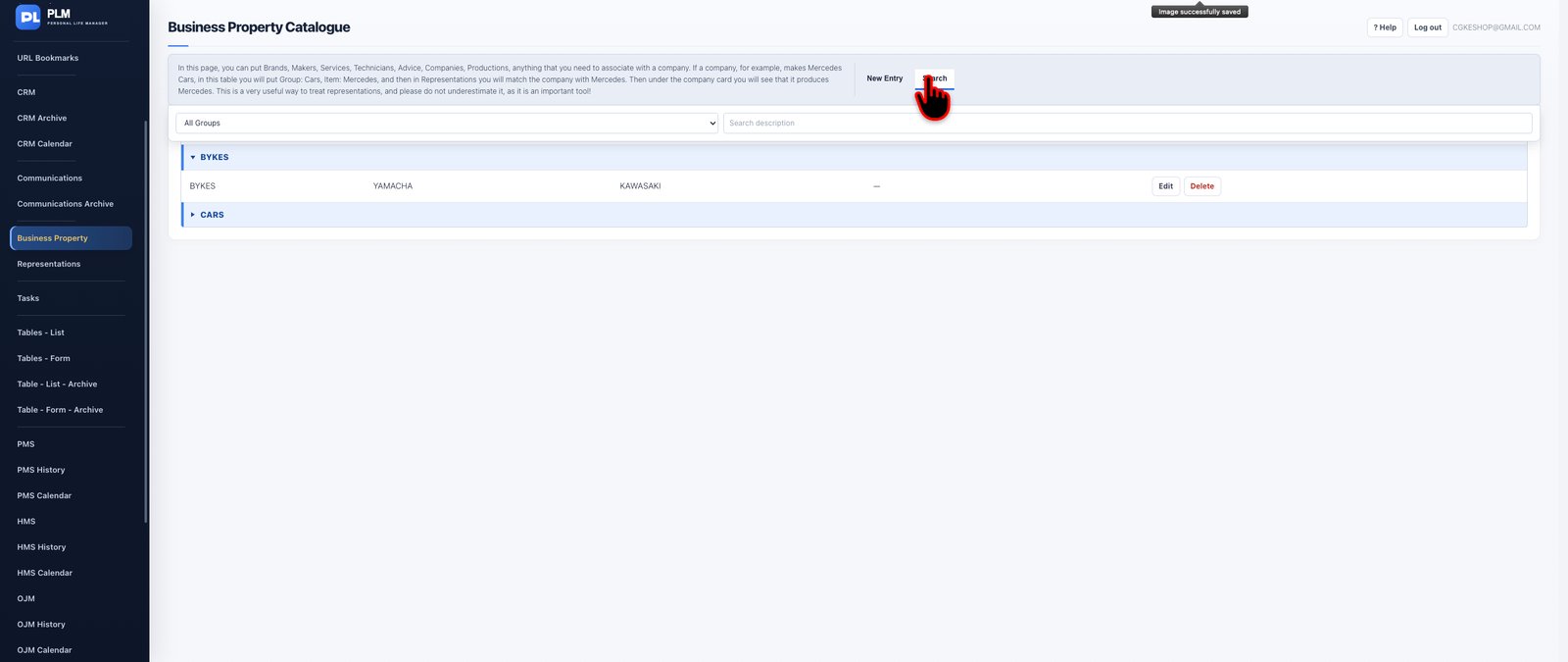
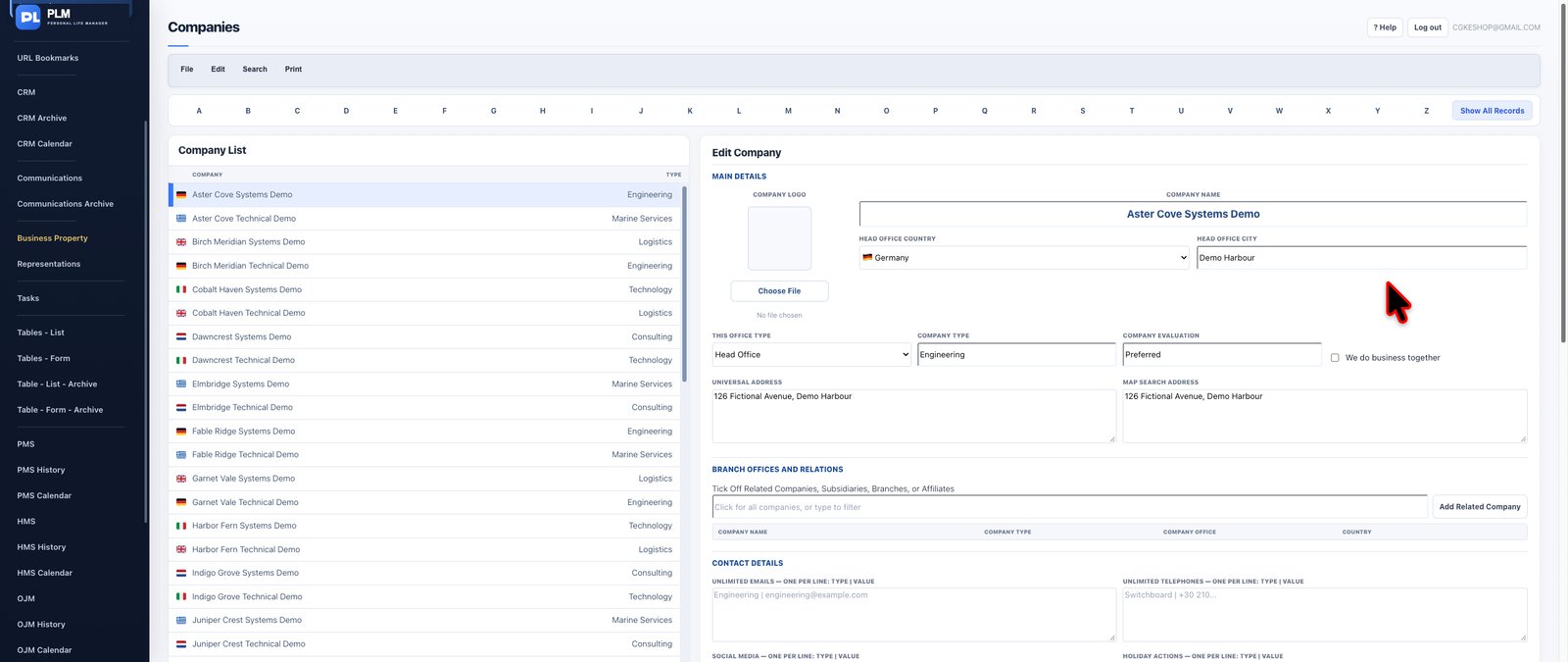
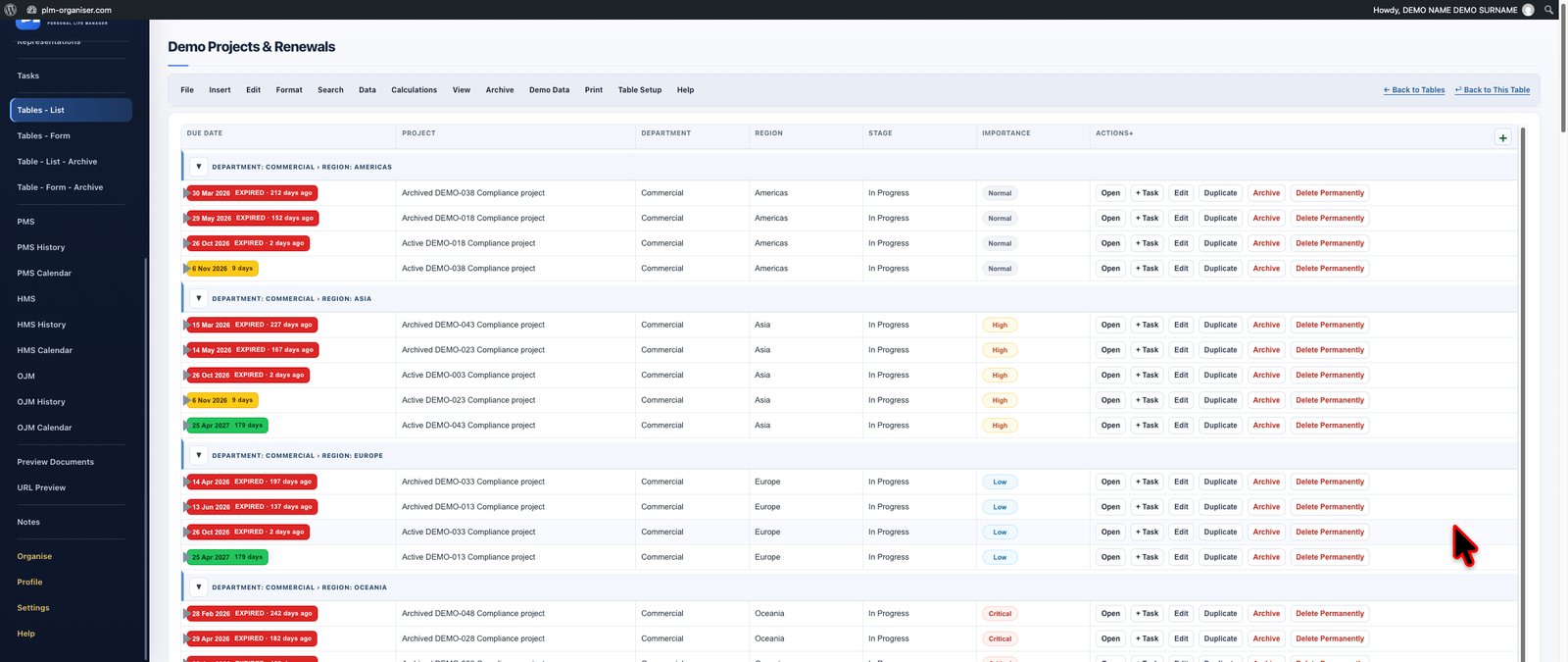
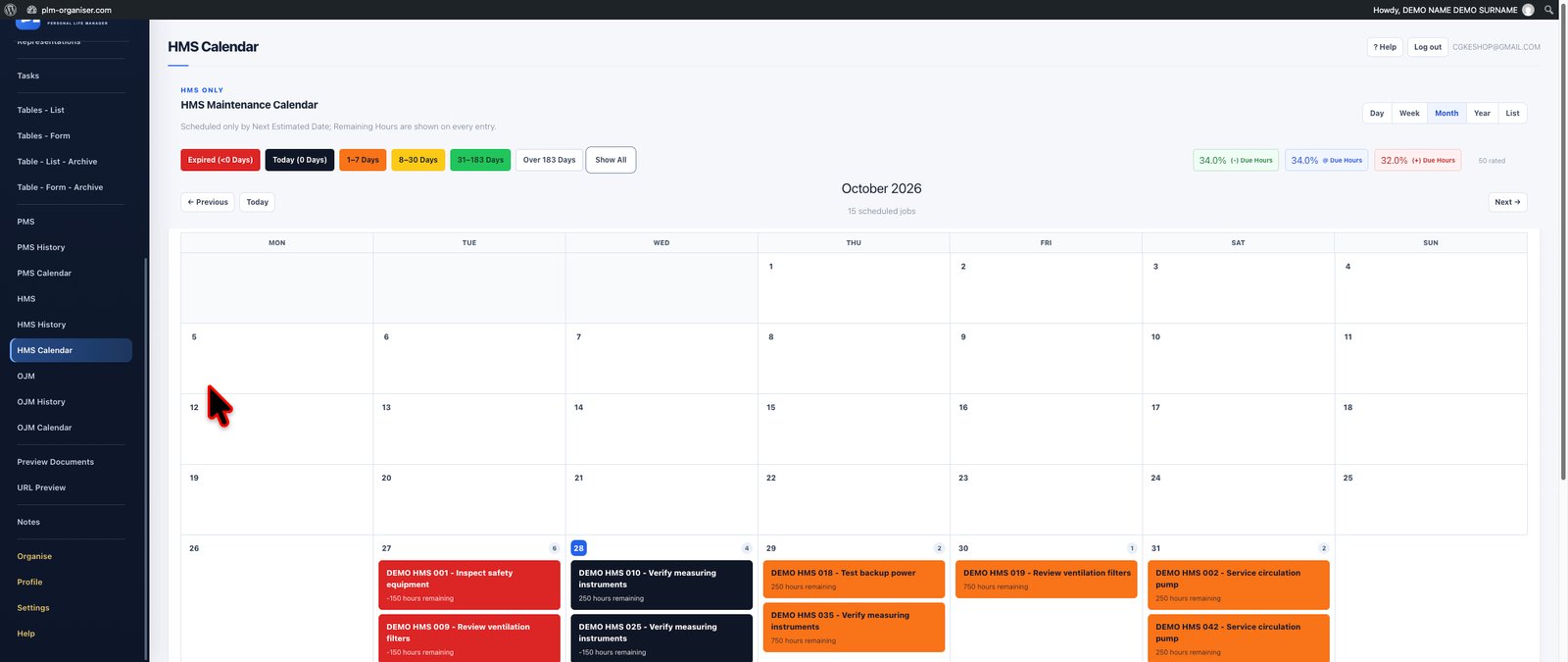
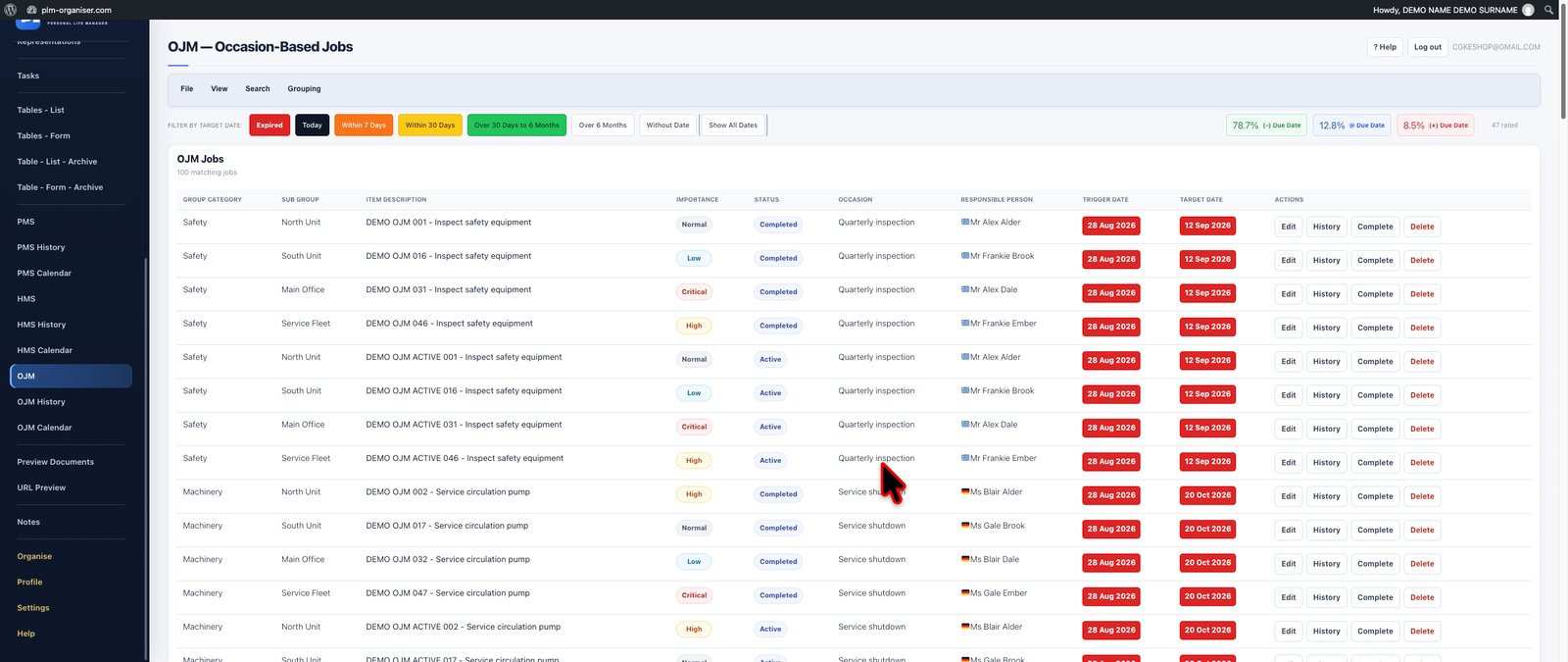
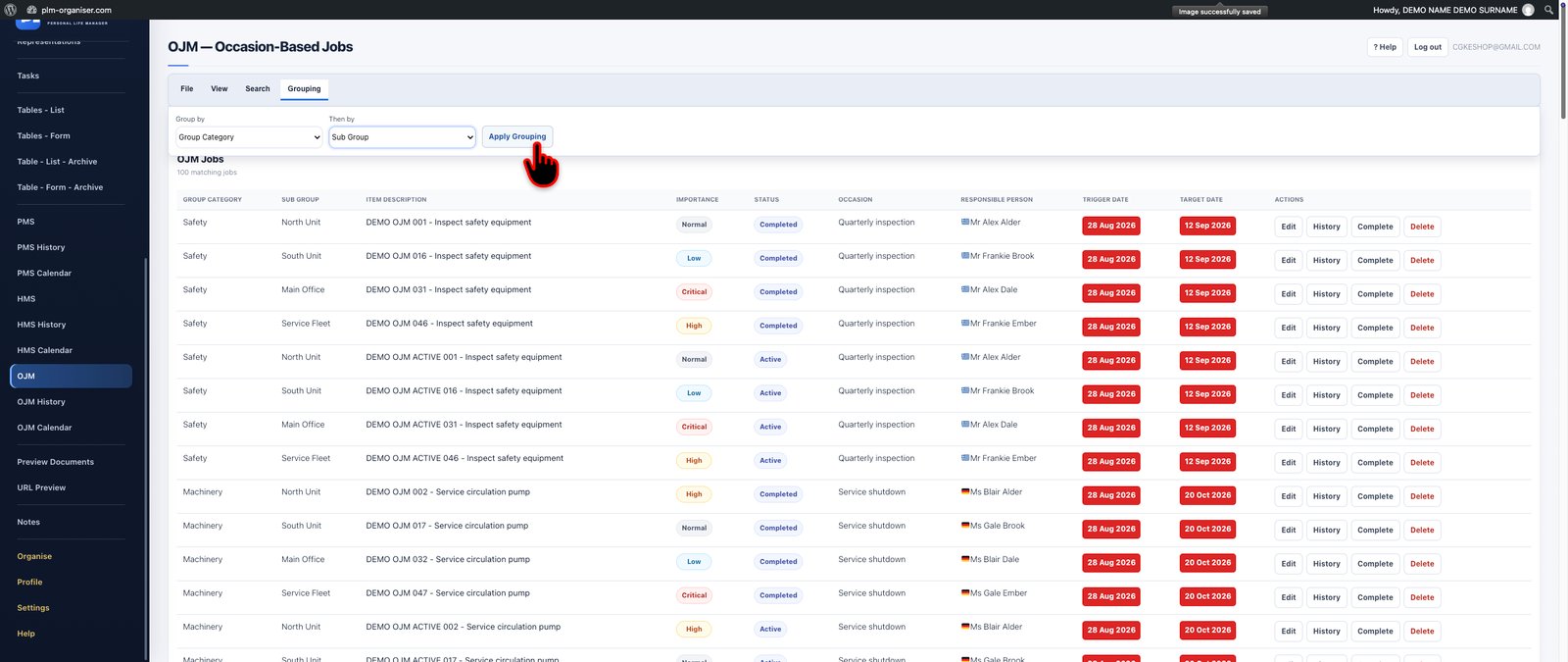
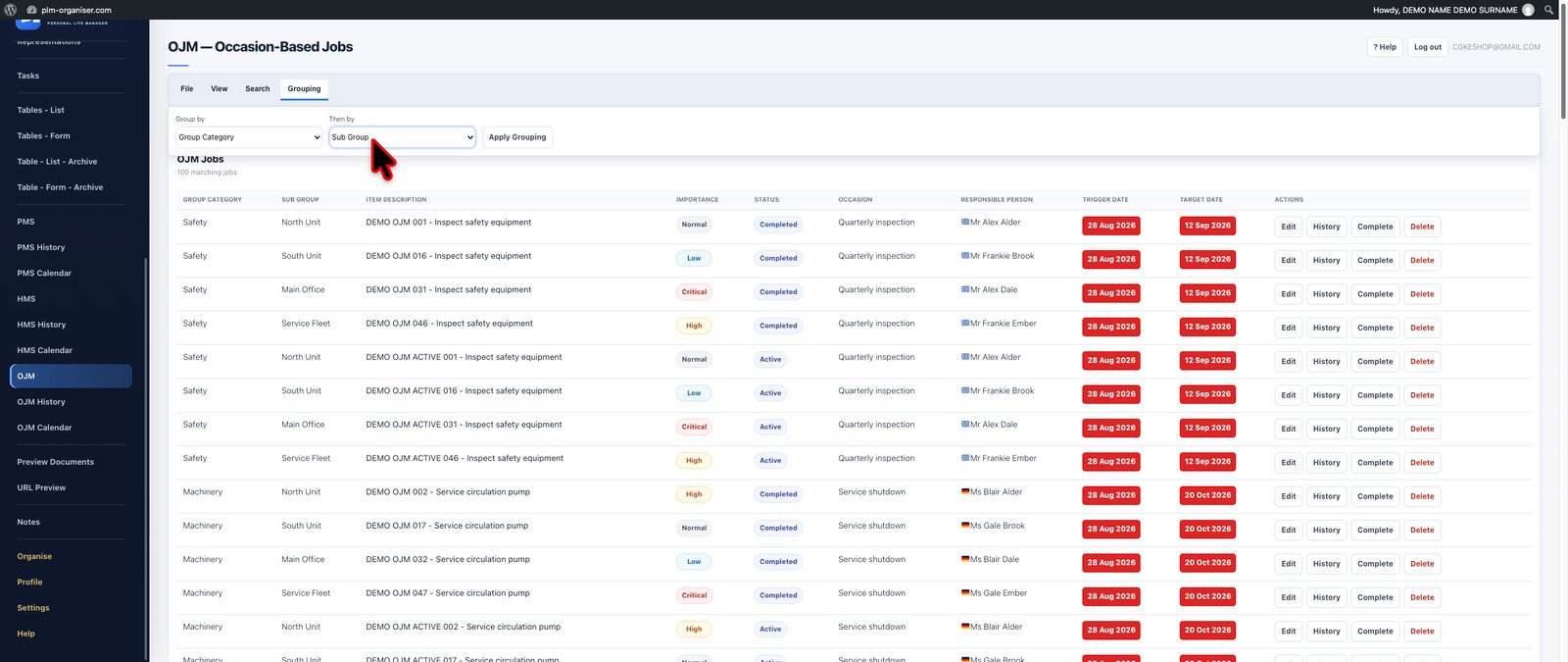
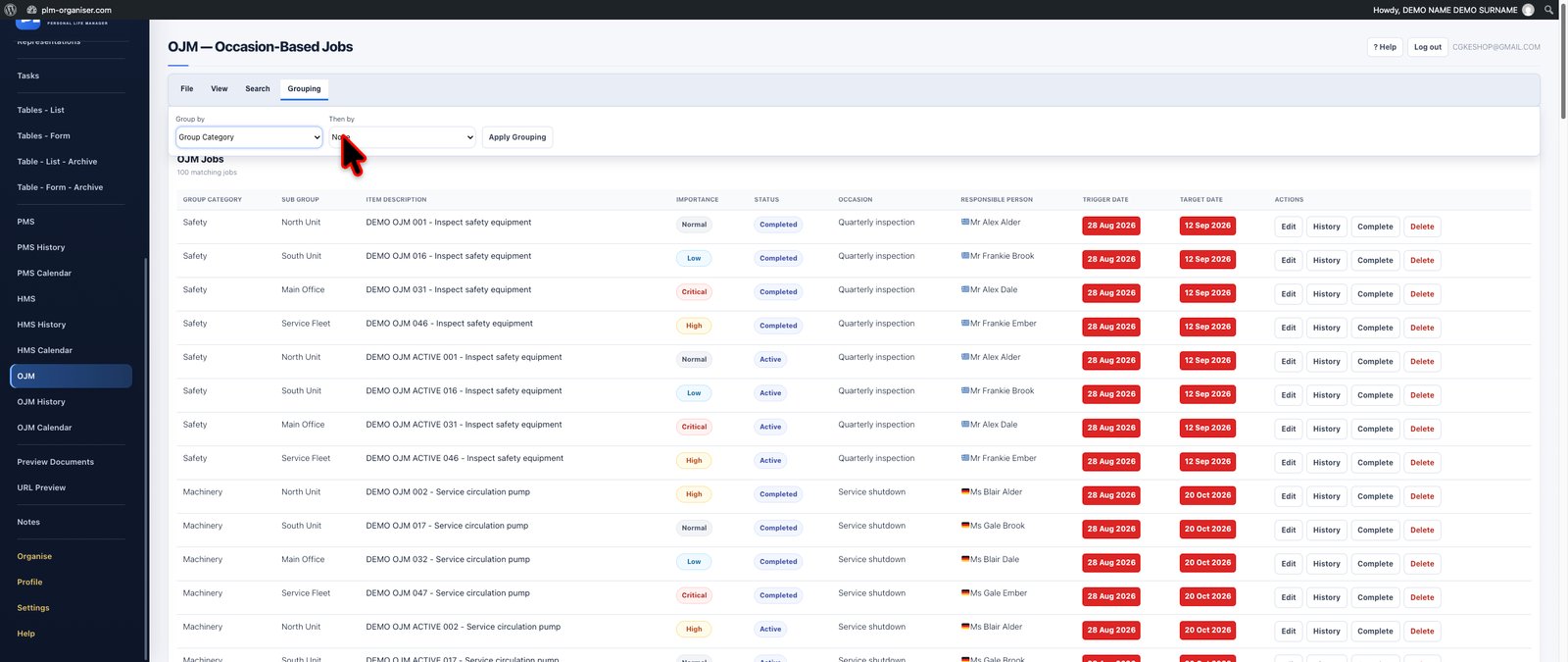
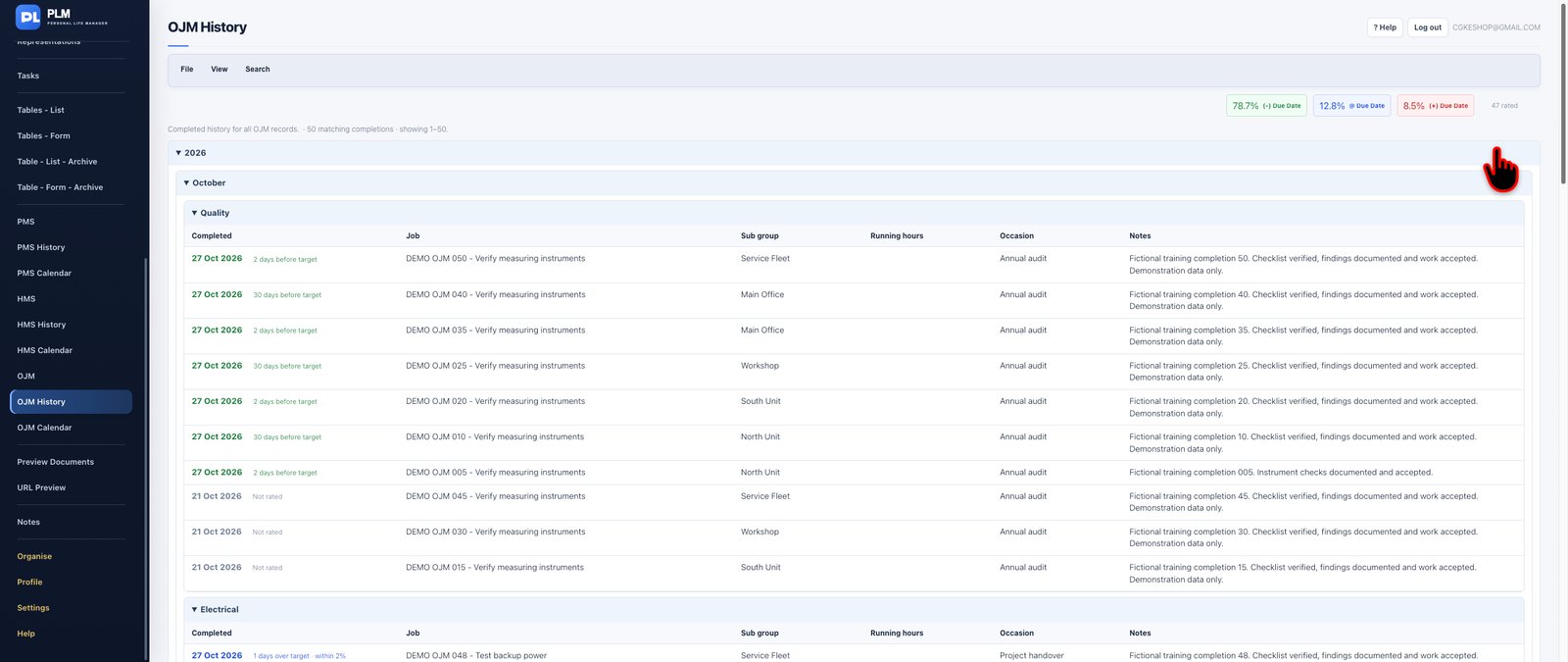
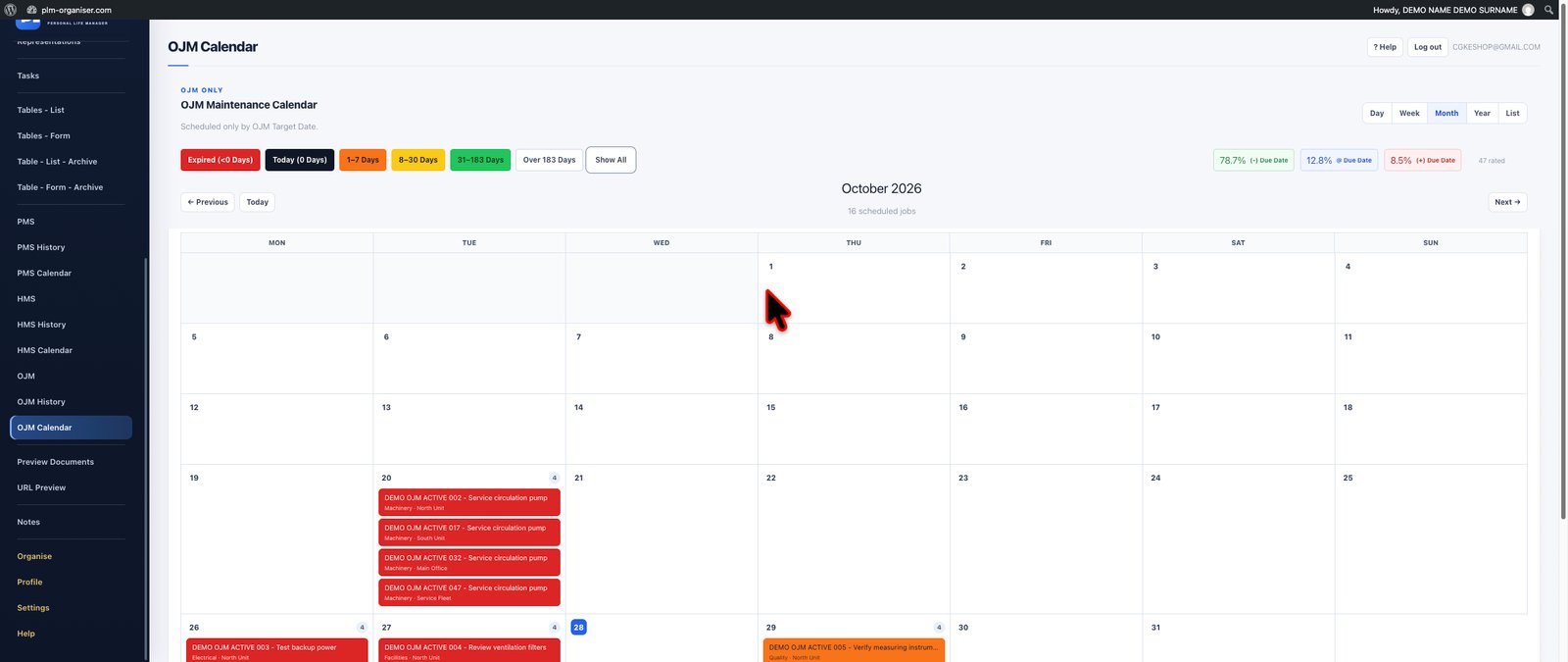
Search by module or action, then open a guide. Complete table instructions, calculation examples and relationship workflows are in the first section below. Use the field names shown in your current version.
Complete Tables, Formatting, Calculations & Relationships Help
Step-by-step workflows with practical examples: select and edit cells, format headings and data, configure dropdowns and linked records, build calculations and lookups, use dates, comments, emoji, fill and saved views, and check account saves.
1. The table workspace and where to find each tool
1. The table workspace and where to find each tool
Step-by-step workflows with practical examples: select and edit cells, format headings and data, configure dropdowns and linked records, build calculations and lookups, use dates, comments, emoji, fill and saved views, and check account saves.
PLM workspace screenshot · Select the image to open it at full size.
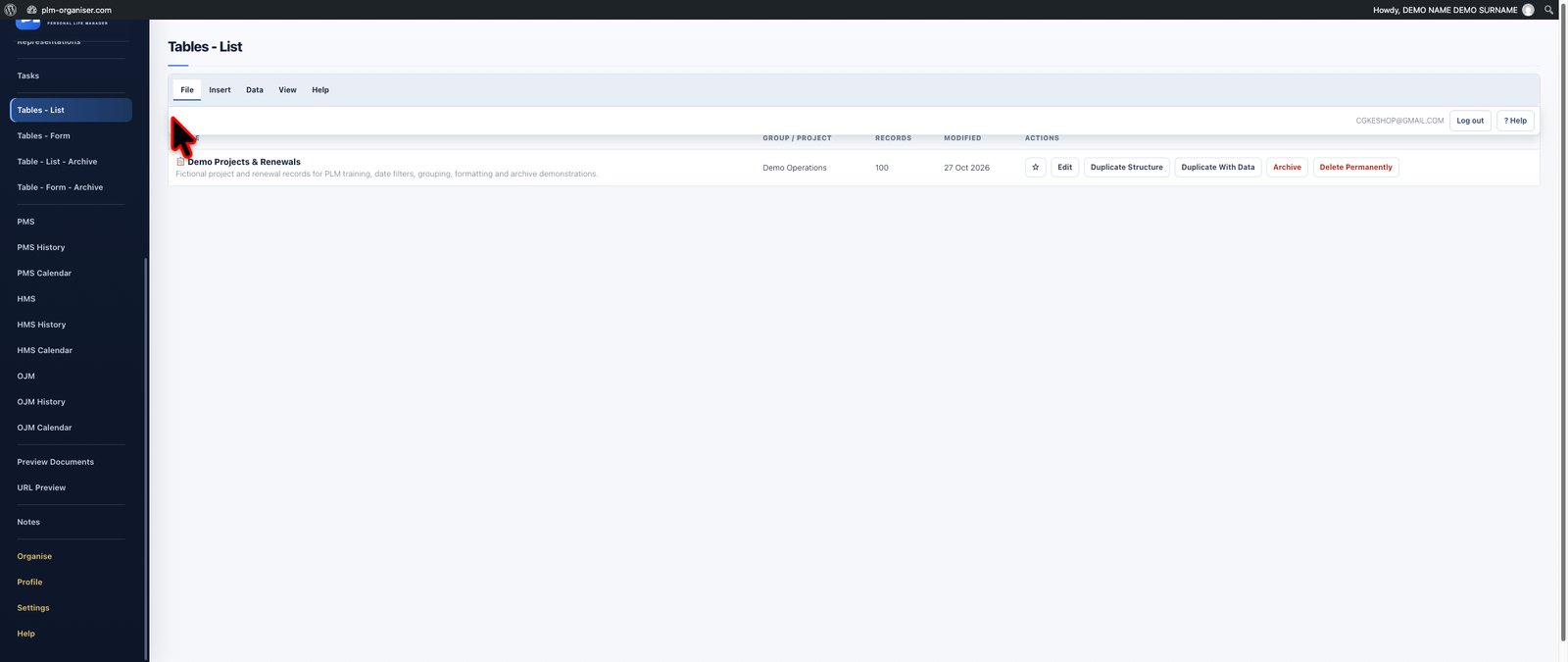
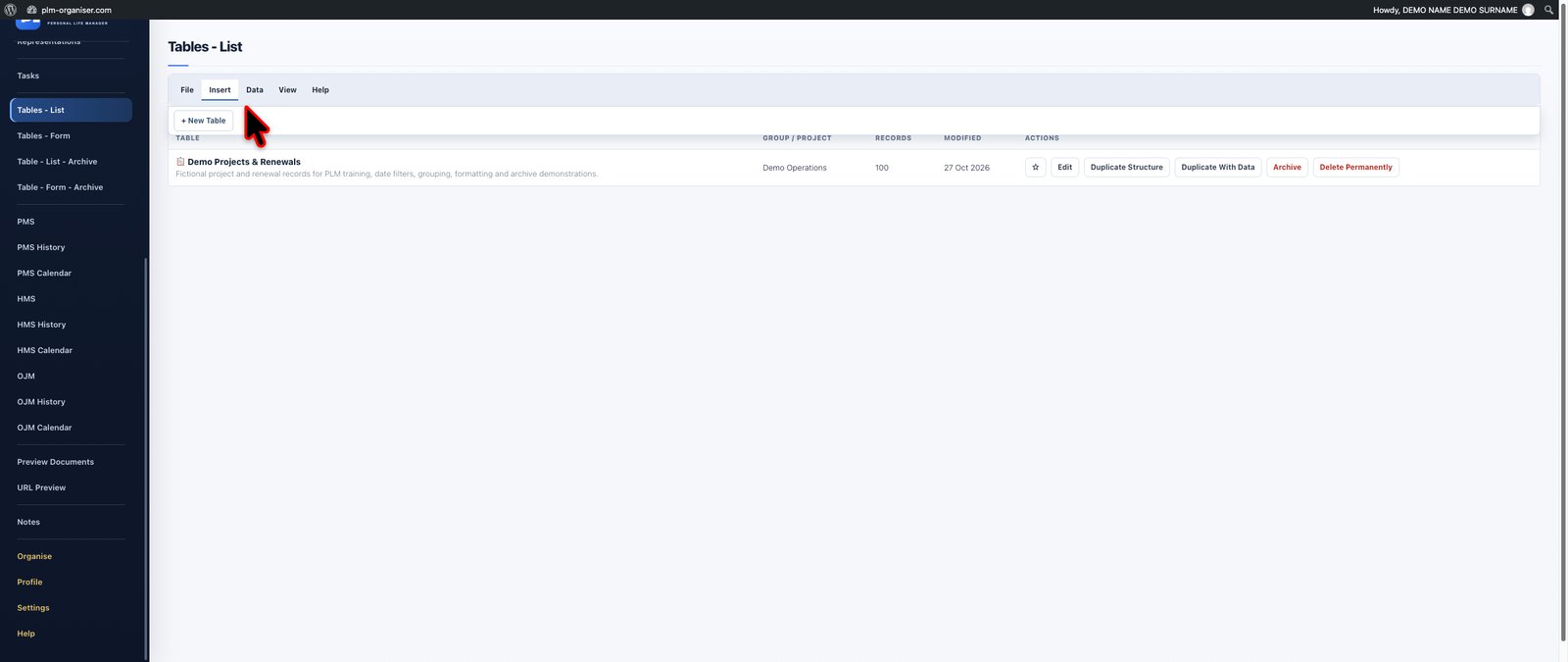
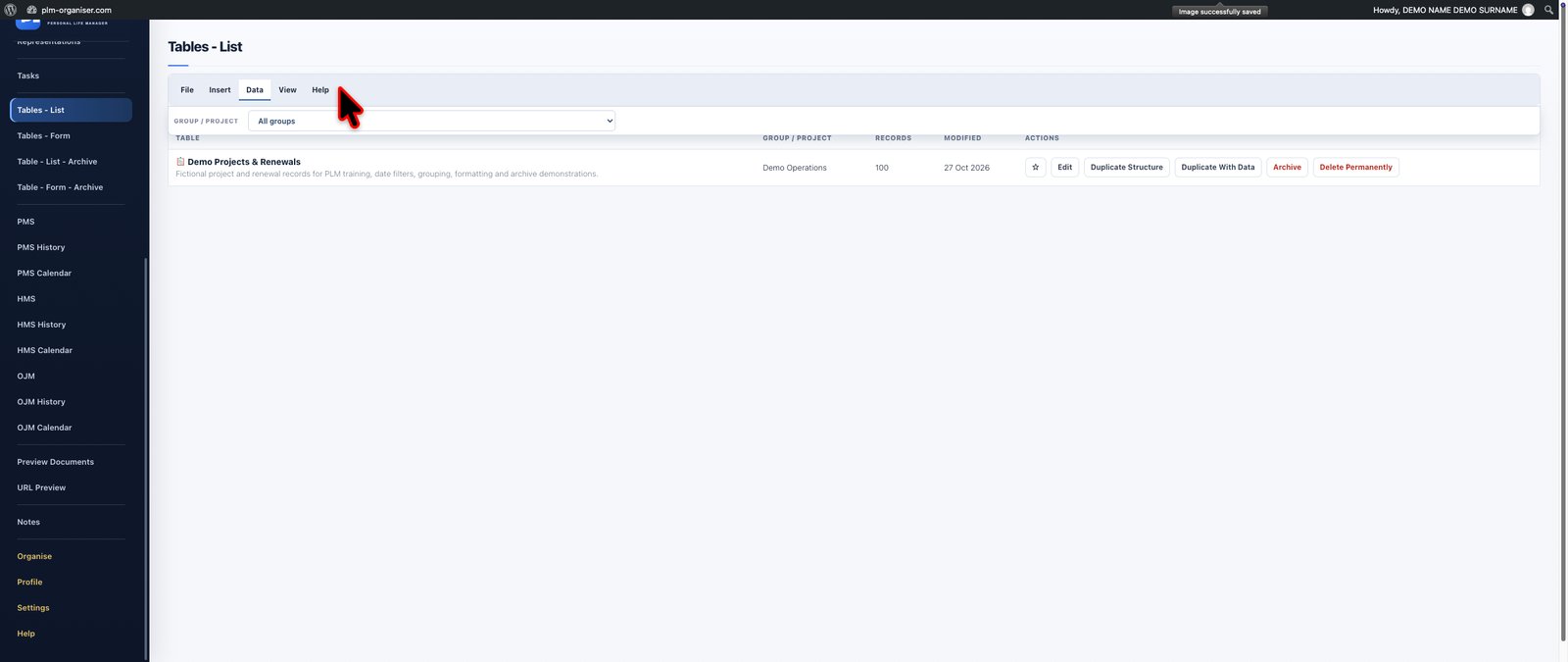
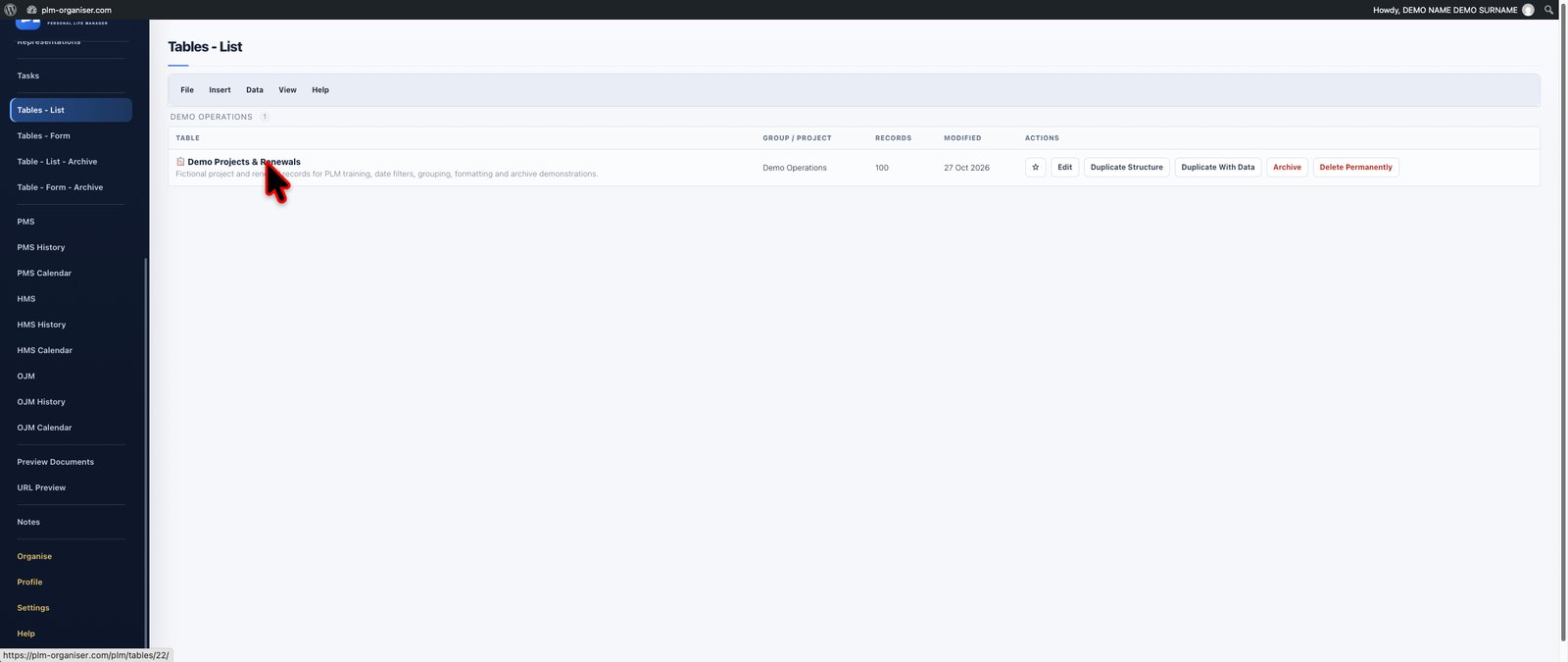
Start at My Tables and open the table you want to work in. The list of tables has tools for managing whole tables; an opened table has the spreadsheet controls for its records. Empty table-only tabs are hidden on My Tables. Help on the toolbar opens the full app Help page.
Tab
Typical work
File
Return to My Tables and access account actions.
Insert
Create records or fields where offered; insert emoji into text cells.
Edit
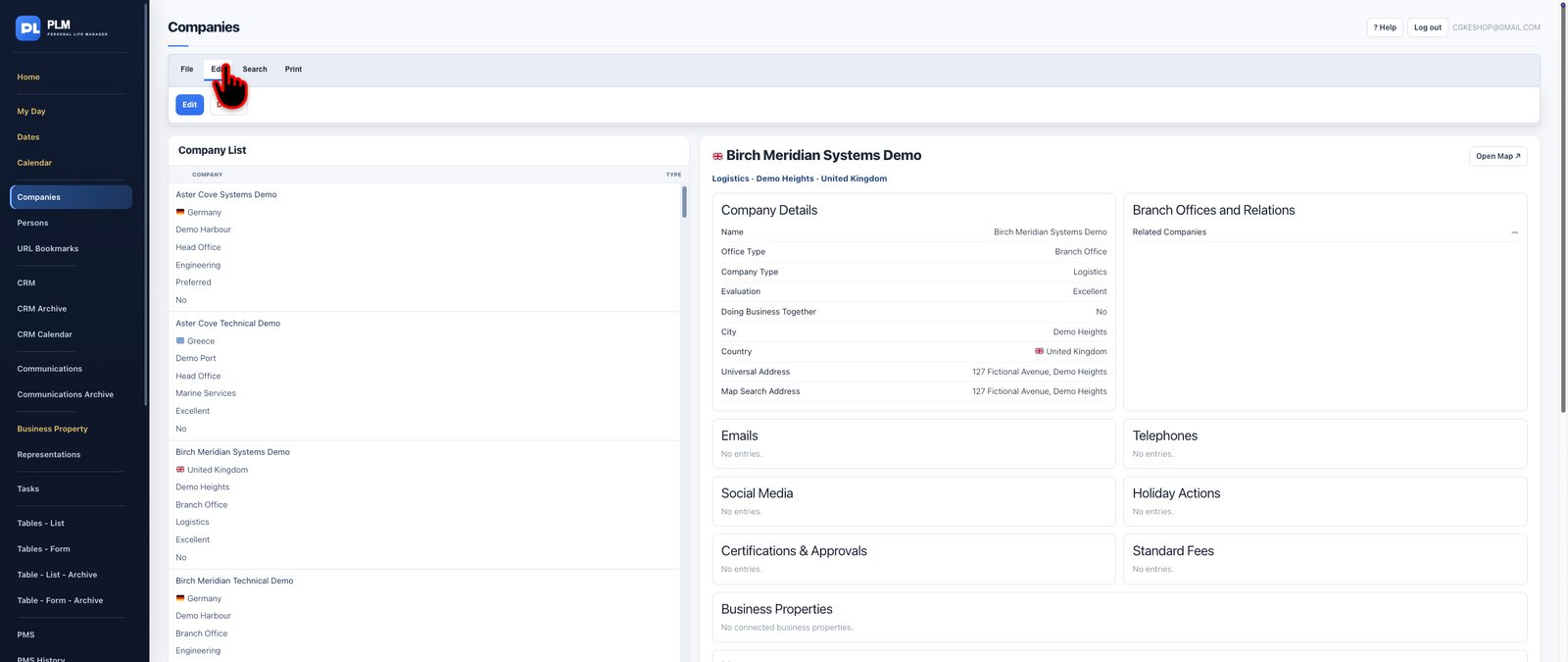
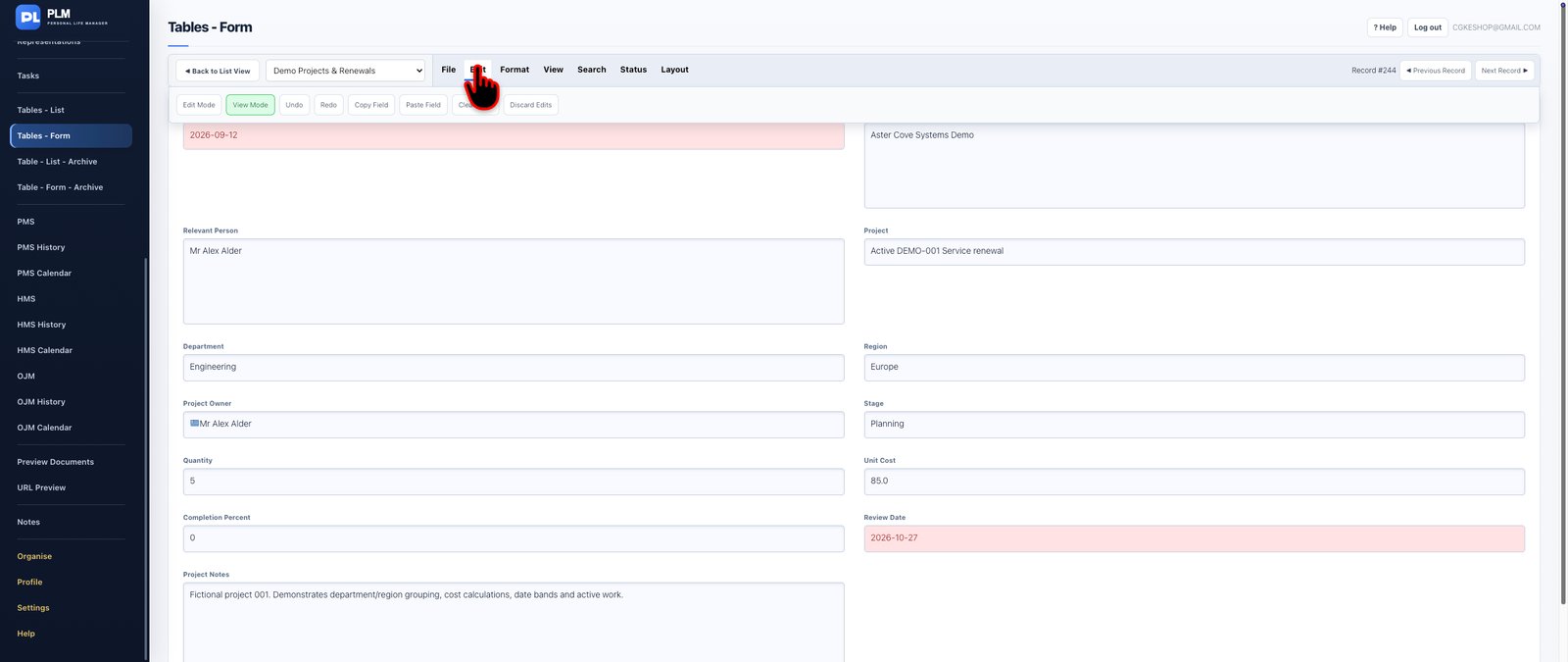
Choose Edit Mode or View Mode; copy/paste cells, fill up/down, Undo/Redo and comments.
Format
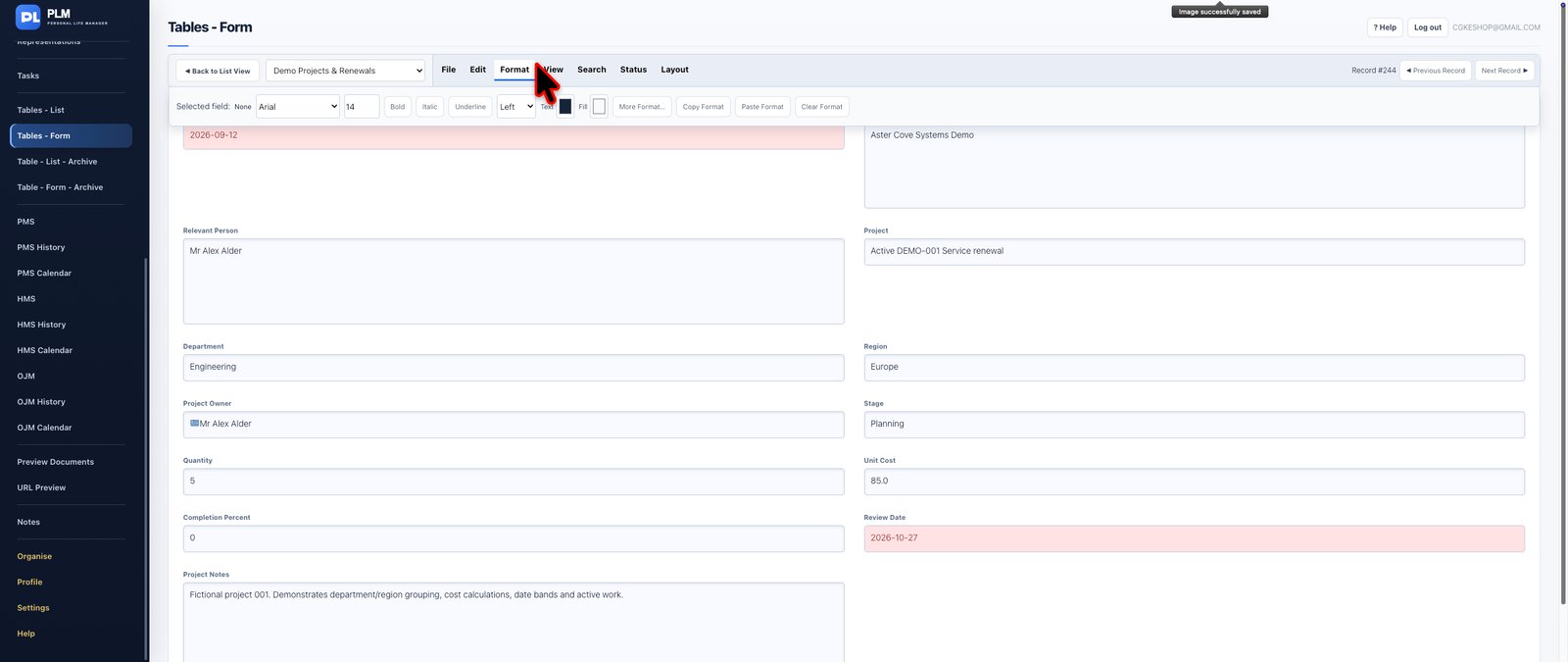
Style headings or cells; fonts, alignment, colours, text display, value formats and conditional rules.
Search
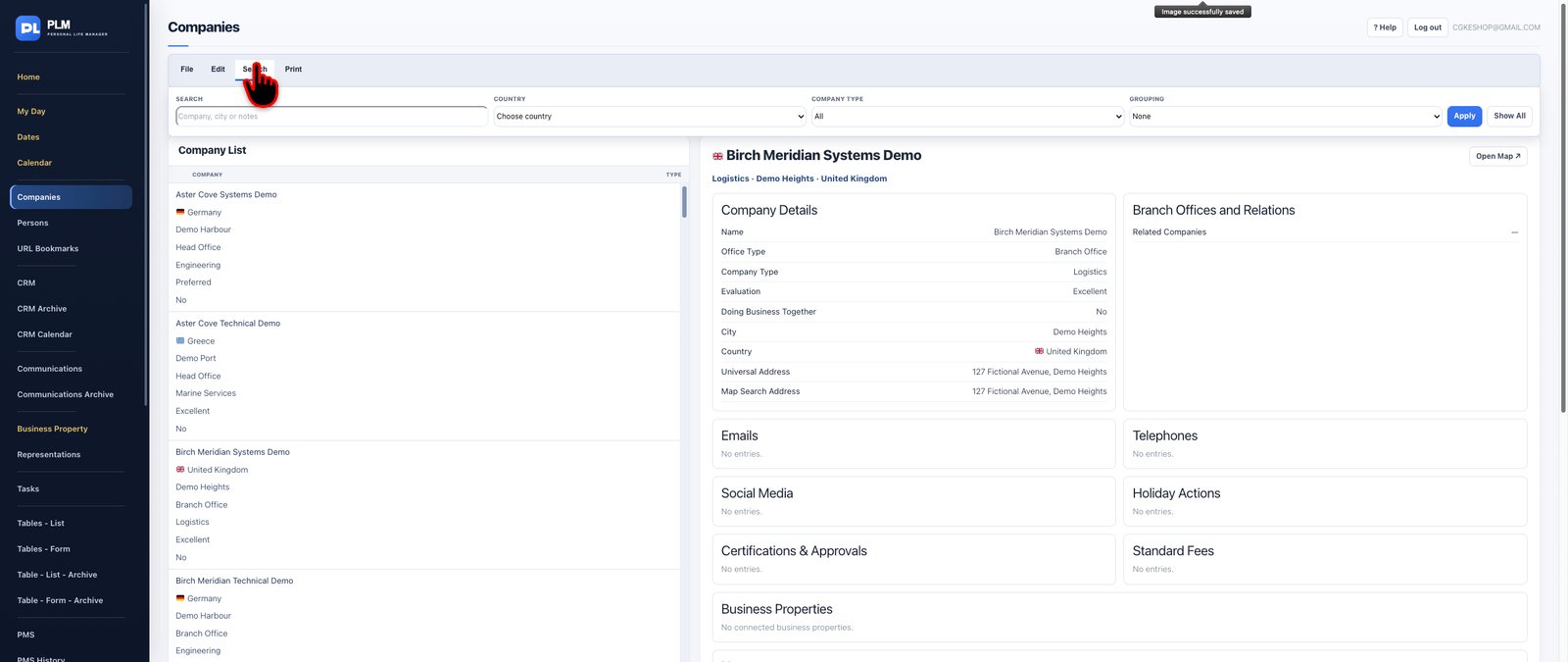
Search/filter records and use Find & Replace.
Data
Available CSV actions, quick sorting and column rules.
Calculations
Arithmetic, IF/AND/OR, date calculations, table lookups, totals, group subtotals and instructions.
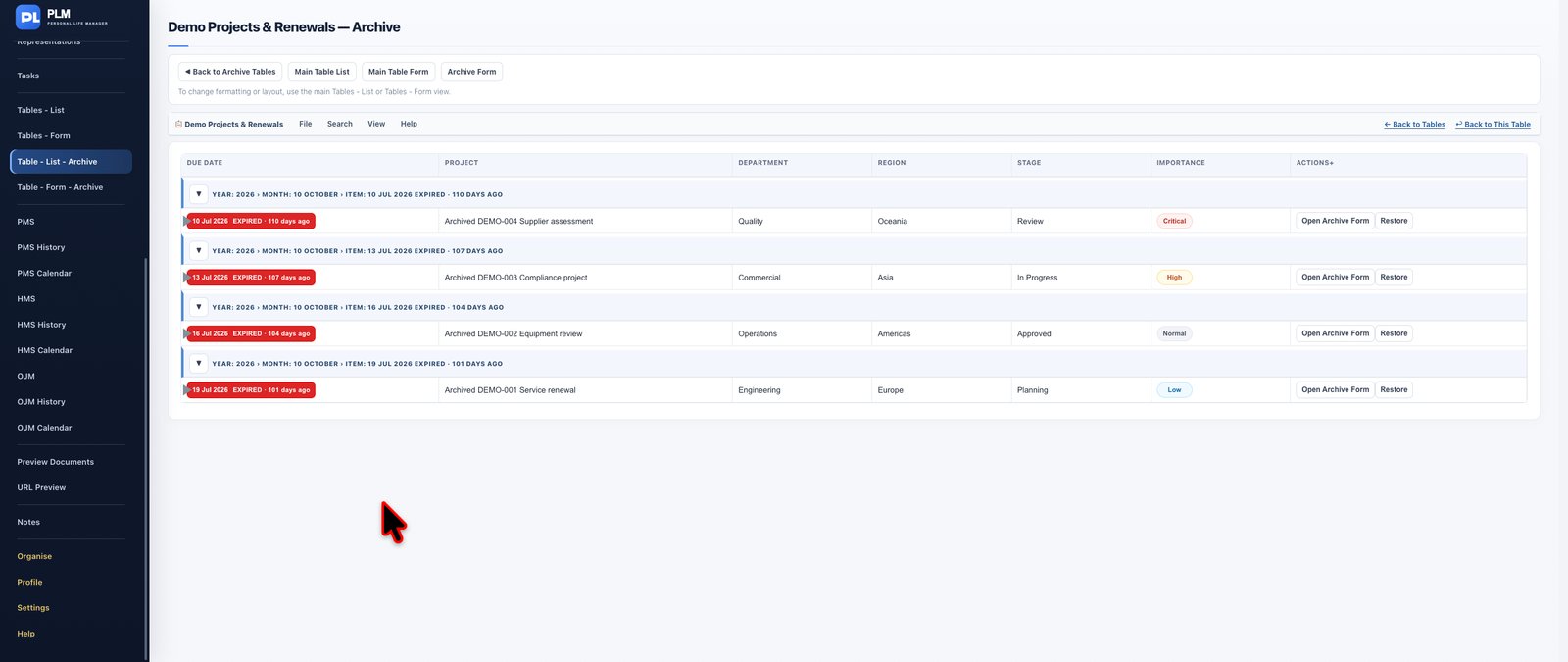
Review archived records and restore them where available.
Demo Data
Create/remove demonstration content and access the separately marked Delete All Records action.
Print
Open the current view or all records in the existing print route.
Table Setup
Add/edit field definitions, required fields, dropdown choices, linked tables and Main Fields.
Some controls depend on whether you are viewing records, archive or setup, and whether you own the workspace. If a tool is unavailable, open the table's Records view first. Calculations and record formatting belong inside a table, not the My Tables list.
2. Selecting one cell, many cells or several columns
2. Selecting one cell, many cells or several columns
Step-by-step workflows with practical examples: select and edit cells, format headings and data, configure dropdowns and linked records, build calculations and lookups, use dates, comments, emoji, fill and saved views, and check account saves.
PLM workspace screenshot · Select the image to open it at full size.
Click a data cell once to select it. A selection outline is not a permanent background colour.
For a rectangle, click its first cell and Shift-click its opposite corner. Start with one cell, then use Shift plus an arrow key outside an active editor to extend the selection.
Hold Ctrl on Windows or Cmd on macOS while clicking cells to add separate selections. Clicking an already selected cell with the modifier can remove it from the selection.
Click a column title to select its displayed cells. Shift-click another title to select the columns between them. Ctrl/Cmd-click titles for non-adjacent columns.
After selecting a grid cell, Ctrl/Cmd+A selects the grid cells. An active text editor keeps its normal select-all-text behaviour.
Click empty space outside the table/tools to clear the selection. Escape is also available. Clicking a toolbar control preserves the selection so it can act on it.
Example: style three columns. Click the first title, Shift-click the third title, open Format, choose Column cells only and apply a pale background. Choose Heading + column cells instead when you want the titles styled too.
Choose a rectangular range for clipboard and fill operations. A scattered selection is useful for formatting, but does not define a rectangle for copying. The blue square at a selected range's bottom-right is the fill handle; it is not a column-moving handle.
3. Editing values and using the keyboard safely
3. Editing values and using the keyboard safely
Step-by-step workflows with practical examples: select and edit cells, format headings and data, configure dropdowns and linked records, build calculations and lookups, use dates, comments, emoji, fill and saved views, and check account saves.
PLM workspace screenshot · Select the image to open it at full size.
Double-click an editable data cell. Text/number fields open an input; dropdown fields open a choice control.
While editing text, use Left/Right arrows, Shift+arrows and normal word-navigation keys to move or select text without saving.
Enter saves and moves to the next row; Shift+Enter reverses direction. Tab saves and moves to the next column; Shift+Tab reverses direction.
Escape cancels the unsaved edit. Clicking away commits the value. Wait for a save/error message before repeating an action.
Calculated fields are read-only: change a source value or edit their calculation definition. Protected fields are also read-only until the owner unlocks them through Column Rules. Types not supported by inline editing use the ordinary Edit Record form. Date, relationship and checkbox fields can be edited through that form.
A failed validation keeps the edit available for correction. If another session changed the value after you opened the page, the server reports a conflict instead of overwriting it silently. Reload and review the current record. Changing a sort/group field can move the row after a successful save; the record has moved in the view rather than disappeared.
Add blank rows directly: Click the + beneath Table view to create a saved empty row without opening a form. Click again to add more rows. Double-click a supported cell to type; Enter or Tab saves, Escape cancels. Blank rows remain after reopening the table and count toward the trial record limit. Required fields can be filled later; their normal validation applies when editing them. Column formatting applies automatically. View Mode disables adding. Unsupported cell types retain their existing record editor. The Insert → Add Record action still opens the full form.
Group formatting: Click a group heading, then use Format. Or choose Group Headings or Subtotals in Format target. Font, size, letter spacing, bold/italic, alignment and background/text colours apply independently to the chosen target in this table, and save to your account. Calculation subtotal rows default to white and regular weight; group headers keep their original appearance. Grand totals retain their separate display. This changes appearance, not grouping-field values.
Duplicate a record: Select a cell in one row, then press ++ beside the bottom +. The existing duplicate action copies its stored values and reloads the table. The source record remains. Finish editing before duplicating; View Mode disables this action. Multiple selected rows must be narrowed to one. The trial record limit applies.
4. Column order, width, row height, Main Fields and visibility
4. Column order, width, row height, Main Fields and visibility
Step-by-step workflows with practical examples: select and edit cells, format headings and data, configure dropdowns and linked records, build calculations and lookups, use dates, comments, emoji, fill and saved views, and check account saves.
PLM workspace screenshot · Select the image to open it at full size.
Drag a column title onto another title to move the displayed column. Main Fields remain pinned together at the left.
Drag the narrow right-edge handle on a title to change its width. Double-click the handle to fit the displayed text, within the tool's fit limit.
Use Format → Text Display for Wrap Text, Auto-Expand Width or Fixed Width — No Wrap. Wrapping can increase row height; fixed width can hide overflow until you edit or widen the column.
The small grip at a record row's right edge changes its display height.
Under Table Setup, select Main Fields to keep important identifiers at the left. Main Field status does not assign an automatic colour.
Under View → Visible Columns, tick the fields you want and press Apply View at the top of the popup. Several choices can be made before applying. The Apply button stays visible while the list scrolls.
Hiding a column does not delete its data. Table Setup field visibility and a view's Visible Columns selection are separate choices. Showing a view column does not override a field that is hidden in setup. Column order/width, row heights, formatting and freeze preferences save with your account. Selecting a column when applying formatting sets defaults for future rows; individual-cell formatting sets exceptions.
5. Creating Excel-style dropdown cells and a custom Status field
5. Creating Excel-style dropdown cells and a custom Status field
Step-by-step workflows with practical examples: select and edit cells, format headings and data, configure dropdowns and linked records, build calculations and lookups, use dates, comments, emoji, fill and saved views, and check account saves.
PLM workspace screenshot · Select the image to open it at full size.
Open Table Setup and Add Custom Field. Give the field a clear name, such as Status or Delivery Method.
Choose Field Type → Dropdown. Enter choices in Dropdown Options, separated by commas, for example Open, In Progress, Closed.
Mark the field Required only if every record must have a value. Press Add Field.
Create/edit a record and choose an option. In Edit Mode, double-click a dropdown cell and select a permitted value; the selection saves.
To update the choices later, edit that field in Table Setup. Review existing records before removing choices they currently use.
Custom Status. Create a Dropdown named Status with your own values, such as To Do, Doing, Waiting, Done. Group by that custom Status field under View, or use it in an IF condition. The removed built-in record Status column is not your custom field.
The configured list validates normal form and spreadsheet values. Pasting a label that is not an allowed choice is rejected. A comma separates options, so do not use this entry box as an Excel formula or as a multi-choice text format. For multiple linked records use the relationship field type described below. Visible Columns, Grouping and Sorting pickers stay open while you choose; click Apply View, outside the popup or Escape when finished.
6. Creating relationships between records in different tables
6. Creating relationships between records in different tables
Step-by-step workflows with practical examples: select and edit cells, format headings and data, configure dropdowns and linked records, build calculations and lookups, use dates, comments, emoji, fill and saved views, and check account saves.
PLM workspace screenshot · Select the image to open it at full size.
A relationship stores a reference to a particular record, rather than copying a matching text label. Use it when an order belongs to a customer, an asset belongs to a location, or an activity relates to several people.
Create the target table and some target records first. Give its first custom field a useful identifying value, such as Customer Name; this is used for linked-record labels.
Open the source table → Table Setup → Add Custom Field.
Choose Linked Record for one target or Linked Records (Multiple) for several targets.
Choose the target under Link to Table, name the field and save it.
Use Add/Edit Record to select the target record(s). The grid shows their labels. Use the record workspace's linked-record entries to open available targets.
Customers and Orders. Customers has Customer Name and Customer Code. Orders has Order Number and a Linked Record field called Customer targeting Customers. Edit Order 1001 and choose Customer “Maria Example”. A multi-link field could instead associate one project with several assets.
Linked records must belong to the same workspace and the chosen target table. Archiving/deleting a target can make a relationship unavailable; inspect dependent records before removing targets. Relationship selection does not automatically add every target field to the source grid. There is no graphical relationship-map editor in this version.
7. Relationship versus lookup: which connection should I use?
7. Relationship versus lookup: which connection should I use?
Step-by-step workflows with practical examples: select and edit cells, format headings and data, configure dropdowns and linked records, build calculations and lookups, use dates, comments, emoji, fill and saved views, and check account saves.
PLM workspace screenshot · Select the image to open it at full size.
Requirement
Use
How it connects
Choose which customer belongs to an order
Linked Record
Select a particular customer record
Choose several people for a project
Linked Records (Multiple)
Select several target records
Show a product price next to a product code
Table Lookup calculation
Match the code against another table's stored field
For a lookup, prepare a source table Products with Product Code and Price. Create a row P100 with Price 25.
In Orders, create Product Code and enter P100 in an order.
Choose Calculations → Table Lookup. Select the current Product Code as the value to match, Products as the table, its Product Code as the match field and Price as the return field.
Choose an appropriate result type, name the calculated field and save. The order displays 25. It can be formatted as currency.
No relationship field is required for this matching lookup. Keep source keys unique: duplicate matching active rows give #MULTIPLE!. Matches ignore case and surrounding spaces. A lookup returns a stored field, not an arbitrary column joined from a relationship. Refresh the dependent table after changing a source elsewhere. A lookup is a live value, so use a separate stored price when you need an historical transaction snapshot.
8. Dates, due/reference dates, urgency colours and date formats
8. Dates, due/reference dates, urgency colours and date formats
Step-by-step workflows with practical examples: select and edit cells, format headings and data, configure dropdowns and linked records, build calculations and lookups, use dates, comments, emoji, fill and saved views, and check account saves.
PLM workspace screenshot · Select the image to open it at full size.
Use Date for a calendar day and Date & Time when you need a time. The table's Due / Reference Date is also used by date-focused views such as Dates and Calendar; another custom Date field does not automatically become that reference field.
Relative day
Badge state
Before today
Expired, with days ago
Today
Today
1–7 days ahead
Within the week
8–30 days ahead
Within the month
31–183 days ahead
Within approximately six months
Later
Later-date state
Enter valid dates through the record date control. For a plain stored date or calculation literal use YYYY-MM-DD, such as 2026-10-19.
To change presentation, select the cells/column and choose Format → Date format. Choose DD/MM/YYYY, MM/DD/YYYY, YYYY-MM-DD, long date or date with time.
The choice changes the label; it keeps the underlying date, urgency badge and day count. Date-only values do not acquire an invented time.
Use date calculations for days remaining, days overdue, B−A or adding/subtracting whole days. See the worked date chapter below.
The Settings page controls regional/time presentation; the calculation Today reference and urgency badge use the server/WordPress date context. If “today” is unexpected, check the site's and account's timezone settings rather than entering a different date to compensate. Conditional background rules leave date badges' automatic colours intact.
9. Adding, reading, editing and removing cell comments
9. Adding, reading, editing and removing cell comments
Step-by-step workflows with practical examples: select and edit cells, format headings and data, configure dropdowns and linked records, build calculations and lookups, use dates, comments, emoji, fill and saved views, and check account saves.
PLM workspace screenshot · Select the image to open it at full size.
Select one cell, then Edit → Comment. Enter a note and choose Save Comment.
A small red triangle at the top-right marks the saved comment. Hover over the cell to read it.
Select the same cell and open Comment to edit the note or remove it using Remove Comment.
View Mode allows reading; switch to Edit Mode for changes. Comments can be up to 5,000 characters.
Comment versus value. Keep Amount as 125.00 and add “Waiting for supplier invoice” as its comment. Arithmetic still uses 125.00. The red triangle is the comment marker; the blue bottom-right square is the fill handle.
Comments are stored separately from values and follow the record/field when columns move. They are not included in cell-value Undo/Redo. If a comment changed in another session, review the conflict rather than overwriting it blindly. A comment is a note on one cell, not an additional data row or a formula.
10. Using the Insert Emoji picker
10. Using the Insert Emoji picker
Step-by-step workflows with practical examples: select and edit cells, format headings and data, configure dropdowns and linked records, build calculations and lookups, use dates, comments, emoji, fill and saved views, and check account saves.
PLM workspace screenshot · Select the image to open it at full size.
Select one editable Text or Long Text cell, then Insert → Insert Emoji.
Search by a word such as done, warning, phone or family. Optionally choose Common, Faces, Work or Life.
Choose an emoji. In a selected non-editing cell, PLM adds it after existing text and saves the result; an empty cell receives only the emoji. Undo can reverse this saved cell-value change.
While editing text, keep the cursor where you want the emoji or select text to replace. Open Insert → Insert Emoji, or Ctrl/Cmd+Shift+E, and choose an emoji.
In an active editor, insertion changes the draft. Enter/Tab saves the cell; Escape cancels the draft. Closing/Escape in the picker returns to the editor.
Use “✅ Completed”, “⚠️ Check this”, “📞 Call customer” or a family emoji in a text field. Emoji appearance depends on the fonts installed on the device.
The picker does not write emoji into numeric/date/calculated or protected fields, or into a dropdown whose allowed choices would be violated. View Mode blocks insertion. It operates on one cell at a time, not every selected column.
11. Filtering, multi-level grouping/sorting and saved views
11. Filtering, multi-level grouping/sorting and saved views
Step-by-step workflows with practical examples: select and edit cells, format headings and data, configure dropdowns and linked records, build calculations and lookups, use dates, comments, emoji, fill and saved views, and check account saves.
PLM workspace screenshot · Select the image to open it at full size.
Use Search for the search term and available filters. Apply the filter or use Clear to remove it.
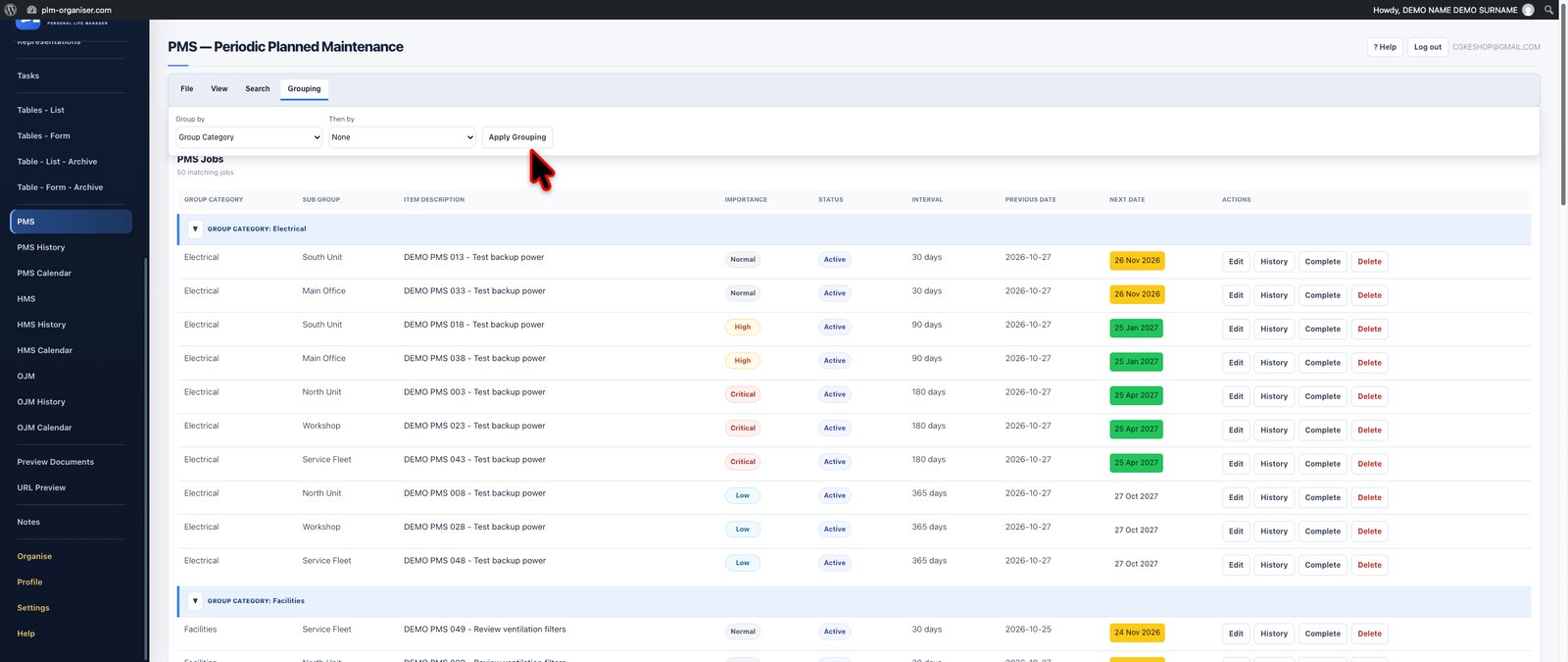
Open View → Grouping. Assign levels 1, 2, 3 or 4 to fields, using each level once. Example: custom Status at level 1 and Category at level 2.
Open View → Sorting. Choose up to four sort levels and ascending/descending for each. Example: Customer first, Due Date second and Amount third.
Use Apply View at the top of a picker to submit the choices. Fields in a portalled picker still belong to the correct filter form.
Save a named view through Saved View Setup when you want to return to that combination. Choose it again from Saved View.
Grouping determines the outer record sections; sorting orders records within them. Ordinary filter/sort/group choices are remembered for the table/account. Formatting preferences are a separate account-saved layer. Cell edits, paste/fill and Undo/Redo update active sorting/grouping in place, including dependent calculated values returned by the save. They do not automatically reevaluate which records belong in a search/filter result; reapply the filter for that.
Changing a grouping value may move a row into another section. Changing a sort value may move it within a group. Numeric fields sort as numbers rather than as their formatted currency text. Formatting “20.00%” does not change the stored 0.2 used by calculations.
12. Conditional formatting and condition monitoring rules
12. Conditional formatting and condition monitoring rules
Step-by-step workflows with practical examples: select and edit cells, format headings and data, configure dropdowns and linked records, build calculations and lookups, use dates, comments, emoji, fill and saved views, and check account saves.
PLM workspace screenshot · Select the image to open it at full size.
Open Format → Conditional Formatting. Select the field or fields the rule should monitor.
Choose Equals, Contains, Number greater than, Number less than, Is empty or Is not empty.
Enter a comparison value where needed, choose a background colour, then Add rule.
Use Edit for changes, Duplicate for a similar rule, the up/down buttons to change priority, the checkbox to enable/disable, or Delete to remove it.
Rules save automatically and load on the same account's other computers when the table is reopened.
Examples. Custom Status equals Waiting → yellow. Amount greater than 1000 → pale red. Reference is empty → pale blue. Several selected fields can share one rule.
The last matching enabled rule wins when several rules apply to a cell. Conditional backgrounds take priority over its manual background; disabling the rule reveals the underlying format again. Date badges keep their urgency colours. These rules colour cells; they are not background monitoring jobs, messages or email alerts.
13. Copy, paste, auto fill, number sequences and history
13. Copy, paste, auto fill, number sequences and history
Step-by-step workflows with practical examples: select and edit cells, format headings and data, configure dropdowns and linked records, build calculations and lookups, use dates, comments, emoji, fill and saved views, and check account saves.
PLM workspace screenshot · Select the image to open it at full size.
Select a rectangular range and use Ctrl/Cmd+C or Edit → Copy Cells.
Select the top-left destination in the existing grid, then paste with Ctrl/Cmd+V or Paste Cells. Browser clipboard permissions may affect toolbar copy/paste; keyboard paste is the fallback.
A single pasted value can fill several selected cells. A multi-cell paste must be rectangular and fit the existing rows/columns.
Fill Down uses the top selected source row; Fill Up uses the bottom selected source row. Include both the source and destination rows in the selection.
For drag-fill, select one source or a rectangle, then drag the blue bottom-right square vertically. One value repeats, a block repeats, and evenly spaced numbers extend a sequence.
Undo/Redo affects recent value edits, including paste, fill, replace and selected-cell emoji insertion, within the current page session.
Source
Drag result
One cell “Weekly check”
Repeats the text
Two rows containing 1 and 2
Continues 3, 4, 5
Two rows containing 10 and 20
Continues 30, 40, 50
There must already be destination rows. Fill/paste does not create records or copy a calculated-field definition. Calculated columns already evaluate every record. Protected/calculated/system cells are excluded from editable targets. A batch supports up to 500 cell edits; invalid values or conflicting cells prevent that batch from partially saving.
History retains up to 50 cell-edit operations and clears on reload/navigation. Comments, field definitions, formatting and deletion have separate saves and are outside that value history. Copy/paste uses stored values, so currency symbols or a displayed percentage do not replace the underlying numeric value.
14. Record workspaces, archive, import/export, printing and demo data
14. Record workspaces, archive, import/export, printing and demo data
Step-by-step workflows with practical examples: select and edit cells, format headings and data, configure dropdowns and linked records, build calculations and lookups, use dates, comments, emoji, fill and saved views, and check account saves.
PLM workspace screenshot · Select the image to open it at full size.
Open on a record enters its detail workspace, where you can review custom values, available linked records and associated tasks. Use Edit Record for fields that are not supported by grid editing. Duplicate creates a separate record; it is not a linked view of the original.
Archive a record to remove it from the active view while retaining it for restoration through Archive.
Use permanent deletion only when you intend to remove the record and its stored values. Cell Undo does not restore deleted records.
For CSV import, include a header row matching the PLM custom field names. Use valid raw numbers/dates and permitted dropdown choices. Required fields and configured limits still apply. Import reports rows skipped for invalid input or duplicate warnings.
CSV export provides data; it is not a complete backup of formatting, comments, relationships, accounts and plugin settings. Review the actual available export action rather than assuming every Excel workbook option exists.
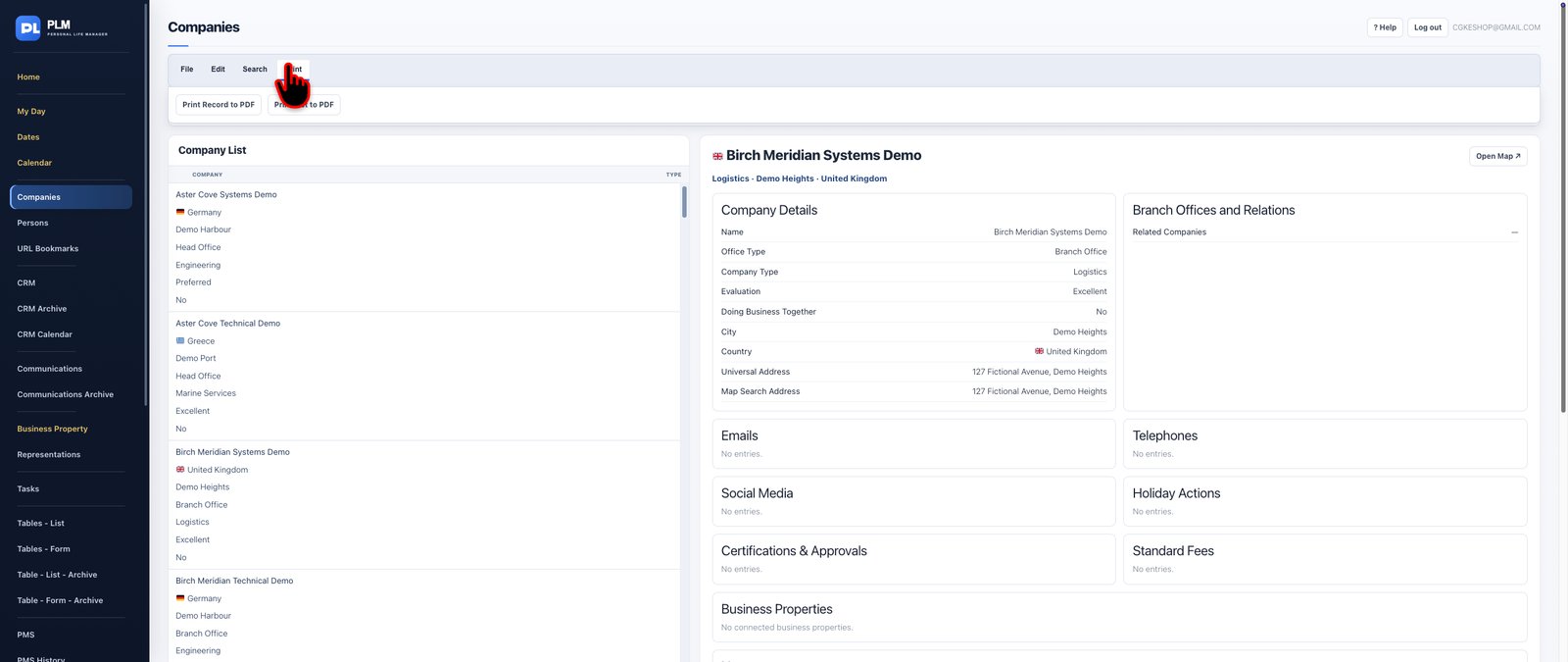
Use Print to open the current filtered view or all records. The browser's print dialog supplies paper size, orientation and Save as PDF.
Demo Data can add/remove demonstration content. The isolated red Delete All Records action is a separate, serious operation; do not use it to clear a formatting problem.
Before structural imports, mass deletion or plugin replacement, keep a normal site/database backup. Hiding a column or changing a format is a display action; deleting a field or record is a different operation.
Two separate deletion buttons: Delete all records in this table affects only the open table and requires DELETE THIS TABLE RECORDS. Delete all records in all tables affects every table in this workspace and requires DELETE ALL TABLES RECORDS. Both include archived records and are permanent. Table definitions remain. Export backups first; recovering a previous permanent deletion requires a database backup from before the deletion.
15. Saving, another computer and troubleshooting
15. Saving, another computer and troubleshooting
Step-by-step workflows with practical examples: select and edit cells, format headings and data, configure dropdowns and linked records, build calculations and lookups, use dates, comments, emoji, fill and saved views, and check account saves.
PLM workspace screenshot · Select the image to open it at full size.
Formatting saves automatically to your account; no Save Formatting button is needed.
If “Formatting not synced” appears, use Retry Saving Formatting. Keep the page open until it succeeds. In-app navigation waits for pending formatting saves rather than leaving immediately.
If another computer shows old preferences, confirm the same account/table, then reopen or reload that table. Open pages do not receive real-time push synchronization.
For pre-sync settings, use the original home browser. Import Earlier Formatting From This Computer replaces matching preferences with that browser's earlier choices. Keep its site data until recovery is finished.
If a colour seems ineffective, check the format target, enabled conditional rules, date badges and whether the intended cells are selected.
If an edit is rejected, check Edit Mode, calculated/protected status, required inputs, numeric/date limits, dropdown choices and duplicate warnings.
Earlier settings cannot be reconstructed if their original browser data was cleared and no saved copy exists. A plugin update does not itself prove that an old browser's settings were recovered. A browser page reload also clears value-edit Undo history.
For more modules, use the other searchable sections of main Help. This table guide describes the controls implemented in this release. It does not claim all Excel functions, typed workbook formulas, macros, pivot-table editors or a graphical relationship map.
16. Create, edit and use a calculation
16. Create, edit and use a calculation
Step-by-step workflows with practical examples: select and edit cells, format headings and data, configure dropdowns and linked records, build calculations and lookups, use dates, comments, emoji, fill and saved views, and check account saves.
PLM workspace screenshot · Select the image to open it at full size.
Create the source fields under Table Setup. Use Number or Currency for arithmetic, and Date or Date & Time for date operations.
Open Calculations. Choose Add Calculation, IF / AND / OR, Date Calculation or Table Lookup.
Enter a clear field name, such as Total Cost, Days Remaining or Payment Status.
Choose the inputs and operation. Select decimal places for numeric results, where offered.
Press Add Field. The new calculated column applies to existing and future records.
To change a definition, choose Manage Calculations, find the field in Table Setup and use its Edit action.
Calculated cells are read-only. Change their source values or their field definition. Use Edit Mode for source-cell edits. Double-click a cell to edit. Arrow keys move within the editor; Enter or Tab saves and moves to another cell, Shift reverses direction, and Escape cancels. Source fields used by a calculation cannot be removed without changing the calculation first.
17. Arithmetic: all four supported operations
17. Arithmetic: all four supported operations
Step-by-step workflows with practical examples: select and edit cells, format headings and data, configure dropdowns and linked records, build calculations and lookups, use dates, comments, emoji, fill and saved views, and check account saves.
PLM workspace screenshot · Select the image to open it at full size.
Operation
Example setup
Inputs
Result
Add +
Subtotal + Delivery
100 + 8
108.00
Subtract −
Revenue − Cost
150 − 95
55.00
Multiply ×
Quantity × Unit Price
4 × 12.50
50.00
Divide ÷
Total Cost ÷ Quantity
75 ÷ 3
25.00
Worked example: Total Cost. Create Quantity as Number and Unit Price as Currency. Open Add Calculation, name it Total Cost, choose First field = Quantity, Operation = Multiply ×, Second field = Unit Price, Decimal places = 2. A record with Quantity 4 and Unit Price 12.50 displays 50.00.
Use a fixed number
For the second operand, select Use a fixed value and enter the number. For example, Price × 0.9 calculates 90% of the price. Price ÷ 100 converts the price to one hundredth of its value. A negative fixed number is allowed.
Percentages, discounts and margins
PLM does not interpret a percent sign as a formula operator. Express the rate as a decimal or calculate it in a separate field.
Each intermediate calculated field rounds to its configured decimal places. Use more decimals, up to eight, for intermediate rates when rounding could affect the final result. Blank inputs produce a blank arithmetic result; zero remains a real numeric value.
18. IF: choose a result based on a condition
18. IF: choose a result based on a condition
Step-by-step workflows with practical examples: select and edit cells, format headings and data, configure dropdowns and linked records, build calculations and lookups, use dates, comments, emoji, fill and saved views, and check account saves.
PLM workspace screenshot · Select the image to open it at full size.
The structure is IF a condition matches, THEN return one result, ELSE return another result. Select a field, a comparison, and either a fixed comparison value or another field.
Comparison
Example
Matches when
Equals
Status equals Completed
The two values match, ignoring text case
Does not equal
Status does not equal Completed
The values differ
Greater than
Quantity > 10
Quantity is 11 or more for whole numbers
Greater than or equal
Quantity ≥ 10
Quantity is at least 10
Less than
Paid Amount < Total Amount
The paid value is smaller
Less than or equal
Stock ≤ Minimum Stock
Stock has reached or fallen below the limit
Is empty
Reference is empty
No non-space value is present
Is not empty
Email is not empty
A value is present
Contains text
Description contains urgent
The text contains that word or phrase, ignoring case
Worked example: Order Size. Choose IF / AND / OR. Name = Order Size. Condition field = Quantity; Comparison = Greater than; Compare with = Use a fixed value; Fixed comparison value = 10. THEN = Use a fixed value, result = Bulk order. ELSE = Use a fixed value, result = Standard order. Result type = Text. Quantity 12 gives Bulk order; Quantity 10 gives Standard order.
Worked example: Payment Status. Condition field = Paid Amount; Comparison = Less than; Compare with = Total Amount. THEN fixed result = Unpaid; ELSE fixed result = Paid. Choose Text. Paid Amount 80 and Total Amount 100 gives Unpaid.
THEN and ELSE result types
Text: labels such as Paid, Unpaid, Review or a blank value.
Number: a fixed number or the value from a numeric field. Numeric IF results can feed arithmetic calculations, totals and charts.
Date: a valid date written as YYYY-MM-DD or a date field. The result receives PLM date colours.
To use an arithmetic expression in a branch, create that calculation as its own field, then select that field as the THEN or ELSE result. You cannot type “Quantity × Price” into a fixed result box and have it evaluated.
Numeric IF example. Name = Outstanding For Open Records. Condition = Status equals Completed. THEN fixed number = 0. ELSE field = Outstanding Amount. Result type = Number. This field can be summed to show the outstanding amount for records that are not completed.
Number-to-number comparisons are numeric, so 10 is greater than 2. Text comparisons ignore case. Use Is empty to test blanks explicitly. For date comparisons, use Date fields/ISO dates or first calculate Days Remaining and compare that number.
19. AND and OR: combine up to eight conditions
19. AND and OR: combine up to eight conditions
Step-by-step workflows with practical examples: select and edit cells, format headings and data, configure dropdowns and linked records, build calculations and lookups, use dates, comments, emoji, fill and saved views, and check account saves.
PLM workspace screenshot · Select the image to open it at full size.
Use + Add Condition. Every visible row with a chosen field contributes to the test. Remove a row with its Remove button.
Rule
Meaning
Example
AND
Every condition must match
Outstanding Amount > 0 AND Days Remaining < 0 → Overdue
OR
At least one condition must match
Importance equals Critical OR Days Remaining < 0 → Review now
Worked AND example. Create Days Remaining using the date operation below. Create an IF field named Collection Flag. Combine conditions = AND. Condition 1: Outstanding Amount > fixed 0. Condition 2: Days Remaining < fixed 0. THEN text = Overdue payment. ELSE text = blank. A record must be unpaid and overdue to receive the flag.
One IF definition uses either AND for all its rows or OR for all its rows. For mixed logic such as (A AND B) OR C, create one IF field for A AND B returning numeric 1/0, then a second IF field using OR to compare the first result to 1 and test C. This is how you build more complex logic through named fields without typing a formula language.
20. Date calculations: all supported operations
20. Date calculations: all supported operations
Step-by-step workflows with practical examples: select and edit cells, format headings and data, configure dropdowns and linked records, build calculations and lookups, use dates, comments, emoji, fill and saved views, and check account saves.
PLM workspace screenshot · Select the image to open it at full size.
Choose Date Calculation. Date A can be a Date/Date & Time field, another date-result calculated field, or Today. Dates use the WordPress site's timezone. Time-of-day is ignored for day calculations.
Operation
Calculation
Example using Today = 19 Oct 2026
Days remaining
Date A − Today
24 Oct → 5; 17 Oct → −2
Days overdue
Today − Date A, with minimum 0
17 Oct → 2; 24 Oct → 0
Days between two dates
Date B − Date A
A = 19 Oct, B = 25 Oct → 6
Add/subtract days
Date A + a whole number of days
19 Oct + 30 → 18 Nov
Maintenance example. Create Last Service as Date and Interval Days as Number. Add a date calculation named Next Service. Operation = Add or subtract days; Date A = Last Service; Days to add = Interval Days. If Last Service is 19 Oct and Interval Days is 30, Next Service is 18 Nov. A second field, Days Until Service, can calculate days remaining from Next Service.
For a fixed interval, choose a fixed value under Days to add. A negative value subtracts days. The days value must be a whole number from −999999 to 999999. These are calendar days, including weekends; working-day/holiday calculations and adding calendar months or years are not included.
Date colours
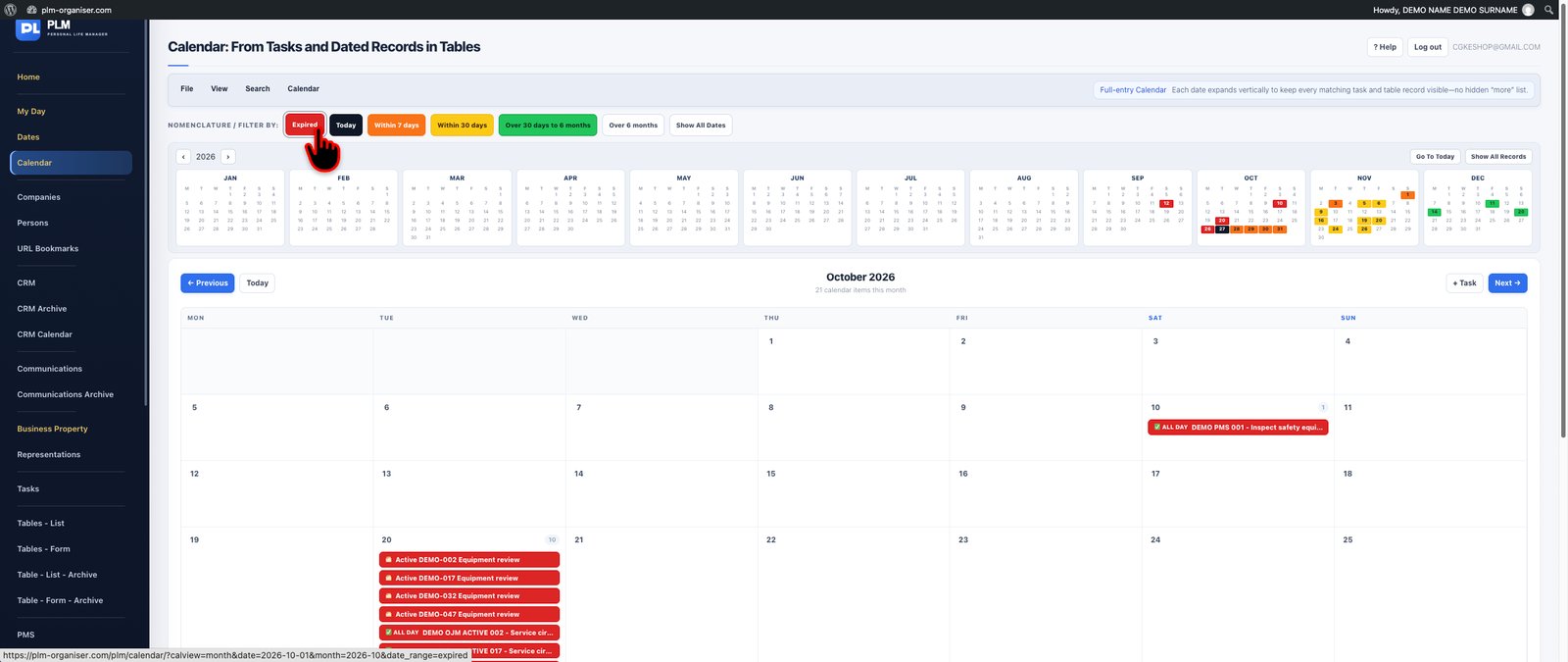
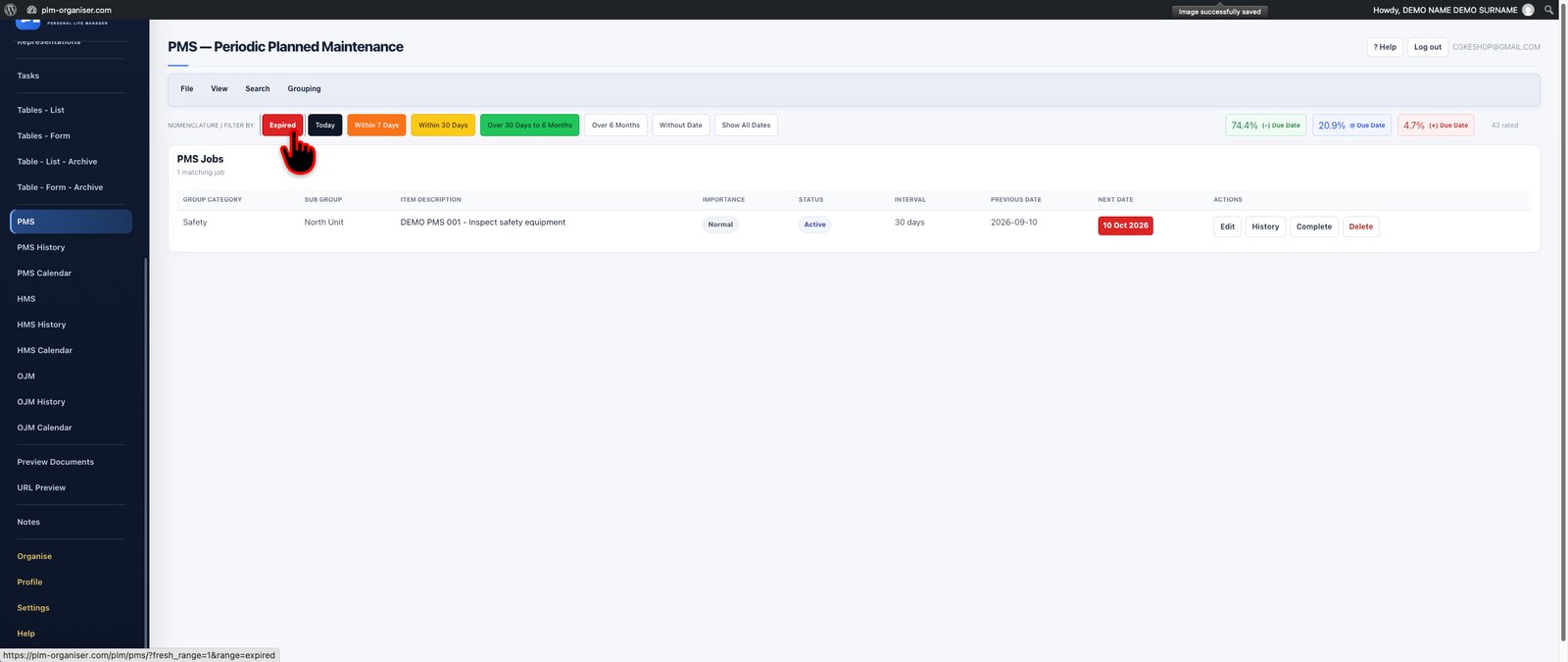
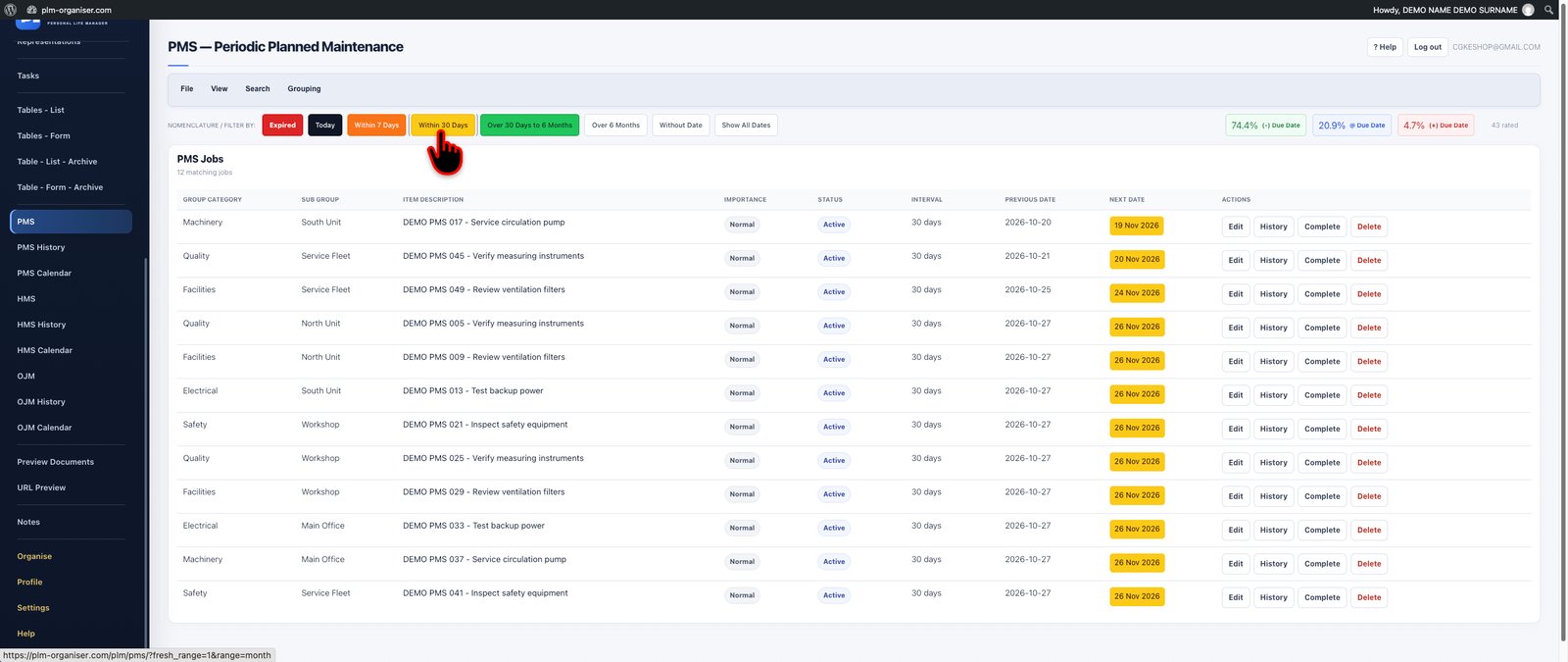
Calculated date results use the same date badges as ordinary date fields: red for expired, black for today, orange within seven days, yellow for eight to thirty days, green for over thirty days through six months, and no colour beyond six months. Blank source dates produce a blank result. A page reload refreshes Today-dependent results after the date changes.
21. Cross-table lookups
21. Cross-table lookups
Step-by-step workflows with practical examples: select and edit cells, format headings and data, configure dropdowns and linked records, build calculations and lookups, use dates, comments, emoji, fill and saved views, and check account saves.
PLM workspace screenshot · Select the image to open it at full size.
A lookup finds a matching record in another PLM table in the same workspace and returns one of its stored fields.
Products → Orders example. Products has Product Code and Unit Price. Orders has Product Code and Quantity. In Orders, create a lookup field named Product Price. Value to match in this table = Product Code. Look in table = Products. Match its field = Product Code. Return its field = Unit Price. Result type = Number; Decimal places = 2. If Products has code P100 priced at 12.50, an Orders row with P100 displays 12.50. Create Order Total = Quantity × Product Price.
Choose the current table's key field.
Choose the source table.
Choose its matching field and the field to return.
Choose Text, Number or Date to match the returned field.
Optionally set the fallback when no matching record exists. Leaving it blank makes missing matches visible as blanks.
Matching uses the entire value and ignores case and surrounding spaces. Product codes 001 and 1 remain different text keys. Archived source records do not match. More than one matching source record produces #MULTIPLE!, even if both currently have the same result. Correct duplicate keys rather than accepting an arbitrary record.
Lookup targets must be stored fields, not another table's calculated fields or linked-record fields. Local calculations can use a lookup result. Changing a source table is reflected when the dependent table is reloaded. A lookup is a live read, so changing a product price changes the refreshed lookup result for earlier orders too; use a normal stored Price field if each order must keep its historical price.
22. Combining calculations: practical examples
22. Combining calculations: practical examples
Step-by-step workflows with practical examples: select and edit cells, format headings and data, configure dropdowns and linked records, build calculations and lookups, use dates, comments, emoji, fill and saved views, and check account saves.
PLM workspace screenshot · Select the image to open it at full size.
Use
Fields in dependency order
Inventory value
Stock Value = Quantity × Unit Cost
Reorder flag
IF Quantity ≤ Reorder Level THEN Reorder ELSE OK
Order with delivery
Line Total = Quantity × Unit Price; Order Total = Line Total + Delivery
Discounted Price = Price × 0.9; IF Quantity > 10 THEN Discounted Price ELSE Price, Number result
Payment balance
Balance = Total − Paid; IF Balance > 0 THEN Outstanding ELSE Settled
Renewal reminder
Days Remaining = Renewal Date − Today; IF Days Remaining ≤ 7 AND Days Remaining ≥ 0 THEN Renew soon ELSE blank
Overdue unpaid amount
Balance = Total − Paid; Days Remaining = Due Date − Today; IF Balance > 0 AND Days Remaining < 0 THEN Balance ELSE 0, Number result
Next service
Next Service = Last Service + Interval Days; Days Until Service = Next Service − Today
Lookup-based order
Product Price = lookup Products by Product Code; Total = Quantity × Product Price
Create dependencies before the fields that use them. PLM rejects circular definitions, such as A depending on B while B depends on A.
23. Column totals, group subtotals and grand totals
23. Column totals, group subtotals and grand totals
Step-by-step workflows with practical examples: select and edit cells, format headings and data, configure dropdowns and linked records, build calculations and lookups, use dates, comments, emoji, fill and saved views, and check account saves.
PLM workspace screenshot · Select the image to open it at full size.
Use the totals selector under Data or Calculations. It summarizes displayed records after filtering.
Summary
Values 10, 20, blank, 30
Sum
60
Average
20 — blank is excluded
Count
3 — counts non-empty cells
Minimum
10
Maximum
30
Numeric summaries include Number, Currency and numeric calculated fields. Text/date calculated fields are excluded from numeric summaries. Zero is included. Numeric summaries ignore non-numeric/error values; Count counts all non-empty values.
Under View, apply one or more grouping levels.
Under Calculations, turn Group Subtotals on.
Choose the summary operation. If Column Totals is Off, subtotals use Sum.
Each completed group receives a subtotal; multiple grouping levels receive their own subtotals. A grand-total row appears at the end.
For expenses grouped by Category, the table can show a Food subtotal, a Fuel subtotal and a grand total. These rows are display summaries, not new records; they do not consume trial records. Ordinary CSV export contains records, not subtotal display rows.
24. Column rules, validation and protection
24. Column rules, validation and protection
Step-by-step workflows with practical examples: select and edit cells, format headings and data, configure dropdowns and linked records, build calculations and lookups, use dates, comments, emoji, fill and saved views, and check account saves.
PLM workspace screenshot · Select the image to open it at full size.
Open Data → Column Rules. The workspace owner can select a column and configure:
Protect existing values: prevent grid and ordinary record-form edits to that column. New records may receive their initial value. Unlock it through the same dialog.
Duplicate warning: warn when the new value already exists in that column among active records. This is a warning with a Save anyway choice, not a uniqueness constraint.
Minimum/maximum number: for example, Quantity from 0 to 1000.
Earliest/latest date: for example, dates within the current project period.
Maximum text length: for example, Reference up to 30 characters; 0 means no extra limit beyond PLM's normal limit.
Rules apply to normal record forms and spreadsheet writes, including paste, fill and replace. CSV imports skip rows that fail the configured input rules or trigger a duplicate warning; they cannot display a confirmation for each imported row. Required-field and dropdown-option validation continue to apply. Protecting a column is an editing guard, not an encryption or access-control feature.
25. Find and Replace
25. Find and Replace
Step-by-step workflows with practical examples: select and edit cells, format headings and data, configure dropdowns and linked records, build calculations and lookups, use dates, comments, emoji, fill and saved views, and check account saves.
PLM workspace screenshot · Select the image to open it at full size.
Open Search → Find & Replace.
Enter the literal text to find and its replacement.
Choose Selected cells or Displayed records, optionally narrowing to one column.
Choose Match case and/or Whole cell when needed.
Use Find Next to locate matches or Preview Matches to review the old/new values.
Press Replace Matches to save. At most 500 cells change per operation.
Only editable cells are changed. Protected, calculated and system cells are excluded. Replacement goes through the same server validation as cell edits and supports Undo.
26. Cell comments
26. Cell comments
Step-by-step workflows with practical examples: select and edit cells, format headings and data, configure dropdowns and linked records, build calculations and lookups, use dates, comments, emoji, fill and saved views, and check account saves.
PLM workspace screenshot · Select the image to open it at full size.
Select a data cell → Edit → Comment. Enter up to 5,000 characters and press Save Comment. The red top-right triangle marks the comment; hovering shows its text. Open Comment again to edit or remove it. Comments are saved on the server separately from values and follow their cells when you reorder columns. They can also be attached to calculated and Importance cells. View Mode allows reading but prevents comment changes.
27. Drag columns, drag-fill, Fill Up/Down and Undo
27. Drag columns, drag-fill, Fill Up/Down and Undo
Step-by-step workflows with practical examples: select and edit cells, format headings and data, configure dropdowns and linked records, build calculations and lookups, use dates, comments, emoji, fill and saved views, and check account saves.
PLM workspace screenshot · Select the image to open it at full size.
Move a column: drag its heading onto another heading. Main fields remain pinned at the left. Column order and widths are saved to your account and loaded on your other computers.
Drag-fill: select a cell or rectangular range. Drag the blue square at its bottom-right vertically. One value repeats; a block repeats; evenly spaced numeric source rows extend a sequence.
Sequence example: select 1 and 2, then drag down to get 3, 4, 5. Select 10 and 20 to continue 30, 40, 50.
Fill Down: select the source row and destination rows, then Edit → Fill Down. The top selected row supplies the values.
Fill Up: select the destination rows and bottom source row, then Edit → Fill Up. The bottom row supplies the values.
Calculated columns: they already cover every record. Change their definition or source values rather than dragging a formula into them.
Undo/Redo: up to 50 cell-edit operations in the current page session, including paste, fill and replace. Reloading clears history. Field definitions, column rules, comments and record deletion are outside this cell history.
The blue fill square is at the bottom-right. The red comment triangle is at the top-right. Paste and fill use existing rows and do not automatically create new records.
When a saved edit changes an active grouping or sort field, the displayed groups and ordering update automatically. Undo/Redo and paste/fill use the same refresh. Table cells use a clearer 13px font; your chosen formatting overrides the default.
28. Blank values and errors
28. Blank values and errors
Step-by-step workflows with practical examples: select and edit cells, format headings and data, configure dropdowns and linked records, build calculations and lookups, use dates, comments, emoji, fill and saved views, and check account saves.
PLM workspace screenshot · Select the image to open it at full size.
Display
Meaning and action
Blank
An arithmetic/date source is blank, a lookup has no match with blank fallback, or an IF branch returns blank. Check the inputs.
#DIV/0!
A division uses zero as its divisor. Correct the value or use a separate IF field to avoid the division result when the divisor is zero.
#VALUE!
A calculation expected a number but received unsuitable text, a fractional days value or an out-of-range days amount.
#DATE!
A date result/source is not a valid calendar date. Use Date fields or YYYY-MM-DD literals.
#REF!
A referenced field or lookup source is unavailable. Edit the definition and choose valid fields in the current workspace.
#MULTIPLE!
A lookup found more than one matching active record. Make the source keys unambiguous.
#CYCLE!
A defensive check found a circular dependency. Break the cycle. New circular definitions are normally rejected before saving.
#NUM!
A numeric result is too large to represent. Review its inputs and operation.
Source errors usually propagate into dependent fields. Fix the first incorrect source or definition. For mixed or multi-step calculations, use intermediate fields so each result can be inspected.
29. Formatting and condition monitoring across computers
29. Formatting and condition monitoring across computers
Step-by-step workflows with practical examples: select and edit cells, format headings and data, configure dropdowns and linked records, build calculations and lookups, use dates, comments, emoji, fill and saved views, and check account saves.
PLM workspace screenshot · Select the image to open it at full size.
Colours, font styles, alignment, text display, column widths/order, row heights, freeze choices, conditional formatting rules and total/chart choices are saved for your account and table. The app automatically saves and verifies preferences, and waits for pending saves before in-app navigation. If a save fails, use Retry Saving Formatting.
For older versions, open each table once in the original home browser after updating. Existing browser-only preferences fill missing account settings automatically. If the account already has different settings, use Format → Import Earlier Formatting From This Computer to replace matching preferences with that computer’s old settings. Keep the original browser site data until recovery is complete. Settings already cleared from that browser cannot be reconstructed by this update.
Select a column heading before applying formatting to set its default for existing and future rows. Selecting individual cells sets exceptions. Conditional rules take priority over manual cell backgrounds; date badges keep their own date colours.
30. Custom Freeze Panes
30. Custom Freeze Panes
Step-by-step workflows with practical examples: select and edit cells, format headings and data, configure dropdowns and linked records, build calculations and lookups, use dates, comments, emoji, fill and saved views, and check account saves.
PLM workspace screenshot · Select the image to open it at full size.
Select the data cell immediately below and to the right of the area you want to keep visible.
Open View → Freeze at Selected Cell. PLM freezes the displayed rows above the cell and columns to its left, plus the header.
Scroll inside the table. Example: selecting the third data row in the third displayed column keeps the first two data rows and first two columns visible.
Use View → Unfreeze to remove the custom boundary and return to normal Main Field freezing.
The choice is saved with your account. It applies to positions in the current displayed order, so sorting or filtering changes which records occupy those positions. Large frozen areas that would leave too little room to scroll are rejected. Select a cell nearer the top-left instead. Freeze positioning uses native browser sticky layout, without moving cells in JavaScript on scroll.
31. Font, heading and value display formats
31. Font, heading and value display formats
Step-by-step workflows with practical examples: select and edit cells, format headings and data, configure dropdowns and linked records, build calculations and lookups, use dates, comments, emoji, fill and saved views, and check account saves.
PLM workspace screenshot · Select the image to open it at full size.
Choose a cell, a range, or column headings. Shift selects a range; Ctrl/Cmd adds separate selections.
Under Format choose the target: Heading + column cells, Column cells only, or Column heading only. Heading-only styling changes the title without changing the data cells.
Choose Font, Font size or Letter spacing. Available families use fonts installed on your computer and fall back to a standard face if unavailable.
Choose Text case: As Entered, UPPERCASE, lowercase, Title Case or Small Caps. For example, “hello world” becomes “Hello World” in Title Case. These choices change display, not stored text.
For numeric fields, choose General, Integer, Decimal, Thousands separators, Percentage or Currency. Set 0–8 decimal places and choose 1,234.56 or 1.234,56 separators.
Choose Currency to show EUR, USD, GBP, CHF, CAD, AUD, JPY, CNY or INR. This only labels the value; it does not convert currencies.
For Date and date-result fields, choose the default PLM date, DD/MM/YYYY, MM/DD/YYYY, YYYY-MM-DD, a long date, or date plus time. Date urgency colours and day counts stay intact.
Click an empty area outside the table/tools to clear the selection. Clicking formatting tools keeps the selection so the command can apply.
Stored value
Display choice
Example display
1234.5
Thousands separators, 2 decimals
1,234.50
1234.5
European separators, 2 decimals
1.234,50
0.2
Percentage, 2 decimals
20.00%
12.5
EUR, 2 decimals, UK separators
€12.50
2026-10-19
DD/MM/YYYY
19/10/2026 with its existing date badge
Calculations, copy/paste source values and sorting use stored values. Formatting does not change the underlying date, amount or text. Column defaults apply to new records. Clear format removes selected formatting for the chosen target. Formatting saves automatically to your account. A warning and Retry Saving Formatting button appear only if a save fails.
32. Scope of this version
32. Scope of this version
Step-by-step workflows with practical examples: select and edit cells, format headings and data, configure dropdowns and linked records, build calculations and lookups, use dates, comments, emoji, fill and saved views, and check account saves.
PLM workspace screenshot · Select the image to open it at full size.
This guide covers PLM 3.3.0's named-field arithmetic, IF/AND/OR, calendar-day operations, stored-field lookups, totals and the table tools described above. It does not add the full Excel formula language, arbitrary typed formulas, macros, working-day calendars, functions such as SUMIF/COUNTIF, or Excel workbook compatibility.
33. Table design, borders, merging, full screen and record actions
33. Table design, borders, merging, full screen and record actions
Step-by-step workflows with practical examples: select and edit cells, format headings and data, configure dropdowns and linked records, build calculations and lookups, use dates, comments, emoji, fill and saved views, and check account saves.
PLM workspace screenshot · Select the image to open it at full size.
Custom borders
Select a cell, a range or a column. Choose the appropriate Format target if formatting headings or totals.
In Format, choose Borders: All, Horizontal, Vertical, Bottom, None or Default.
Choose Border width (1–4px), Border style (Solid, Dashed or Dotted), and Border Color. Colour and width choices apply when a border mode is enabled.
Settings save automatically to your account. Default Borders restores the table's standard borders; No Borders removes them for the selected target.
Independent group and totals formatting
Format target has four independent presentation targets: Group Headings, Subtotals, Grand Total and Bottom Column Totals. Select the target, then use font, size, letter spacing, case, bold/italic/underline, alignment and colours. Changing one target does not change the others. Click a group label, subtotal, grand-total row or the bottom totals strip to select its target directly. These choices change appearance, not calculation results or grouping values.
Group headings retain their original default appearance. Subtotal rows default to white backgrounds and regular text. Original Group Blue is the first Cell Colors background swatch. Space Before Subgroups is a separate dropdown: No Gap, Original Gap, or 12–64px above group headings. It saves per account/table and does not create empty records.
Merge and unmerge adjacent text cells
Select two or more adjacent editable Text or Long Text cells within one record, for example using Shift+click.
Only the first cell may contain text. Later cells must be empty and have no comments. Numeric, date, checkbox, calculated, protected and system fields cannot be merged.
Choose Format → Merge Cells. The first cell's text spans the selected area. Stored values and field definitions stay separate. This is horizontal display merging; vertical merging across different records is not supported.
Select the merged area and choose Unmerge Cells to restore separate display cells. This does not delete any values. Merge layout saves to the account.
Merges cannot cross the frozen-column boundary. A saved merge is temporarily shown as separate cells if its fields are hidden, no longer adjacent after column movement, cross a new frozen boundary, or later receive values/comments in covered cells. This prevents hiding data. The merge returns when those conditions permit. CSV exports retain individual fields; they do not contain merged cells. Ordinary cell Undo/Redo concerns value edits; Unmerge is the control for undoing a layout merge.
Checklist cells
Checkbox fields display ☑ when checked and ☐ when unchecked, rather than showing the stored 1/0. Double-click an editable checkbox cell to select Checked or Not checked. The normal cell save, validation and Undo behavior applies. Required and protected field rules still apply. CSV values remain the underlying stored values.
Full-screen table view
Choose View → Full Screen to hide the side navigation and use the browser content area for the table. The toolbar remains available. Choose Exit Full Screen, or press Escape after finishing an active cell edit, to return. This is an app layout mode; it does not hide the browser's own tabs. The custom freeze viewport adjusts to the toolbar height.
Top-toolbar record actions and keeping your place
Select a cell in one record, then open Edit. Selected Record provides Open, Add Task, Tasks, Edit, Duplicate, Archive and Delete Permanently. These launch the same original row links/forms, preserving their record ID, WordPress nonce and confirmation. Unavailable actions are disabled. Selecting multiple records requires narrowing the selection to one. View Mode permits Open and Tasks while preventing edits and destructive actions. Existing right-hand row controls remain available.
Record form actions preserve the current table URL/view and restore the selected source row's screen position, horizontal table scroll and active toolbar tab after the response reloads the table. If the source row was deleted or is no longer in the filtered result, the previous scroll position is used instead. This uses temporary per-account/per-table state in the current browser tab. A server reload still clears the cell-value Undo history.
Table Setup drag and drop
Each field row has a ⠿ handle. Drag the handle above or below another field row, then release to save the order. The whole row is no longer draggable, so field inputs remain usable. Alt+Up or Alt+Down on the focused handle is an alternative. The existing tenant-scoped field-order form verifies and saves the complete field list. The page reloads after saving and restores its scroll position.
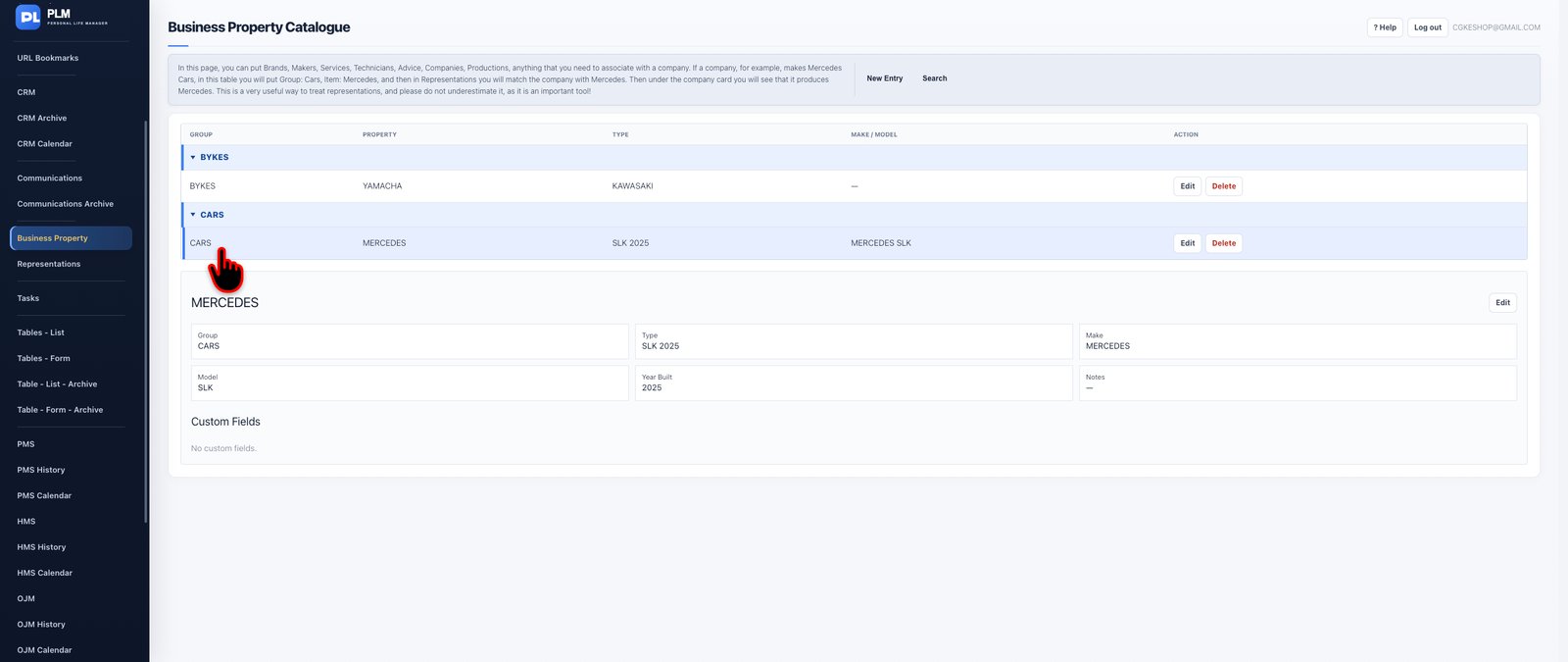
Representations
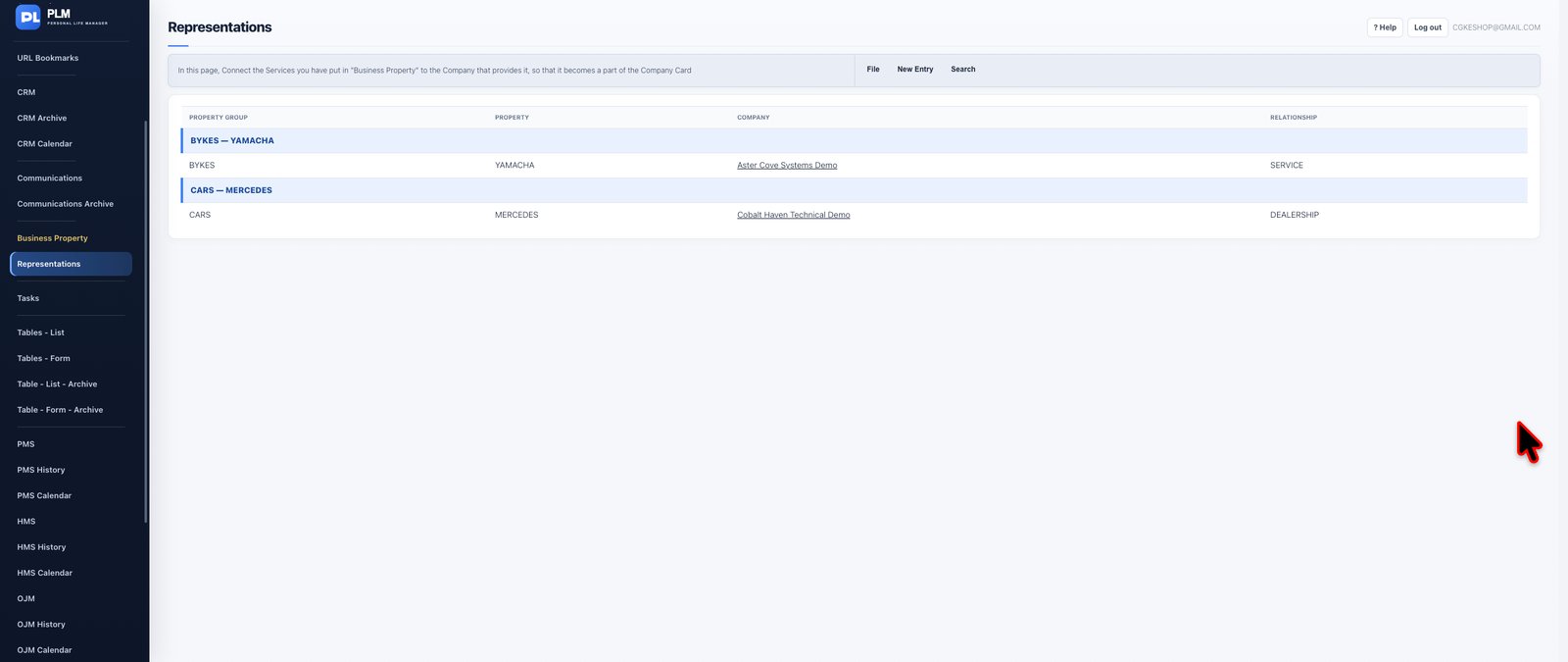
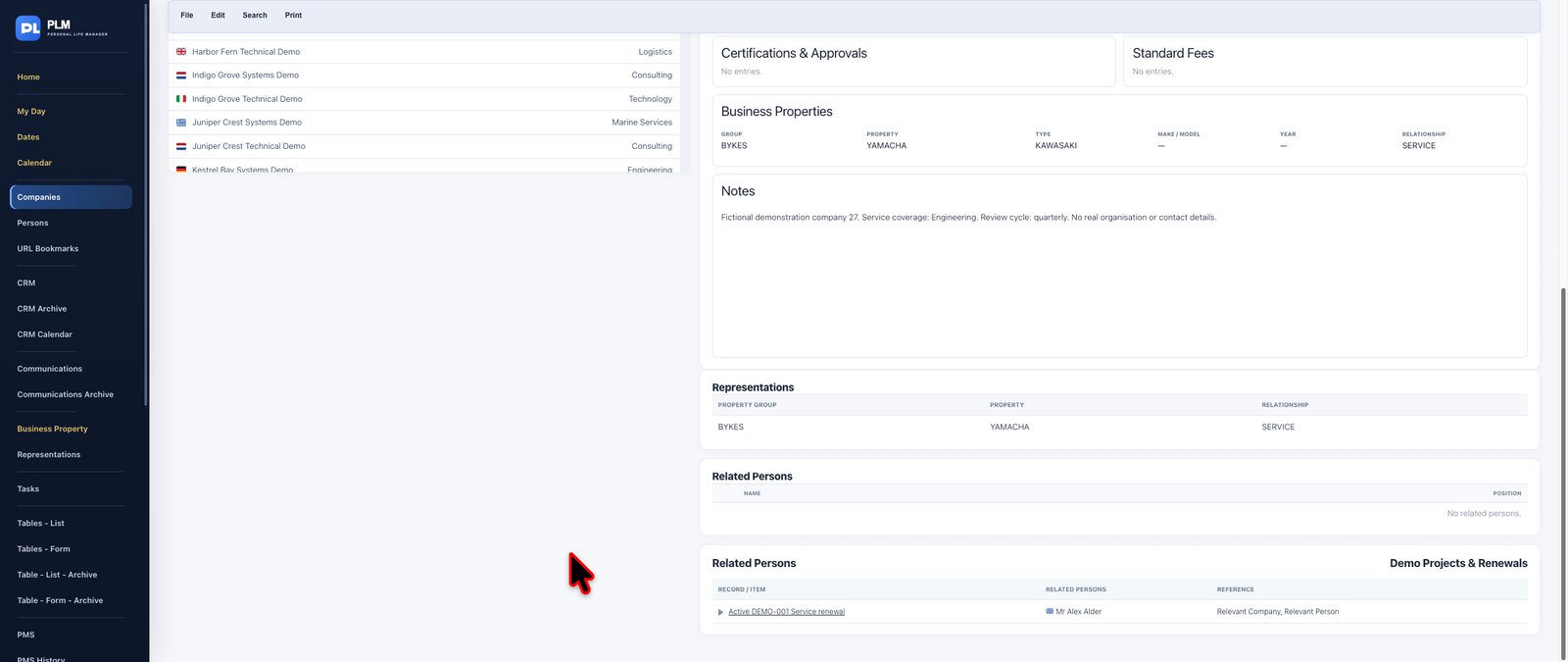
Maintain reusable business properties and the companies linked to them.
Using Representations
Using Representations
Maintain reusable business properties and the companies linked to them.
PLM workspace screenshot · Select the image to open it at full size.
Create a property with its group, name and type..
Record make, model, year and custom details where they apply..
Link the property to the relevant companies and specify the relationship..
Search the property list and inspect company links before deleting an item..
Example
Use a demonstration record to inspect this workflow before changing your live information.
Check the result: Open the source record and confirm its dates and relationships.
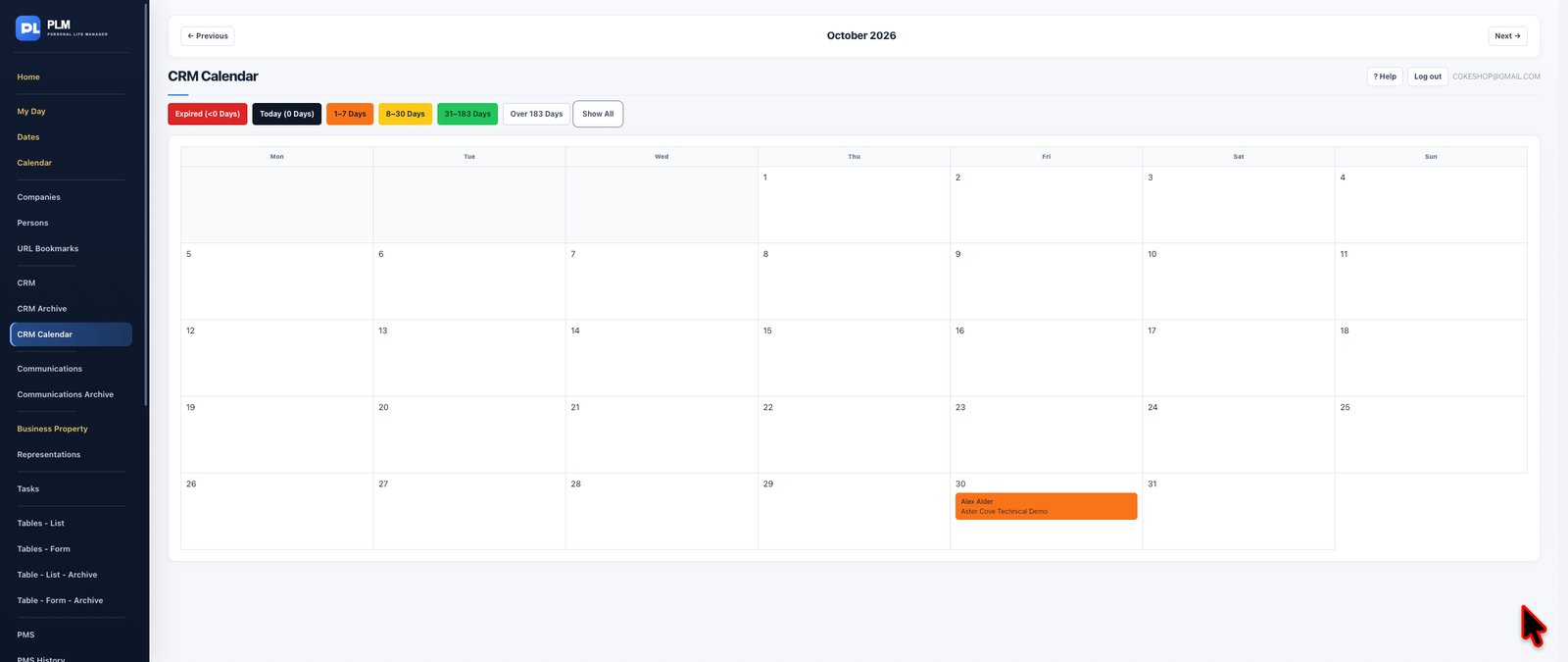
CRM Calendar
View planned CRM visits by date.
Using CRM Calendar
Using CRM Calendar
View planned CRM visits by date.
PLM workspace screenshot · Select the image to open it at full size.
Create or edit a visit from CRM..
Set its next date and calendar visibility..
Open the dedicated calendar and inspect the relevant period..
Example
Use a demonstration record to inspect this workflow before changing your live information.
Check the result: Open the source record and confirm its dates and relationships.
PMS Calendar
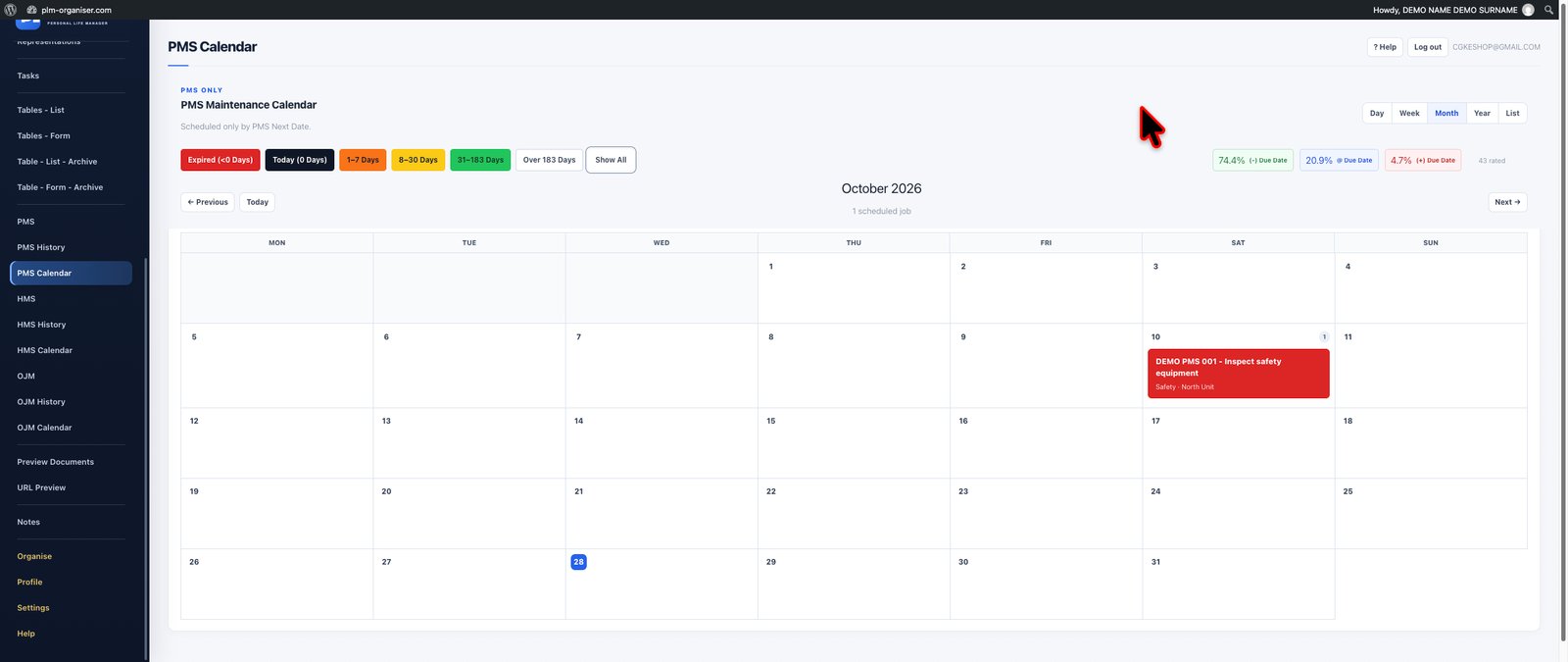
View calendar-based maintenance dates.
Using PMS Calendar
Using PMS Calendar
View calendar-based maintenance dates.
PLM workspace screenshot · Select the image to open it at full size.
Set the interval and previous date on the PMS job..
Inspect its calculated next date..
Open PMS Calendar and follow the entry back to the job..
Example
Use a demonstration record to inspect this workflow before changing your live information.
Check the result: Open the source record and confirm its dates and relationships.
HMS Calendar
View estimated dates from hours-based maintenance.
Using HMS Calendar
Using HMS Calendar
View estimated dates from hours-based maintenance.
PLM workspace screenshot · Select the image to open it at full size.
Record operating-hour readings for the HMS job..
Review whether there is enough history for an estimate..
Use HMS Calendar to inspect dated forecasts..
Example
Use a demonstration record to inspect this workflow before changing your live information.
Check the result: Open the source record and confirm its dates and relationships.
OJM Calendar
View occasional maintenance against target dates.
Using OJM Calendar
Using OJM Calendar
View occasional maintenance against target dates.
PLM workspace screenshot · Select the image to open it at full size.
Set the occasion and target date in OJM..
Review the job status before treating it as planned work..
Open OJM Calendar to inspect the relevant period..
Example
Use a demonstration record to inspect this workflow before changing your live information.
Check the result: Open the source record and confirm its dates and relationships.
Daily Overview
My Day
Start every working day with clarity and purpose.
My Day brings together your active responsibilities, approaching deadlines and time-sensitive information in one focused overview. Instead of opening multiple modules to discover what needs attention, you can review relevant tasks and dated database records from a central location.
Information is organised into practical date groups, making it easier to distinguish immediate priorities from upcoming commitments. Tasks and database follow-ups are brought into a common daily review while retaining their individual identities and record connections.
With PLM's consistent date and urgency indicators, important deadlines become easier to recognise. Open the relevant underlying records when you need more information or want to take action.
**Key capabilities:** Consolidated daily overview, task monitoring, dated database records, approaching deadlines, urgency indicators, date-group organisation and direct access to related work.
**The benefit:** Less time searching for what needs attention and more time completing what matters.
1 / 8
Available now
My Day
Start every working day with clarity and purpose.
My Day brings together your active responsibilities, approaching deadlines and time-sensitive information in one focused overview. Instead of opening multiple modules to discover what needs attention, you can review relevant tasks and dated database records from a central location.
Information is organised into practical date groups, making it easier to distinguish immediate priorities from upcoming commitments. Tasks and database follow-ups are brought into a common daily review while retaining their individual identities and record connections.
With PLM's consistent date and urgency indicators, important deadlines become easier to recognise. Open the relevant underlying records when you need more information or want to take action.
**Key capabilities:** Consolidated daily overview, task monitoring, dated database records, approaching deadlines, urgency indicators, date-group organisation and direct access to related work.
**The benefit:** Less time searching for what needs attention and more time completing what matters.
Read the date groups
Read the date groups
Start every working day with clarity and purpose.
My Day brings together your active responsibilities, approaching deadlines and time-sensitive information in one focused overview. Instead of opening multiple modules to discover what needs attention, you can review relevant tasks and dated database records from a central location.
Information is organised into practical date groups, making it easier to distinguish immediate priorities from upcoming commitments. Tasks and database follow-ups are brought into a common daily review while retaining their individual identities and record connections.
With PLM's consistent date and urgency indicators, important deadlines become easier to recognise. Open the relevant underlying records when you need more information or want to take action.
**Key capabilities:** Consolidated daily overview, task monitoring, dated database records, approaching deadlines, urgency indicators, date-group organisation and direct access to related work.
**The benefit:** Less time searching for what needs attention and more time completing what matters.
PLM workspace screenshot · Select the image to open it at full size.
Start with overdue and today sections.
Open an item to correct its due date or finish the work.
Review the next seven days before moving to the 8–30 day section.
Example
An overdue supplier call appears in the expired group even if its importance is Normal. Open the call to update the actual due date rather than hiding the overdue group.
Check the result: Review the next seven days before moving to the 8–30 day section.
Build a daily review routine
Build a daily review routine
Start every working day with clarity and purpose.
My Day brings together your active responsibilities, approaching deadlines and time-sensitive information in one focused overview. Instead of opening multiple modules to discover what needs attention, you can review relevant tasks and dated database records from a central location.
Information is organised into practical date groups, making it easier to distinguish immediate priorities from upcoming commitments. Tasks and database follow-ups are brought into a common daily review while retaining their individual identities and record connections.
With PLM's consistent date and urgency indicators, important deadlines become easier to recognise. Open the relevant underlying records when you need more information or want to take action.
**Key capabilities:** Consolidated daily overview, task monitoring, dated database records, approaching deadlines, urgency indicators, date-group organisation and direct access to related work.
**The benefit:** Less time searching for what needs attention and more time completing what matters.
PLM workspace screenshot · Select the image to open it at full size.
Open My Day at the beginning of your session.
Check Critical and High priority items even when their dates are later.
Use the linked task or record to make changes and return to review the result.
Example
A Monday review can begin with today’s calls, continue with this week’s deadlines and finish with Critical items that have later dates.
Check the result: Use the linked task or record to make changes and return to review the result.
Understand missing dashboard items
Understand missing dashboard items
Start every working day with clarity and purpose.
My Day brings together your active responsibilities, approaching deadlines and time-sensitive information in one focused overview. Instead of opening multiple modules to discover what needs attention, you can review relevant tasks and dated database records from a central location.
Information is organised into practical date groups, making it easier to distinguish immediate priorities from upcoming commitments. Tasks and database follow-ups are brought into a common daily review while retaining their individual identities and record connections.
With PLM's consistent date and urgency indicators, important deadlines become easier to recognise. Open the relevant underlying records when you need more information or want to take action.
**Key capabilities:** Consolidated daily overview, task monitoring, dated database records, approaching deadlines, urgency indicators, date-group organisation and direct access to related work.
**The benefit:** Less time searching for what needs attention and more time completing what matters.
PLM workspace screenshot · Select the image to open it at full size.
Check whether the underlying item is completed or archived.
For table records verify the permanent Due Date has a value.
Open the source page and clear its filters before deciding that a record is missing.
Example
An equipment record with an Inspection Date custom field but no permanent Due Date may not appear in Dates. Set the reference date used for planning.
Check the result: Open the source page and clear its filters before deciding that a record is missing.
Separate tasks from database follow-ups
Separate tasks from database follow-ups
Start every working day with clarity and purpose.
My Day brings together your active responsibilities, approaching deadlines and time-sensitive information in one focused overview. Instead of opening multiple modules to discover what needs attention, you can review relevant tasks and dated database records from a central location.
Information is organised into practical date groups, making it easier to distinguish immediate priorities from upcoming commitments. Tasks and database follow-ups are brought into a common daily review while retaining their individual identities and record connections.
With PLM's consistent date and urgency indicators, important deadlines become easier to recognise. Open the relevant underlying records when you need more information or want to take action.
**Key capabilities:** Consolidated daily overview, task monitoring, dated database records, approaching deadlines, urgency indicators, date-group organisation and direct access to related work.
**The benefit:** Less time searching for what needs attention and more time completing what matters.
PLM workspace screenshot · Select the image to open it at full size.
Read the task and table indicators next to each entry.
Use a task for an action and a table record for the information it concerns.
Follow the source link to avoid creating a second copy during a review.
Example
Keep the supplier’s contact details in a company record and the action Call supplier in Tasks. The review should lead you to the correct source for each change.
Check the result: Follow the source link to avoid creating a second copy during a review.
Dates
Stay ahead of important dates across your PLM workspace.
The Dates module provides a dedicated view of time-sensitive information, consolidating dated tasks and eligible database records into one structured place. It is designed for people who need to monitor deadlines, reference dates and upcoming obligations without the distraction of unrelated information.
Use focused date ranges and urgency filters to concentrate on the period that matters. PLM's consistent colour-coded date indicators make it easier to identify overdue, imminent and future items, while links back to the original records preserve the context behind every date.
This is particularly valuable when managing large collections of records where important dates could otherwise remain buried inside individual tables.
**Key capabilities:** Consolidated date monitoring, urgency-based colours, focused date ranges, date filtering, linked database records and deadline reviews.
**The benefit:** A reliable way to keep important dates visible and prepare for upcoming responsibilities.
1 / 10
Available now
Dates
Stay ahead of important dates across your PLM workspace.
The Dates module provides a dedicated view of time-sensitive information, consolidating dated tasks and eligible database records into one structured place. It is designed for people who need to monitor deadlines, reference dates and upcoming obligations without the distraction of unrelated information.
Use focused date ranges and urgency filters to concentrate on the period that matters. PLM's consistent colour-coded date indicators make it easier to identify overdue, imminent and future items, while links back to the original records preserve the context behind every date.
This is particularly valuable when managing large collections of records where important dates could otherwise remain buried inside individual tables.
**Key capabilities:** Consolidated date monitoring, urgency-based colours, focused date ranges, date filtering, linked database records and deadline reviews.
**The benefit:** A reliable way to keep important dates visible and prepare for upcoming responsibilities.
Read the PLM date colours
Read the PLM date colours
Stay ahead of important dates across your PLM workspace.
The Dates module provides a dedicated view of time-sensitive information, consolidating dated tasks and eligible database records into one structured place. It is designed for people who need to monitor deadlines, reference dates and upcoming obligations without the distraction of unrelated information.
Use focused date ranges and urgency filters to concentrate on the period that matters. PLM's consistent colour-coded date indicators make it easier to identify overdue, imminent and future items, while links back to the original records preserve the context behind every date.
This is particularly valuable when managing large collections of records where important dates could otherwise remain buried inside individual tables.
**Key capabilities:** Consolidated date monitoring, urgency-based colours, focused date ranges, date filtering, linked database records and deadline reviews.
**The benefit:** A reliable way to keep important dates visible and prepare for upcoming responsibilities.
PLM workspace screenshot · Select the image to open it at full size.
Red identifies expired dates and black identifies today.
Orange covers 1–7 days and yellow covers 8–30 days.
Green covers 31–183 days while dates beyond that range have no urgency background.
Example
A date three days away is orange; a date twenty days away is yellow. A date yesterday is expired even if the task’s priority is Low.
Check the result: Green covers 31–183 days while dates beyond that range have no urgency background.
Find a dated table record
Find a dated table record
Stay ahead of important dates across your PLM workspace.
The Dates module provides a dedicated view of time-sensitive information, consolidating dated tasks and eligible database records into one structured place. It is designed for people who need to monitor deadlines, reference dates and upcoming obligations without the distraction of unrelated information.
Use focused date ranges and urgency filters to concentrate on the period that matters. PLM's consistent colour-coded date indicators make it easier to identify overdue, imminent and future items, while links back to the original records preserve the context behind every date.
This is particularly valuable when managing large collections of records where important dates could otherwise remain buried inside individual tables.
**Key capabilities:** Consolidated date monitoring, urgency-based colours, focused date ranges, date filtering, linked database records and deadline reviews.
**The benefit:** A reliable way to keep important dates visible and prepare for upcoming responsibilities.
PLM workspace screenshot · Select the image to open it at full size.
Enter the date in the permanent Due Date field.
Open Dates and choose the relevant source.
Use the entry link to return to the original table record.
Example
Set an insurance record’s Due Date to its renewal date. The record can then be found in a date review without creating a separate copy.
Check the result: Use the entry link to return to the original table record.
Review dates without distractions
Review dates without distractions
Stay ahead of important dates across your PLM workspace.
The Dates module provides a dedicated view of time-sensitive information, consolidating dated tasks and eligible database records into one structured place. It is designed for people who need to monitor deadlines, reference dates and upcoming obligations without the distraction of unrelated information.
Use focused date ranges and urgency filters to concentrate on the period that matters. PLM's consistent colour-coded date indicators make it easier to identify overdue, imminent and future items, while links back to the original records preserve the context behind every date.
This is particularly valuable when managing large collections of records where important dates could otherwise remain buried inside individual tables.
**Key capabilities:** Consolidated date monitoring, urgency-based colours, focused date ranges, date filtering, linked database records and deadline reviews.
**The benefit:** A reliable way to keep important dates visible and prepare for upcoming responsibilities.
PLM workspace screenshot · Select the image to open it at full size.
Choose the date range needed for the review.
Use source and text filters to narrow the results.
Reset the filters before checking another part of the workspace.
Example
To review renewals for one database, narrow the source and period together. Remove the source restriction before searching for personal tasks.
Check the result: Reset the filters before checking another part of the workspace.
Prepare a dated report
Prepare a dated report
Stay ahead of important dates across your PLM workspace.
The Dates module provides a dedicated view of time-sensitive information, consolidating dated tasks and eligible database records into one structured place. It is designed for people who need to monitor deadlines, reference dates and upcoming obligations without the distraction of unrelated information.
Use focused date ranges and urgency filters to concentrate on the period that matters. PLM's consistent colour-coded date indicators make it easier to identify overdue, imminent and future items, while links back to the original records preserve the context behind every date.
This is particularly valuable when managing large collections of records where important dates could otherwise remain buried inside individual tables.
**Key capabilities:** Consolidated date monitoring, urgency-based colours, focused date ranges, date filtering, linked database records and deadline reviews.
**The benefit:** A reliable way to keep important dates visible and prepare for upcoming responsibilities.
PLM workspace screenshot · Select the image to open it at full size.
Choose the intended results and order.
Use the page print control to open the printable layout.
Check the browser print preview and select Save as PDF.
Example
A printed date review should show the record title, due date and source table. Check that grouping and pagination remain readable in preview.
Check the result: Check the browser print preview and select Save as PDF.
Calendar
Turn your schedules and important dates into a clear visual picture.
PLM's main Calendar provides multiple ways to review dated work, with day, week, month, year and list views. Move from a detailed daily schedule to a broader overview of your commitments without losing the connection to the information behind each entry.
Display dated tasks and eligible records from your custom tables, using available source filters to concentrate on relevant activities. The calendar distinguishes between all-day and time-specific entries and uses PLM's familiar date colour system to communicate urgency.
Its flexible viewing scales help you plan individual working days, review an approaching week, understand monthly commitments or examine a longer planning horizon.
**Key capabilities:** Day, week, month, year and list views; source filtering; all-day and timed entries; urgency colour indicators; and navigation to underlying records.
**The benefit:** Better visibility across your schedule, from immediate appointments to long-term planning.
1 / 17
Available now
Calendar
Turn your schedules and important dates into a clear visual picture.
PLM's main Calendar provides multiple ways to review dated work, with day, week, month, year and list views. Move from a detailed daily schedule to a broader overview of your commitments without losing the connection to the information behind each entry.
Display dated tasks and eligible records from your custom tables, using available source filters to concentrate on relevant activities. The calendar distinguishes between all-day and time-specific entries and uses PLM's familiar date colour system to communicate urgency.
Its flexible viewing scales help you plan individual working days, review an approaching week, understand monthly commitments or examine a longer planning horizon.
**Key capabilities:** Day, week, month, year and list views; source filtering; all-day and timed entries; urgency colour indicators; and navigation to underlying records.
**The benefit:** Better visibility across your schedule, from immediate appointments to long-term planning.
Choose the right calendar scale
Choose the right calendar scale
Turn your schedules and important dates into a clear visual picture.
PLM's main Calendar provides multiple ways to review dated work, with day, week, month, year and list views. Move from a detailed daily schedule to a broader overview of your commitments without losing the connection to the information behind each entry.
Display dated tasks and eligible records from your custom tables, using available source filters to concentrate on relevant activities. The calendar distinguishes between all-day and time-specific entries and uses PLM's familiar date colour system to communicate urgency.
Its flexible viewing scales help you plan individual working days, review an approaching week, understand monthly commitments or examine a longer planning horizon.
**Key capabilities:** Day, week, month, year and list views; source filtering; all-day and timed entries; urgency colour indicators; and navigation to underlying records.
**The benefit:** Better visibility across your schedule, from immediate appointments to long-term planning.
PLM workspace screenshot · Select the image to open it at full size.
Use Day or Week when times matter.
Use Month or Year to inspect a wider range.
Return to today after browsing another period.
Example
Use Week to compare timed calls, then Month to inspect upcoming certificate deadlines. Switching scale changes the presentation rather than moving records.
Check the result: Return to today after browsing another period.
Filter calendar sources
Filter calendar sources
Turn your schedules and important dates into a clear visual picture.
PLM's main Calendar provides multiple ways to review dated work, with day, week, month, year and list views. Move from a detailed daily schedule to a broader overview of your commitments without losing the connection to the information behind each entry.
Display dated tasks and eligible records from your custom tables, using available source filters to concentrate on relevant activities. The calendar distinguishes between all-day and time-specific entries and uses PLM's familiar date colour system to communicate urgency.
Its flexible viewing scales help you plan individual working days, review an approaching week, understand monthly commitments or examine a longer planning horizon.
**Key capabilities:** Day, week, month, year and list views; source filtering; all-day and timed entries; urgency colour indicators; and navigation to underlying records.
**The benefit:** Better visibility across your schedule, from immediate appointments to long-term planning.
PLM workspace screenshot · Select the image to open it at full size.
Choose Tasks, Tables or both in the source controls.
Narrow table results when only one database matters.
Clear the source restriction before looking for unrelated entries.
Example
Choose Tasks for a call-planning session. Choose Tables when reviewing certificate reference dates, then restore Both for a combined overview.
Check the result: Clear the source restriction before looking for unrelated entries.
Read all-day and timed entries
Read all-day and timed entries
Turn your schedules and important dates into a clear visual picture.
PLM's main Calendar provides multiple ways to review dated work, with day, week, month, year and list views. Move from a detailed daily schedule to a broader overview of your commitments without losing the connection to the information behind each entry.
Display dated tasks and eligible records from your custom tables, using available source filters to concentrate on relevant activities. The calendar distinguishes between all-day and time-specific entries and uses PLM's familiar date colour system to communicate urgency.
Its flexible viewing scales help you plan individual working days, review an approaching week, understand monthly commitments or examine a longer planning horizon.
**Key capabilities:** Day, week, month, year and list views; source filtering; all-day and timed entries; urgency colour indicators; and navigation to underlying records.
**The benefit:** Better visibility across your schedule, from immediate appointments to long-term planning.
PLM workspace screenshot · Select the image to open it at full size.
Check all-day items separately from timed appointments.
Read the displayed time before following an entry.
Open the underlying task or record to change the date rather than creating another item.
Example
An all-day renewal and a 10:30 call may share a date. Their placement differs because one has a time and the other does not.
Check the result: Open the underlying task or record to change the date rather than creating another item.
Use calendar colour bands
Use calendar colour bands
Turn your schedules and important dates into a clear visual picture.
PLM's main Calendar provides multiple ways to review dated work, with day, week, month, year and list views. Move from a detailed daily schedule to a broader overview of your commitments without losing the connection to the information behind each entry.
Display dated tasks and eligible records from your custom tables, using available source filters to concentrate on relevant activities. The calendar distinguishes between all-day and time-specific entries and uses PLM's familiar date colour system to communicate urgency.
Its flexible viewing scales help you plan individual working days, review an approaching week, understand monthly commitments or examine a longer planning horizon.
**Key capabilities:** Day, week, month, year and list views; source filtering; all-day and timed entries; urgency colour indicators; and navigation to underlying records.
**The benefit:** Better visibility across your schedule, from immediate appointments to long-term planning.
PLM workspace screenshot · Select the image to open it at full size.
Set work and night hours in Settings.
Check the current calendar view against those preferences.
Use due-date colours for urgency and time bands for daily planning.
Example
Set the working period to your actual workday. The background band is a scheduling aid; an overdue task can still have its own urgency colour.
Check the result: Use due-date colours for urgency and time bands for daily planning.
Contacts & Bookmarks
Companies
Build a comprehensive, structured directory of the organisations that matter to your business.
The Companies module goes far beyond a basic address book. Maintain detailed company profiles containing business information, office and contact details, relationship information, certifications, applicable fees and other relevant organisational data.
Associate people with their respective companies to create meaningful connections between organisations and individual contacts. Keep company imagery and supporting profile information together, making records easier to recognise and review.
For businesses dealing with technical products, equipment, manufacturers or service providers, PLM also connects company records with business properties and representations. Review the relevant property groups, individual properties and relationship classifications associated with a company.
Import company information, review individual profiles and produce printable records when needed.
**Key capabilities:** Detailed company profiles, contact channels, office information, company images, linked people, certifications, business relationships, associated properties and representations, importing and printing.
**The benefit:** A dependable company knowledge base that preserves relationships and makes essential business information immediately accessible.
1 / 13
Available now
Companies
Build a comprehensive, structured directory of the organisations that matter to your business.
The Companies module goes far beyond a basic address book. Maintain detailed company profiles containing business information, office and contact details, relationship information, certifications, applicable fees and other relevant organisational data.
Associate people with their respective companies to create meaningful connections between organisations and individual contacts. Keep company imagery and supporting profile information together, making records easier to recognise and review.
For businesses dealing with technical products, equipment, manufacturers or service providers, PLM also connects company records with business properties and representations. Review the relevant property groups, individual properties and relationship classifications associated with a company.
Import company information, review individual profiles and produce printable records when needed.
**Key capabilities:** Detailed company profiles, contact channels, office information, company images, linked people, certifications, business relationships, associated properties and representations, importing and printing.
**The benefit:** A dependable company knowledge base that preserves relationships and makes essential business information immediately accessible.
Build a company profile
Build a company profile
Build a comprehensive, structured directory of the organisations that matter to your business.
The Companies module goes far beyond a basic address book. Maintain detailed company profiles containing business information, office and contact details, relationship information, certifications, applicable fees and other relevant organisational data.
Associate people with their respective companies to create meaningful connections between organisations and individual contacts. Keep company imagery and supporting profile information together, making records easier to recognise and review.
For businesses dealing with technical products, equipment, manufacturers or service providers, PLM also connects company records with business properties and representations. Review the relevant property groups, individual properties and relationship classifications associated with a company.
Import company information, review individual profiles and produce printable records when needed.
**Key capabilities:** Detailed company profiles, contact channels, office information, company images, linked people, certifications, business relationships, associated properties and representations, importing and printing.
**The benefit:** A dependable company knowledge base that preserves relationships and makes essential business information immediately accessible.
PLM workspace screenshot · Select the image to open it at full size.
Enter the company name, country, city and office details.
Add labelled email and telephone entries so each channel is understandable.
Save and reopen the record to check the displayed contact information.
Example
For a supplier with separate sales and support teams, label both email addresses. A later user can then choose the appropriate channel without guessing.
Check the result: Save and reopen the record to check the displayed contact information.
Manage company images
Manage company images
Build a comprehensive, structured directory of the organisations that matter to your business.
The Companies module goes far beyond a basic address book. Maintain detailed company profiles containing business information, office and contact details, relationship information, certifications, applicable fees and other relevant organisational data.
Associate people with their respective companies to create meaningful connections between organisations and individual contacts. Keep company imagery and supporting profile information together, making records easier to recognise and review.
For businesses dealing with technical products, equipment, manufacturers or service providers, PLM also connects company records with business properties and representations. Review the relevant property groups, individual properties and relationship classifications associated with a company.
Import company information, review individual profiles and produce printable records when needed.
**Key capabilities:** Detailed company profiles, contact channels, office information, company images, linked people, certifications, business relationships, associated properties and representations, importing and printing.
**The benefit:** A dependable company knowledge base that preserves relationships and makes essential business information immediately accessible.
PLM workspace screenshot · Select the image to open it at full size.
Choose the image field in the company form.
Use Remove Current Image when replacing an unsuitable image.
Save the record and check the thumbnail in the record view.
Example
If a company logo belongs to the wrong organisation, remove it in the form and save. Reopen the company before assuming the displayed thumbnail refreshed.
Check the result: Save the record and check the thumbnail in the record view.
Connect people and companies
Connect people and companies
Build a comprehensive, structured directory of the organisations that matter to your business.
The Companies module goes far beyond a basic address book. Maintain detailed company profiles containing business information, office and contact details, relationship information, certifications, applicable fees and other relevant organisational data.
Associate people with their respective companies to create meaningful connections between organisations and individual contacts. Keep company imagery and supporting profile information together, making records easier to recognise and review.
For businesses dealing with technical products, equipment, manufacturers or service providers, PLM also connects company records with business properties and representations. Review the relevant property groups, individual properties and relationship classifications associated with a company.
Import company information, review individual profiles and produce printable records when needed.
**Key capabilities:** Detailed company profiles, contact channels, office information, company images, linked people, certifications, business relationships, associated properties and representations, importing and printing.
**The benefit:** A dependable company knowledge base that preserves relationships and makes essential business information immediately accessible.
PLM workspace screenshot · Select the image to open it at full size.
Create the company before linking it from a person record.
Use the company selector and type to narrow its options.
Check the company’s related people after saving the connection.
Example
Create Northstar first, then assign its purchasing contact in Persons. A person working with multiple organisations can keep those connections in one profile.
Check the result: Check the company’s related people after saving the connection.
Import and print company records
Import and print company records
Build a comprehensive, structured directory of the organisations that matter to your business.
The Companies module goes far beyond a basic address book. Maintain detailed company profiles containing business information, office and contact details, relationship information, certifications, applicable fees and other relevant organisational data.
Associate people with their respective companies to create meaningful connections between organisations and individual contacts. Keep company imagery and supporting profile information together, making records easier to recognise and review.
For businesses dealing with technical products, equipment, manufacturers or service providers, PLM also connects company records with business properties and representations. Review the relevant property groups, individual properties and relationship classifications associated with a company.
Import company information, review individual profiles and produce printable records when needed.
**Key capabilities:** Detailed company profiles, contact channels, office information, company images, linked people, certifications, business relationships, associated properties and representations, importing and printing.
**The benefit:** A dependable company knowledge base that preserves relationships and makes essential business information immediately accessible.
PLM workspace screenshot · Select the image to open it at full size.
Use the company CSV popup and review its instructions.
Inspect imported records before repeating the import.
Print a record or list and check the compact image layout in PDF preview.
Example
Begin a large import with two rows containing the main fields you use. Check their results before importing the remaining companies.
Check the result: Print a record or list and check the compact image layout in PDF preview.
Persons
Develop a richer and more useful understanding of your professional and personal contacts.
Persons is a detailed contact management system for recording the information that helps build, maintain and strengthen relationships. In addition to standard contact details, PLM supports company connections, relationship notes, nationality information, VIP identification and relevant family details.
Record useful insights about an individual's preferred communication approach, negotiation style and personal characteristics. Identify contacts for holiday greetings, gifts or other relationship-building activities, and organise information into practical lists.
Optional traditional zodiac character references provide an additional personal-reference feature for users who choose to maintain that type of information.
Connections with company and communications records help preserve professional context rather than keeping contact information in isolation. Import people records with duplicate awareness and produce printable contact information.
**Key capabilities:** Detailed personal profiles, company associations, relationship notes, VIP classification, family information, nationality details, holiday and gift lists, negotiation preferences, optional zodiac references, importing and printing.
**The benefit:** More informed, personal and consistent relationship management, supported by organised information.
1 / 7
Available now
Persons
Develop a richer and more useful understanding of your professional and personal contacts.
Persons is a detailed contact management system for recording the information that helps build, maintain and strengthen relationships. In addition to standard contact details, PLM supports company connections, relationship notes, nationality information, VIP identification and relevant family details.
Record useful insights about an individual's preferred communication approach, negotiation style and personal characteristics. Identify contacts for holiday greetings, gifts or other relationship-building activities, and organise information into practical lists.
Optional traditional zodiac character references provide an additional personal-reference feature for users who choose to maintain that type of information.
Connections with company and communications records help preserve professional context rather than keeping contact information in isolation. Import people records with duplicate awareness and produce printable contact information.
**Key capabilities:** Detailed personal profiles, company associations, relationship notes, VIP classification, family information, nationality details, holiday and gift lists, negotiation preferences, optional zodiac references, importing and printing.
**The benefit:** More informed, personal and consistent relationship management, supported by organised information.
Create a person and company link
Create a person and company link
Develop a richer and more useful understanding of your professional and personal contacts.
Persons is a detailed contact management system for recording the information that helps build, maintain and strengthen relationships. In addition to standard contact details, PLM supports company connections, relationship notes, nationality information, VIP identification and relevant family details.
Record useful insights about an individual's preferred communication approach, negotiation style and personal characteristics. Identify contacts for holiday greetings, gifts or other relationship-building activities, and organise information into practical lists.
Optional traditional zodiac character references provide an additional personal-reference feature for users who choose to maintain that type of information.
Connections with company and communications records help preserve professional context rather than keeping contact information in isolation. Import people records with duplicate awareness and produce printable contact information.
**Key capabilities:** Detailed personal profiles, company associations, relationship notes, VIP classification, family information, nationality details, holiday and gift lists, negotiation preferences, optional zodiac references, importing and printing.
**The benefit:** More informed, personal and consistent relationship management, supported by organised information.
PLM workspace screenshot · Select the image to open it at full size.
Enter the prefix, first name and last name.
Choose the relevant companies from the searchable selector.
Save and check that the name and company relationships display correctly.
Example
A person named Maria Costa can be connected to her current company while retaining another relevant company relationship in the selector.
Check the result: Save and check that the name and company relationships display correctly.
Use nationality and relationship details
Use nationality and relationship details
Develop a richer and more useful understanding of your professional and personal contacts.
Persons is a detailed contact management system for recording the information that helps build, maintain and strengthen relationships. In addition to standard contact details, PLM supports company connections, relationship notes, nationality information, VIP identification and relevant family details.
Record useful insights about an individual's preferred communication approach, negotiation style and personal characteristics. Identify contacts for holiday greetings, gifts or other relationship-building activities, and organise information into practical lists.
Optional traditional zodiac character references provide an additional personal-reference feature for users who choose to maintain that type of information.
Connections with company and communications records help preserve professional context rather than keeping contact information in isolation. Import people records with duplicate awareness and produce printable contact information.
**Key capabilities:** Detailed personal profiles, company associations, relationship notes, VIP classification, family information, nationality details, holiday and gift lists, negotiation preferences, optional zodiac references, importing and printing.
**The benefit:** More informed, personal and consistent relationship management, supported by organised information.
PLM workspace screenshot · Select the image to open it at full size.
Record nationality and birth-country information in their own fields.
Review the flag displayed next to supported country names.
Keep factual notes separate from optional character or negotiation prompts.
Example
Nationality describes citizenship or identity information you enter; Birth Country describes birthplace. Do not substitute one field for the other.
Check the result: Keep factual notes separate from optional character or negotiation prompts.
Import people without creating duplicates
Import people without creating duplicates
Develop a richer and more useful understanding of your professional and personal contacts.
Persons is a detailed contact management system for recording the information that helps build, maintain and strengthen relationships. In addition to standard contact details, PLM supports company connections, relationship notes, nationality information, VIP identification and relevant family details.
Record useful insights about an individual's preferred communication approach, negotiation style and personal characteristics. Identify contacts for holiday greetings, gifts or other relationship-building activities, and organise information into practical lists.
Optional traditional zodiac character references provide an additional personal-reference feature for users who choose to maintain that type of information.
Connections with company and communications records help preserve professional context rather than keeping contact information in isolation. Import people records with duplicate awareness and produce printable contact information.
**Key capabilities:** Detailed personal profiles, company associations, relationship notes, VIP classification, family information, nationality details, holiday and gift lists, negotiation preferences, optional zodiac references, importing and printing.
**The benefit:** More informed, personal and consistent relationship management, supported by organised information.
PLM workspace screenshot · Select the image to open it at full size.
Read the Persons CSV popup before selecting the file.
Import a small representative sample first.
Search for an existing person before importing or entering them again.
Example
If James Carter already exists, inspect his company and email before importing another James Carter. A shared name alone does not prove duplication.
Check the result: Search for an existing person before importing or entering them again.
Print a person record
Print a person record
Develop a richer and more useful understanding of your professional and personal contacts.
Persons is a detailed contact management system for recording the information that helps build, maintain and strengthen relationships. In addition to standard contact details, PLM supports company connections, relationship notes, nationality information, VIP identification and relevant family details.
Record useful insights about an individual's preferred communication approach, negotiation style and personal characteristics. Identify contacts for holiday greetings, gifts or other relationship-building activities, and organise information into practical lists.
Optional traditional zodiac character references provide an additional personal-reference feature for users who choose to maintain that type of information.
Connections with company and communications records help preserve professional context rather than keeping contact information in isolation. Import people records with duplicate awareness and produce printable contact information.
**Key capabilities:** Detailed personal profiles, company associations, relationship notes, VIP classification, family information, nationality details, holiday and gift lists, negotiation preferences, optional zodiac references, importing and printing.
**The benefit:** More informed, personal and consistent relationship management, supported by organised information.
PLM workspace screenshot · Select the image to open it at full size.
Open the intended person before using Print Record.
Check the name, contact details and small image thumbnails.
Use Print List when you need the current collection instead of one detailed profile.
Example
Use the individual record PDF for a contact briefing and the list PDF for a directory. Review whether private notes belong in the version you share.
Check the result: Use Print List when you need the current collection instead of one detailed profile.
URL Bookmarks
Keep valuable online resources organised and easy to retrieve.
URL Bookmarks offers a structured home for websites, portals, business resources, supplier platforms and other frequently used links.
Instead of searching through a cluttered browser bookmark collection, organise resources into meaningful groups and maintain descriptions explaining why each website is important or how it is used.
Where relevant, record associated login usernames, email addresses and protected password information alongside the corresponding URL. This keeps useful reference details connected to the website they belong to.
Update outdated links and maintain a practical directory of the online tools and resources you use regularly.
**Key capabilities:** Website link storage, custom grouping, descriptive notes, associated username and login-email fields, protected password storage, and bookmark maintenance.
**The benefit:** Faster access to essential online resources with the relevant information kept together in one organised location.
1 / 2
Available now
URL Bookmarks
Keep valuable online resources organised and easy to retrieve.
URL Bookmarks offers a structured home for websites, portals, business resources, supplier platforms and other frequently used links.
Instead of searching through a cluttered browser bookmark collection, organise resources into meaningful groups and maintain descriptions explaining why each website is important or how it is used.
Where relevant, record associated login usernames, email addresses and protected password information alongside the corresponding URL. This keeps useful reference details connected to the website they belong to.
Update outdated links and maintain a practical directory of the online tools and resources you use regularly.
**Key capabilities:** Website link storage, custom grouping, descriptive notes, associated username and login-email fields, protected password storage, and bookmark maintenance.
**The benefit:** Faster access to essential online resources with the relevant information kept together in one organised location.
Save a useful website
Save a useful website
Keep valuable online resources organised and easy to retrieve.
URL Bookmarks offers a structured home for websites, portals, business resources, supplier platforms and other frequently used links.
Instead of searching through a cluttered browser bookmark collection, organise resources into meaningful groups and maintain descriptions explaining why each website is important or how it is used.
Where relevant, record associated login usernames, email addresses and protected password information alongside the corresponding URL. This keeps useful reference details connected to the website they belong to.
Update outdated links and maintain a practical directory of the online tools and resources you use regularly.
**Key capabilities:** Website link storage, custom grouping, descriptive notes, associated username and login-email fields, protected password storage, and bookmark maintenance.
**The benefit:** Faster access to essential online resources with the relevant information kept together in one organised location.
PLM workspace screenshot · Select the image to open it at full size.
Choose a group and write a meaningful description.
Enter the website URL.
Save and check that the link opens the intended site.
Example
Save a manufacturer’s support portal in a Suppliers group with a description such as Northstar technical support.
Check the result: Save and check that the link opens the intended site.
Group related bookmarks
Group related bookmarks
Keep valuable online resources organised and easy to retrieve.
URL Bookmarks offers a structured home for websites, portals, business resources, supplier platforms and other frequently used links.
Instead of searching through a cluttered browser bookmark collection, organise resources into meaningful groups and maintain descriptions explaining why each website is important or how it is used.
Where relevant, record associated login usernames, email addresses and protected password information alongside the corresponding URL. This keeps useful reference details connected to the website they belong to.
Update outdated links and maintain a practical directory of the online tools and resources you use regularly.
**Key capabilities:** Website link storage, custom grouping, descriptive notes, associated username and login-email fields, protected password storage, and bookmark maintenance.
**The benefit:** Faster access to essential online resources with the relevant information kept together in one organised location.
PLM workspace screenshot · Select the image to open it at full size.
Use one consistent group name for related sites.
Search by group, description or URL.
Use Show All when moving from one group to another.
Example
Keep finance portals in one consistent group rather than creating Finance and Finances accidentally. Search by the chosen group when needed.
Check the result: Use Show All when moving from one group to another.
Review stored login details
Review stored login details
Keep valuable online resources organised and easy to retrieve.
URL Bookmarks offers a structured home for websites, portals, business resources, supplier platforms and other frequently used links.
Instead of searching through a cluttered browser bookmark collection, organise resources into meaningful groups and maintain descriptions explaining why each website is important or how it is used.
Where relevant, record associated login usernames, email addresses and protected password information alongside the corresponding URL. This keeps useful reference details connected to the website they belong to.
Update outdated links and maintain a practical directory of the online tools and resources you use regularly.
**Key capabilities:** Website link storage, custom grouping, descriptive notes, associated username and login-email fields, protected password storage, and bookmark maintenance.
**The benefit:** Faster access to essential online resources with the relevant information kept together in one organised location.
PLM workspace screenshot · Select the image to open it at full size.
Record the username only when it helps identify the account.
Use the password visibility control deliberately.
Avoid printing or sharing a view containing login information you do not intend to disclose.
Example
A stored login may use a username different from the contact email. Check the intended account before revealing or copying its password.
Check the result: Avoid printing or sharing a view containing login information you do not intend to disclose.
Correct an outdated link
Correct an outdated link
Keep valuable online resources organised and easy to retrieve.
URL Bookmarks offers a structured home for websites, portals, business resources, supplier platforms and other frequently used links.
Instead of searching through a cluttered browser bookmark collection, organise resources into meaningful groups and maintain descriptions explaining why each website is important or how it is used.
Where relevant, record associated login usernames, email addresses and protected password information alongside the corresponding URL. This keeps useful reference details connected to the website they belong to.
Update outdated links and maintain a practical directory of the online tools and resources you use regularly.
**Key capabilities:** Website link storage, custom grouping, descriptive notes, associated username and login-email fields, protected password storage, and bookmark maintenance.
**The benefit:** Faster access to essential online resources with the relevant information kept together in one organised location.
PLM workspace screenshot · Select the image to open it at full size.
Search for the old site or description.
Edit the existing bookmark with the replacement URL.
Open the saved link once to verify the destination.
Example
When a supplier changes its portal address, update the existing bookmark so colleagues do not keep using the obsolete link.
Check the result: Open the saved link once to verify the destination.
CRM
CRM
Transform contact information into an active relationship management process.
PLM's Customer Relationship Management module helps you plan, monitor and document interactions with the people and organisations important to your work.
Schedule future visits, organise recurring contact activities and maintain a clear view of relationship follow-up responsibilities. Record completed visits and use date-based filters to identify upcoming appointments or review previously completed activities.
The CRM also connects relationship planning with PLM's company and business-property information, allowing you to work with relevant organisational and commercial context.
Maintain approach strategies and relationship information that help you prepare for future interactions. Use the dedicated CRM Calendar for a focused visual overview of scheduled visits.
**Key capabilities:** Visit planning, recurring visits, follow-up scheduling, completed-visit records, date filters, relationship strategies, company and property connections, and dedicated calendar integration.
**The benefit:** Maintain consistent contact, prepare more effectively for meetings and build stronger professional relationships.
1 / 4
Available now
CRM
Transform contact information into an active relationship management process.
PLM's Customer Relationship Management module helps you plan, monitor and document interactions with the people and organisations important to your work.
Schedule future visits, organise recurring contact activities and maintain a clear view of relationship follow-up responsibilities. Record completed visits and use date-based filters to identify upcoming appointments or review previously completed activities.
The CRM also connects relationship planning with PLM's company and business-property information, allowing you to work with relevant organisational and commercial context.
Maintain approach strategies and relationship information that help you prepare for future interactions. Use the dedicated CRM Calendar for a focused visual overview of scheduled visits.
**Key capabilities:** Visit planning, recurring visits, follow-up scheduling, completed-visit records, date filters, relationship strategies, company and property connections, and dedicated calendar integration.
**The benefit:** Maintain consistent contact, prepare more effectively for meetings and build stronger professional relationships.
Plan the next visit
Plan the next visit
Transform contact information into an active relationship management process.
PLM's Customer Relationship Management module helps you plan, monitor and document interactions with the people and organisations important to your work.
Schedule future visits, organise recurring contact activities and maintain a clear view of relationship follow-up responsibilities. Record completed visits and use date-based filters to identify upcoming appointments or review previously completed activities.
The CRM also connects relationship planning with PLM's company and business-property information, allowing you to work with relevant organisational and commercial context.
Maintain approach strategies and relationship information that help you prepare for future interactions. Use the dedicated CRM Calendar for a focused visual overview of scheduled visits.
**Key capabilities:** Visit planning, recurring visits, follow-up scheduling, completed-visit records, date filters, relationship strategies, company and property connections, and dedicated calendar integration.
**The benefit:** Maintain consistent contact, prepare more effectively for meetings and build stronger professional relationships.
PLM workspace screenshot · Select the image to open it at full size.
Choose the person and associated company.
Set the next visit date and write the purpose.
Check that it appears in the upcoming list in earliest-date order.
Example
Plan a supplier visit for next Thursday and record Discuss service coverage. Verify that its next-date position matches other planned visits.
Check the result: Check that it appears in the upcoming list in earliest-date order.
Use visit date filters
Use visit date filters
Transform contact information into an active relationship management process.
PLM's Customer Relationship Management module helps you plan, monitor and document interactions with the people and organisations important to your work.
Schedule future visits, organise recurring contact activities and maintain a clear view of relationship follow-up responsibilities. Record completed visits and use date-based filters to identify upcoming appointments or review previously completed activities.
The CRM also connects relationship planning with PLM's company and business-property information, allowing you to work with relevant organisational and commercial context.
Maintain approach strategies and relationship information that help you prepare for future interactions. Use the dedicated CRM Calendar for a focused visual overview of scheduled visits.
**Key capabilities:** Visit planning, recurring visits, follow-up scheduling, completed-visit records, date filters, relationship strategies, company and property connections, and dedicated calendar integration.
**The benefit:** Maintain consistent contact, prepare more effectively for meetings and build stronger professional relationships.
PLM workspace screenshot · Select the image to open it at full size.
Read the coloured day-range controls above upcoming visits.
Choose the range you want to review.
Use Show All to restore the complete sorted upcoming list.
Example
Choose the 1–7 day band to prepare near-term visits. Show All restores the other planned dates and retains earliest-first ordering.
Check the result: Use Show All to restore the complete sorted upcoming list.
Record a completed visit
Record a completed visit
Transform contact information into an active relationship management process.
PLM's Customer Relationship Management module helps you plan, monitor and document interactions with the people and organisations important to your work.
Schedule future visits, organise recurring contact activities and maintain a clear view of relationship follow-up responsibilities. Record completed visits and use date-based filters to identify upcoming appointments or review previously completed activities.
The CRM also connects relationship planning with PLM's company and business-property information, allowing you to work with relevant organisational and commercial context.
Maintain approach strategies and relationship information that help you prepare for future interactions. Use the dedicated CRM Calendar for a focused visual overview of scheduled visits.
**Key capabilities:** Visit planning, recurring visits, follow-up scheduling, completed-visit records, date filters, relationship strategies, company and property connections, and dedicated calendar integration.
**The benefit:** Maintain consistent contact, prepare more effectively for meetings and build stronger professional relationships.
PLM workspace screenshot · Select the image to open it at full size.
Open Edit for the planned visit.
Record the outcome and set the visit status to Visited when appropriate.
Review the history and plan the next follow-up separately.
Example
After the visit occurs, mark it Visited and record what was agreed. Merely passing its date should not mean the visit happened.
Check the result: Review the history and plan the next follow-up separately.
Use the CRM calendar
Use the CRM calendar
Transform contact information into an active relationship management process.
PLM's Customer Relationship Management module helps you plan, monitor and document interactions with the people and organisations important to your work.
Schedule future visits, organise recurring contact activities and maintain a clear view of relationship follow-up responsibilities. Record completed visits and use date-based filters to identify upcoming appointments or review previously completed activities.
The CRM also connects relationship planning with PLM's company and business-property information, allowing you to work with relevant organisational and commercial context.
Maintain approach strategies and relationship information that help you prepare for future interactions. Use the dedicated CRM Calendar for a focused visual overview of scheduled visits.
**Key capabilities:** Visit planning, recurring visits, follow-up scheduling, completed-visit records, date filters, relationship strategies, company and property connections, and dedicated calendar integration.
**The benefit:** Maintain consistent contact, prepare more effectively for meetings and build stronger professional relationships.
PLM workspace screenshot · Select the image to open it at full size.
Open CRM Calendar from the sidebar.
Navigate to the planned visit date.
Follow the calendar entry to check the underlying visit rather than adding a duplicate.
Example
Open the visit from CRM Calendar to inspect its person and company. Editing that record keeps the list and calendar referring to the same visit.
Check the result: Follow the calendar entry to check the underlying visit rather than adding a duplicate.
CRM Archive
Keep past customer relationship activities separate from your active planning workspace.
CRM Archive provides a dedicated location for historical CRM records, helping reduce clutter in current workflows while preserving information that may be useful for future reference.
Use your relationship history to understand previous activities, revisit earlier engagements and retain continuity when preparing future customer interactions.
**Key capabilities:** Dedicated historical CRM view, separation of archived and active activities, and access to previous relationship records.
**The benefit:** A cleaner active CRM workspace without losing the value of your historical information.
1 / 2
Available now
CRM Archive
Keep past customer relationship activities separate from your active planning workspace.
CRM Archive provides a dedicated location for historical CRM records, helping reduce clutter in current workflows while preserving information that may be useful for future reference.
Use your relationship history to understand previous activities, revisit earlier engagements and retain continuity when preparing future customer interactions.
**Key capabilities:** Dedicated historical CRM view, separation of archived and active activities, and access to previous relationship records.
**The benefit:** A cleaner active CRM workspace without losing the value of your historical information.
CRM Archive walkthrough
CRM Archive walkthrough
Keep past customer relationship activities separate from your active planning workspace.
CRM Archive provides a dedicated location for historical CRM records, helping reduce clutter in current workflows while preserving information that may be useful for future reference.
Use your relationship history to understand previous activities, revisit earlier engagements and retain continuity when preparing future customer interactions.
**Key capabilities:** Dedicated historical CRM view, separation of archived and active activities, and access to previous relationship records.
**The benefit:** A cleaner active CRM workspace without losing the value of your historical information.
PLM workspace screenshot · Select the image to open it at full size.
Open CRM Archive.
Choose the relevant entry type.
Find the item and review its details before restoring it.
CRM Calendar
Give customer relationship planning the dedicated scheduling space it deserves.
CRM Calendar displays scheduled CRM visits in a focused calendar environment, separate from your general tasks and technical maintenance calendars.
Review planned relationship activities by date, identify approaching visits and coordinate customer-facing commitments without unrelated work competing for attention.
Because the calendar is connected to CRM records, it provides an organised visual perspective on activities managed through the relationship management system.
**Key capabilities:** Dedicated CRM visit calendar, date-based planning, visual scheduling and linked relationship activities.
**The benefit:** Greater clarity over customer engagements and improved preparation for scheduled visits.
1 / 2
Available now
CRM Calendar
Give customer relationship planning the dedicated scheduling space it deserves.
CRM Calendar displays scheduled CRM visits in a focused calendar environment, separate from your general tasks and technical maintenance calendars.
Review planned relationship activities by date, identify approaching visits and coordinate customer-facing commitments without unrelated work competing for attention.
Because the calendar is connected to CRM records, it provides an organised visual perspective on activities managed through the relationship management system.
**Key capabilities:** Dedicated CRM visit calendar, date-based planning, visual scheduling and linked relationship activities.
**The benefit:** Greater clarity over customer engagements and improved preparation for scheduled visits.
Using CRM Calendar
Using CRM Calendar
Give customer relationship planning the dedicated scheduling space it deserves.
CRM Calendar displays scheduled CRM visits in a focused calendar environment, separate from your general tasks and technical maintenance calendars.
Review planned relationship activities by date, identify approaching visits and coordinate customer-facing commitments without unrelated work competing for attention.
Because the calendar is connected to CRM records, it provides an organised visual perspective on activities managed through the relationship management system.
**Key capabilities:** Dedicated CRM visit calendar, date-based planning, visual scheduling and linked relationship activities.
**The benefit:** Greater clarity over customer engagements and improved preparation for scheduled visits.
PLM workspace screenshot · Select the image to open it at full size.
Create or edit a visit from CRM..
Set its next date and calendar visibility..
Open the dedicated calendar and inspect the relevant period..
Example
Use a demonstration record to inspect this workflow before changing your live information.
Check the result: Open the source record and confirm its dates and relationships.
Communications
Communications
Keep a structured record of your professional communications and ensure that valuable information from conversations is never lost.
PLM Communications provides a dedicated environment for documenting interactions with customers, suppliers, business partners and other important contacts.
Record telephone conversations, meetings, messages and other forms of contact, including when the communication occurred, who was involved and what was discussed. Maintain meaningful notes that capture important subjects, decisions, commitments and follow-up information.
By connecting communications with your existing Persons records, PLM makes it easier to understand the background of a professional relationship and retrieve relevant information before a future conversation.
Rather than depending on memory, scattered notes or disconnected communication logs, build an organised history of your interactions.
**Special features and capabilities:**
- Date-based communication records and documented contact history.
- Different communication types, including telephone calls, meetings and messages.
- Connections with person records.
- Descriptive notes and conversation information.
- Search and retrieval of previously recorded interactions.
- Printable communication reviews.
**The benefit:** Maintain continuity in professional relationships, avoid losing important conversation details and approach every new interaction better informed.
1 / 4
Available now
Communications
Keep a structured record of your professional communications and ensure that valuable information from conversations is never lost.
PLM Communications provides a dedicated environment for documenting interactions with customers, suppliers, business partners and other important contacts.
Record telephone conversations, meetings, messages and other forms of contact, including when the communication occurred, who was involved and what was discussed. Maintain meaningful notes that capture important subjects, decisions, commitments and follow-up information.
By connecting communications with your existing Persons records, PLM makes it easier to understand the background of a professional relationship and retrieve relevant information before a future conversation.
Rather than depending on memory, scattered notes or disconnected communication logs, build an organised history of your interactions.
**Special features and capabilities:**
- Date-based communication records and documented contact history.
- Different communication types, including telephone calls, meetings and messages.
- Connections with person records.
- Descriptive notes and conversation information.
- Search and retrieval of previously recorded interactions.
- Printable communication reviews.
**The benefit:** Maintain continuity in professional relationships, avoid losing important conversation details and approach every new interaction better informed.
Log a customer telephone call
Log a customer telephone call
Keep a structured record of your professional communications and ensure that valuable information from conversations is never lost.
PLM Communications provides a dedicated environment for documenting interactions with customers, suppliers, business partners and other important contacts.
Record telephone conversations, meetings, messages and other forms of contact, including when the communication occurred, who was involved and what was discussed. Maintain meaningful notes that capture important subjects, decisions, commitments and follow-up information.
By connecting communications with your existing Persons records, PLM makes it easier to understand the background of a professional relationship and retrieve relevant information before a future conversation.
Rather than depending on memory, scattered notes or disconnected communication logs, build an organised history of your interactions.
**Special features and capabilities:**
- Date-based communication records and documented contact history.
- Different communication types, including telephone calls, meetings and messages.
- Connections with person records.
- Descriptive notes and conversation information.
- Search and retrieval of previously recorded interactions.
- Printable communication reviews.
**The benefit:** Maintain continuity in professional relationships, avoid losing important conversation details and approach every new interaction better informed.
PLM workspace screenshot · Select the image to open it at full size.
Choose the person from the searchable list.
Select Telephone, set the date and write the reason or outcome.
Save and locate the call under its date group.
Example
Log a telephone discussion with Maria under Telephone and record the agreed follow-up in the reason or notes. This preserves context for the next call.
Check the result: Save and locate the call under its date group.
Distinguish meetings and messages
Distinguish meetings and messages
Keep a structured record of your professional communications and ensure that valuable information from conversations is never lost.
PLM Communications provides a dedicated environment for documenting interactions with customers, suppliers, business partners and other important contacts.
Record telephone conversations, meetings, messages and other forms of contact, including when the communication occurred, who was involved and what was discussed. Maintain meaningful notes that capture important subjects, decisions, commitments and follow-up information.
By connecting communications with your existing Persons records, PLM makes it easier to understand the background of a professional relationship and retrieve relevant information before a future conversation.
Rather than depending on memory, scattered notes or disconnected communication logs, build an organised history of your interactions.
**Special features and capabilities:**
- Date-based communication records and documented contact history.
- Different communication types, including telephone calls, meetings and messages.
- Connections with person records.
- Descriptive notes and conversation information.
- Search and retrieval of previously recorded interactions.
- Printable communication reviews.
**The benefit:** Maintain continuity in professional relationships, avoid losing important conversation details and approach every new interaction better informed.
PLM workspace screenshot · Select the image to open it at full size.
Choose the communication type that describes the actual contact.
Use the type colour as a visual aid rather than relying on colour alone.
Add enough notes to understand the next action when returning later.
Example
A meeting and a later email may belong to the same person but are separate events. Give each its actual date and communication type.
Check the result: Add enough notes to understand the next action when returning later.
Search the communications archive
Search the communications archive
Keep a structured record of your professional communications and ensure that valuable information from conversations is never lost.
PLM Communications provides a dedicated environment for documenting interactions with customers, suppliers, business partners and other important contacts.
Record telephone conversations, meetings, messages and other forms of contact, including when the communication occurred, who was involved and what was discussed. Maintain meaningful notes that capture important subjects, decisions, commitments and follow-up information.
By connecting communications with your existing Persons records, PLM makes it easier to understand the background of a professional relationship and retrieve relevant information before a future conversation.
Rather than depending on memory, scattered notes or disconnected communication logs, build an organised history of your interactions.
**Special features and capabilities:**
- Date-based communication records and documented contact history.
- Different communication types, including telephone calls, meetings and messages.
- Connections with person records.
- Descriptive notes and conversation information.
- Search and retrieval of previously recorded interactions.
- Printable communication reviews.
**The benefit:** Maintain continuity in professional relationships, avoid losing important conversation details and approach every new interaction better informed.
PLM workspace screenshot · Select the image to open it at full size.
Open the history or archive controls.
Use the available date and text filters to locate the conversation.
Expand the matching group and open the record for its full notes.
Example
Search a month for the word quotation to recover the relevant discussion. Expand the matching date group to read the complete note.
Check the result: Expand the matching group and open the record for its full notes.
Print a communication review
Print a communication review
Keep a structured record of your professional communications and ensure that valuable information from conversations is never lost.
PLM Communications provides a dedicated environment for documenting interactions with customers, suppliers, business partners and other important contacts.
Record telephone conversations, meetings, messages and other forms of contact, including when the communication occurred, who was involved and what was discussed. Maintain meaningful notes that capture important subjects, decisions, commitments and follow-up information.
By connecting communications with your existing Persons records, PLM makes it easier to understand the background of a professional relationship and retrieve relevant information before a future conversation.
Rather than depending on memory, scattered notes or disconnected communication logs, build an organised history of your interactions.
**Special features and capabilities:**
- Date-based communication records and documented contact history.
- Different communication types, including telephone calls, meetings and messages.
- Connections with person records.
- Descriptive notes and conversation information.
- Search and retrieval of previously recorded interactions.
- Printable communication reviews.
**The benefit:** Maintain continuity in professional relationships, avoid losing important conversation details and approach every new interaction better informed.
PLM workspace screenshot · Select the image to open it at full size.
Filter for the person and period you need.
Check that the relevant history is included.
Use Print to PDF and inspect the preview before sharing it.
Example
For a supplier review, select the person and period first. The print preview should contain the intended communication history before saving the PDF.
Check the result: Use Print to PDF and inspect the preview before sharing it.
Communications Archive
Preserve valuable communication history in a dedicated, organised reference environment.
The Communications Archive provides a historical view of recorded interactions, allowing you to revisit previous conversations and understand the development of professional relationships over time.
Search earlier communication records and review previous discussions to recover details, confirm what was communicated and prepare for future engagement.
Whether you need to remember what was discussed during an earlier telephone call, review an important meeting or locate information from a previous exchange, the archive keeps communication history accessible.
**Special features and capabilities:** Historical communications, searchable interaction records, contact-related information, dated entries and printable communication reviews.
**The benefit:** Your professional knowledge remains available long after individual conversations have ended.
1 / 4
Available now
Communications Archive
Preserve valuable communication history in a dedicated, organised reference environment.
The Communications Archive provides a historical view of recorded interactions, allowing you to revisit previous conversations and understand the development of professional relationships over time.
Search earlier communication records and review previous discussions to recover details, confirm what was communicated and prepare for future engagement.
Whether you need to remember what was discussed during an earlier telephone call, review an important meeting or locate information from a previous exchange, the archive keeps communication history accessible.
**Special features and capabilities:** Historical communications, searchable interaction records, contact-related information, dated entries and printable communication reviews.
**The benefit:** Your professional knowledge remains available long after individual conversations have ended.
Communications Archive walkthrough
Communications Archive walkthrough
Preserve valuable communication history in a dedicated, organised reference environment.
The Communications Archive provides a historical view of recorded interactions, allowing you to revisit previous conversations and understand the development of professional relationships over time.
Search earlier communication records and review previous discussions to recover details, confirm what was communicated and prepare for future engagement.
Whether you need to remember what was discussed during an earlier telephone call, review an important meeting or locate information from a previous exchange, the archive keeps communication history accessible.
**Special features and capabilities:** Historical communications, searchable interaction records, contact-related information, dated entries and printable communication reviews.
**The benefit:** Your professional knowledge remains available long after individual conversations have ended.
PLM workspace screenshot · Select the image to open it at full size.
Open Communications Archive.
Filter by contact or date.
Open the communication to inspect the original notes.
Business Properties & Representations
Business Property
Organise the products, equipment categories, technical interests and business activities that define your professional environment.
Business Property provides a structured way to classify commercial and technical information, enabling PLM to connect organisational relationships with the business areas to which they relate.
Instead of maintaining an unstructured collection of product names or business interests, establish reusable property classifications that can be associated with companies and used throughout relevant business workflows.
This is particularly valuable for organisations working with multiple product lines, technical disciplines, manufacturers, suppliers or service categories.
By creating a consistent property structure, PLM helps make relationship information more precise and useful.
**Special features and capabilities:**
- Reusable business-property classifications.
- Organisation of properties into meaningful groups.
- Connections between business properties and company records.
- Reuse of common property definitions across business relationships.
- Integration with the Companies, Representations and relevant CRM workflows.
**The benefit:** Understand not only which companies you work with, but also the particular business areas, products or technical categories connecting you to them.
1 / 7
Available now
Business Property
Organise the products, equipment categories, technical interests and business activities that define your professional environment.
Business Property provides a structured way to classify commercial and technical information, enabling PLM to connect organisational relationships with the business areas to which they relate.
Instead of maintaining an unstructured collection of product names or business interests, establish reusable property classifications that can be associated with companies and used throughout relevant business workflows.
This is particularly valuable for organisations working with multiple product lines, technical disciplines, manufacturers, suppliers or service categories.
By creating a consistent property structure, PLM helps make relationship information more precise and useful.
**Special features and capabilities:**
- Reusable business-property classifications.
- Organisation of properties into meaningful groups.
- Connections between business properties and company records.
- Reuse of common property definitions across business relationships.
- Integration with the Companies, Representations and relevant CRM workflows.
**The benefit:** Understand not only which companies you work with, but also the particular business areas, products or technical categories connecting you to them.
Business Property Catalogue walkthrough
Business Property Catalogue walkthrough
Organise the products, equipment categories, technical interests and business activities that define your professional environment.
Business Property provides a structured way to classify commercial and technical information, enabling PLM to connect organisational relationships with the business areas to which they relate.
Instead of maintaining an unstructured collection of product names or business interests, establish reusable property classifications that can be associated with companies and used throughout relevant business workflows.
This is particularly valuable for organisations working with multiple product lines, technical disciplines, manufacturers, suppliers or service categories.
By creating a consistent property structure, PLM helps make relationship information more precise and useful.
**Special features and capabilities:**
- Reusable business-property classifications.
- Organisation of properties into meaningful groups.
- Connections between business properties and company records.
- Reuse of common property definitions across business relationships.
- Integration with the Companies, Representations and relevant CRM workflows.
**The benefit:** Understand not only which companies you work with, but also the particular business areas, products or technical categories connecting you to them.
PLM workspace screenshot · Select the image to open it at full size.
Open Business Property Catalogue.
Search for a property or choose a category.
Open the matching record to review its details and company relationships.
Representations
Bring clarity and structure to your commercial representations and professional partnerships.
Representations provides a dedicated environment for linking companies with the business properties and product areas relevant to your activities.
Whether your organisation operates as a commercial representative, works with several manufacturers or maintains relationships with suppliers across different product categories, PLM helps document those connections in an organised way.
The module uses reusable business properties and company relationships to provide a consistent representation structure. These connections can also be reviewed through the relevant company records, helping you keep organisational details and commercial relationships aligned.
Instead of maintaining disconnected spreadsheets containing company names, product groups and representation arrangements, bring the relationships together into a structured information system.
**Special features and capabilities:**
- Linked company and business-property records.
- Reusable property groups and individual properties.
- Representation relationships visible from company records.
- Structured business-relationship classifications.
- Integration with the wider company information system.
**The benefit:** Gain a clearer understanding of your business portfolio, the companies connected to it and the property categories represented within those relationships.
1 / 12
Available now
Representations
Bring clarity and structure to your commercial representations and professional partnerships.
Representations provides a dedicated environment for linking companies with the business properties and product areas relevant to your activities.
Whether your organisation operates as a commercial representative, works with several manufacturers or maintains relationships with suppliers across different product categories, PLM helps document those connections in an organised way.
The module uses reusable business properties and company relationships to provide a consistent representation structure. These connections can also be reviewed through the relevant company records, helping you keep organisational details and commercial relationships aligned.
Instead of maintaining disconnected spreadsheets containing company names, product groups and representation arrangements, bring the relationships together into a structured information system.
**Special features and capabilities:**
- Linked company and business-property records.
- Reusable property groups and individual properties.
- Representation relationships visible from company records.
- Structured business-relationship classifications.
- Integration with the wider company information system.
**The benefit:** Gain a clearer understanding of your business portfolio, the companies connected to it and the property categories represented within those relationships.
Using Representations
Using Representations
Bring clarity and structure to your commercial representations and professional partnerships.
Representations provides a dedicated environment for linking companies with the business properties and product areas relevant to your activities.
Whether your organisation operates as a commercial representative, works with several manufacturers or maintains relationships with suppliers across different product categories, PLM helps document those connections in an organised way.
The module uses reusable business properties and company relationships to provide a consistent representation structure. These connections can also be reviewed through the relevant company records, helping you keep organisational details and commercial relationships aligned.
Instead of maintaining disconnected spreadsheets containing company names, product groups and representation arrangements, bring the relationships together into a structured information system.
**Special features and capabilities:**
- Linked company and business-property records.
- Reusable property groups and individual properties.
- Representation relationships visible from company records.
- Structured business-relationship classifications.
- Integration with the wider company information system.
**The benefit:** Gain a clearer understanding of your business portfolio, the companies connected to it and the property categories represented within those relationships.
PLM workspace screenshot · Select the image to open it at full size.
Create a property with its group, name and type..
Record make, model, year and custom details where they apply..
Link the property to the relevant companies and specify the relationship..
Search the property list and inspect company links before deleting an item..
Example
Use a demonstration record to inspect this workflow before changing your live information.
Check the result: Open the source record and confirm its dates and relationships.
Tasks
Tasks
Manage your responsibilities with a task system designed for both everyday activities and complex, ongoing work.
PLM Tasks allows you to create, organise and monitor activities while keeping priorities, deadlines and supporting information together.
Break larger responsibilities into manageable subtasks, establish recurring actions for regularly repeated work and organise responsibilities using folders, contexts and tags.
With scheduling and priority information, you can distinguish urgent obligations from longer-term activities and organise your workload accordingly.
Saved task views allow you to return quickly to useful arrangements instead of rebuilding the same filters every time. Tasks with relevant dates can also appear in the wider PLM daily planning and calendar environments, connecting individual actions with your overall schedule.
The result is a flexible productivity workspace that accommodates everything from a quick reminder to a multi-stage professional responsibility.
**Special features and capabilities:**
- Task creation, editing and management.
- Subtasks for breaking down larger responsibilities.
- Scheduled and recurring tasks.
- Priority settings and due dates.
- Custom folders, contexts and tags.
- Saved task views and focused task filtering.
- Integration with My Day, Dates and Calendar.
- Consistent date-based urgency indicators.
**The benefit:** Keep your responsibilities organised, reduce overlooked commitments and maintain control of both immediate and recurring work.
1 / 6
Available now
Tasks
Manage your responsibilities with a task system designed for both everyday activities and complex, ongoing work.
PLM Tasks allows you to create, organise and monitor activities while keeping priorities, deadlines and supporting information together.
Break larger responsibilities into manageable subtasks, establish recurring actions for regularly repeated work and organise responsibilities using folders, contexts and tags.
With scheduling and priority information, you can distinguish urgent obligations from longer-term activities and organise your workload accordingly.
Saved task views allow you to return quickly to useful arrangements instead of rebuilding the same filters every time. Tasks with relevant dates can also appear in the wider PLM daily planning and calendar environments, connecting individual actions with your overall schedule.
The result is a flexible productivity workspace that accommodates everything from a quick reminder to a multi-stage professional responsibility.
**Special features and capabilities:**
- Task creation, editing and management.
- Subtasks for breaking down larger responsibilities.
- Scheduled and recurring tasks.
- Priority settings and due dates.
- Custom folders, contexts and tags.
- Saved task views and focused task filtering.
- Integration with My Day, Dates and Calendar.
- Consistent date-based urgency indicators.
**The benefit:** Keep your responsibilities organised, reduce overlooked commitments and maintain control of both immediate and recurring work.
Create a useful follow-up task
Create a useful follow-up task
Manage your responsibilities with a task system designed for both everyday activities and complex, ongoing work.
PLM Tasks allows you to create, organise and monitor activities while keeping priorities, deadlines and supporting information together.
Break larger responsibilities into manageable subtasks, establish recurring actions for regularly repeated work and organise responsibilities using folders, contexts and tags.
With scheduling and priority information, you can distinguish urgent obligations from longer-term activities and organise your workload accordingly.
Saved task views allow you to return quickly to useful arrangements instead of rebuilding the same filters every time. Tasks with relevant dates can also appear in the wider PLM daily planning and calendar environments, connecting individual actions with your overall schedule.
The result is a flexible productivity workspace that accommodates everything from a quick reminder to a multi-stage professional responsibility.
**Special features and capabilities:**
- Task creation, editing and management.
- Subtasks for breaking down larger responsibilities.
- Scheduled and recurring tasks.
- Priority settings and due dates.
- Custom folders, contexts and tags.
- Saved task views and focused task filtering.
- Integration with My Day, Dates and Calendar.
- Consistent date-based urgency indicators.
**The benefit:** Keep your responsibilities organised, reduce overlooked commitments and maintain control of both immediate and recurring work.
PLM workspace screenshot · Select the image to open it at full size.
Use a specific action title such as Call supplier about quotation.
Set the due date, optional time and importance.
Add the reason for the call in notes and save the task.
Example
Call Northstar about quotation 104 is easier to act on than Supplier. Notes can hold the quote reference and the question you need answered.
Check the result: Add the reason for the call in notes and save the task.
Organise subtasks and recurrence
Organise subtasks and recurrence
Manage your responsibilities with a task system designed for both everyday activities and complex, ongoing work.
PLM Tasks allows you to create, organise and monitor activities while keeping priorities, deadlines and supporting information together.
Break larger responsibilities into manageable subtasks, establish recurring actions for regularly repeated work and organise responsibilities using folders, contexts and tags.
With scheduling and priority information, you can distinguish urgent obligations from longer-term activities and organise your workload accordingly.
Saved task views allow you to return quickly to useful arrangements instead of rebuilding the same filters every time. Tasks with relevant dates can also appear in the wider PLM daily planning and calendar environments, connecting individual actions with your overall schedule.
The result is a flexible productivity workspace that accommodates everything from a quick reminder to a multi-stage professional responsibility.
**Special features and capabilities:**
- Task creation, editing and management.
- Subtasks for breaking down larger responsibilities.
- Scheduled and recurring tasks.
- Priority settings and due dates.
- Custom folders, contexts and tags.
- Saved task views and focused task filtering.
- Integration with My Day, Dates and Calendar.
- Consistent date-based urgency indicators.
**The benefit:** Keep your responsibilities organised, reduce overlooked commitments and maintain control of both immediate and recurring work.
PLM workspace screenshot · Select the image to open it at full size.
Create the main action before assigning child tasks.
Choose a recurrence only for work that repeats.
Check the next occurrence after completing recurring work so its date matches your intention.
Example
For Prepare presentation, use subtasks for Collect figures and Review slides. A weekly planning task can recur without making every presentation recur.
Check the result: Check the next occurrence after completing recurring work so its date matches your intention.
Find work by folder, context and tag
Find work by folder, context and tag
Manage your responsibilities with a task system designed for both everyday activities and complex, ongoing work.
PLM Tasks allows you to create, organise and monitor activities while keeping priorities, deadlines and supporting information together.
Break larger responsibilities into manageable subtasks, establish recurring actions for regularly repeated work and organise responsibilities using folders, contexts and tags.
With scheduling and priority information, you can distinguish urgent obligations from longer-term activities and organise your workload accordingly.
Saved task views allow you to return quickly to useful arrangements instead of rebuilding the same filters every time. Tasks with relevant dates can also appear in the wider PLM daily planning and calendar environments, connecting individual actions with your overall schedule.
The result is a flexible productivity workspace that accommodates everything from a quick reminder to a multi-stage professional responsibility.
**Special features and capabilities:**
- Task creation, editing and management.
- Subtasks for breaking down larger responsibilities.
- Scheduled and recurring tasks.
- Priority settings and due dates.
- Custom folders, contexts and tags.
- Saved task views and focused task filtering.
- Integration with My Day, Dates and Calendar.
- Consistent date-based urgency indicators.
**The benefit:** Keep your responsibilities organised, reduce overlooked commitments and maintain control of both immediate and recurring work.
PLM workspace screenshot · Select the image to open it at full size.
Use a broad folder such as Work and a context such as Phone.
Add tags for subjects that cut across folders.
Apply the available filters and clear them when returning to the full task list.
Example
A call can belong to Work, use Phone as its context and carry the tag renewal. Those labels answer different questions during filtering.
Check the result: Apply the available filters and clear them when returning to the full task list.
Use saved task views
Use saved task views
Manage your responsibilities with a task system designed for both everyday activities and complex, ongoing work.
PLM Tasks allows you to create, organise and monitor activities while keeping priorities, deadlines and supporting information together.
Break larger responsibilities into manageable subtasks, establish recurring actions for regularly repeated work and organise responsibilities using folders, contexts and tags.
With scheduling and priority information, you can distinguish urgent obligations from longer-term activities and organise your workload accordingly.
Saved task views allow you to return quickly to useful arrangements instead of rebuilding the same filters every time. Tasks with relevant dates can also appear in the wider PLM daily planning and calendar environments, connecting individual actions with your overall schedule.
The result is a flexible productivity workspace that accommodates everything from a quick reminder to a multi-stage professional responsibility.
**Special features and capabilities:**
- Task creation, editing and management.
- Subtasks for breaking down larger responsibilities.
- Scheduled and recurring tasks.
- Priority settings and due dates.
- Custom folders, contexts and tags.
- Saved task views and focused task filtering.
- Integration with My Day, Dates and Calendar.
- Consistent date-based urgency indicators.
**The benefit:** Keep your responsibilities organised, reduce overlooked commitments and maintain control of both immediate and recurring work.
PLM workspace screenshot · Select the image to open it at full size.
Set the status, sorting and grouping you need.
Save a named view such as Weekly calls.
Open that view later and check its filters before interpreting the result count.
Example
Save Open supplier calls after setting its filters. On a later visit, completed calls may be absent because the saved status filter still applies.
Check the result: Open that view later and check its filters before interpreting the result count.
Tables & Archives
Tables - List
Create your own sophisticated information management systems without being restricted to predefined business templates.
PLM Tables combines familiar spreadsheet-style interaction with structured database capabilities, allowing you to design custom tables for virtually any kind of information.
Build equipment registers, customer information lists, project trackers, asset databases, inspection registers, product inventories, compliance records, technical information collections or specialised operational systems.
Choose the fields that matter, organise how they appear and customise the presentation of information according to your working needs.
**Advanced table organisation**
PLM gives you extensive control over how records are displayed and organised.
Arrange columns in your preferred order, adjust their widths, modify row heights, hide unnecessary information and position important identifying fields together.
Use multi-level sorting and grouping to build meaningful information hierarchies. Group records by several criteria, review the resulting categories and create focused presentations that make large collections of information easier to understand.
Where supported by the table configuration, group related columns into logical sections and use collapsible column groups to simplify complex layouts.
Custom Freeze Panes keep selected parts of the table visible while you navigate through wider or longer datasets. This is especially useful when working with tables containing many fields.
**Spreadsheet-style editing and formatting**
Work directly with records through spreadsheet-style cell interaction.
Use Edit Mode and View Mode, copy and paste information, fill cells upward or downward, generate number sequences and use Undo and Redo tools.
Customise fonts, text sizes, alignment, colours, borders and cell presentation. Apply conditional formatting rules to highlight meaningful values or conditions.
Add comments to individual cells, use dropdown selections to standardise information and configure field validation rules to help maintain consistent data.
**Calculations and intelligent data**
PLM supports arithmetic operations, conditional logic, date calculations and calculated fields.
Create calculations using IF conditions, combine logic with AND and OR, reference data through cross-table lookups and display calculated results without manually updating every record.
Use column totals, group subtotals and grand totals to summarise numerical information.
**Connected records and relationships**
A PLM table does not have to operate independently.
Create relationships between records from different tables, use linked reference information and connect records with relevant companies and persons.
Permanent fields for Due Date, Relevant Company and Relevant Person help integrate custom tables with the wider PLM environment.
**Personalised working views**
Save useful table views containing your chosen filters, column visibility, sorting and grouping arrangements, allowing you to return to a familiar information layout whenever needed.
**Special features and capabilities:**
- User-defined tables and custom fields.
- Multi-level row grouping and sorting.
- Column grouping and collapsible column sections.
- Custom Freeze Panes.
- Draggable columns and adjustable column widths.
- Adjustable row heights and text wrapping.
- Main Fields and column visibility controls.
- Spreadsheet-style inline editing.
- Copy, paste, Fill Up, Fill Down and number sequences.
- Undo and Redo editing tools.
- Dropdown fields and column validation.
- Conditional formatting and monitoring rules.
- Font, alignment, colour and border customisation.
- Cell comments and emoji insertion.
- Arithmetic, IF, AND, OR and date calculations.
- Cross-table lookups and linked records.
- Column totals, subtotals and grand totals.
- Find and Replace.
- Saved table views.
- CSV importing and exporting, printing and archiving.
- Record duplication and direct blank-row creation.
- Protection rules for selected fields.
- Full-screen table working options.
**The benefit:** Replace fragmented spreadsheets and rigid database applications with a highly customisable information environment designed around your own requirements.
1 / 7
Available now
Tables - List
Create your own sophisticated information management systems without being restricted to predefined business templates.
PLM Tables combines familiar spreadsheet-style interaction with structured database capabilities, allowing you to design custom tables for virtually any kind of information.
Build equipment registers, customer information lists, project trackers, asset databases, inspection registers, product inventories, compliance records, technical information collections or specialised operational systems.
Choose the fields that matter, organise how they appear and customise the presentation of information according to your working needs.
**Advanced table organisation**
PLM gives you extensive control over how records are displayed and organised.
Arrange columns in your preferred order, adjust their widths, modify row heights, hide unnecessary information and position important identifying fields together.
Use multi-level sorting and grouping to build meaningful information hierarchies. Group records by several criteria, review the resulting categories and create focused presentations that make large collections of information easier to understand.
Where supported by the table configuration, group related columns into logical sections and use collapsible column groups to simplify complex layouts.
Custom Freeze Panes keep selected parts of the table visible while you navigate through wider or longer datasets. This is especially useful when working with tables containing many fields.
**Spreadsheet-style editing and formatting**
Work directly with records through spreadsheet-style cell interaction.
Use Edit Mode and View Mode, copy and paste information, fill cells upward or downward, generate number sequences and use Undo and Redo tools.
Customise fonts, text sizes, alignment, colours, borders and cell presentation. Apply conditional formatting rules to highlight meaningful values or conditions.
Add comments to individual cells, use dropdown selections to standardise information and configure field validation rules to help maintain consistent data.
**Calculations and intelligent data**
PLM supports arithmetic operations, conditional logic, date calculations and calculated fields.
Create calculations using IF conditions, combine logic with AND and OR, reference data through cross-table lookups and display calculated results without manually updating every record.
Use column totals, group subtotals and grand totals to summarise numerical information.
**Connected records and relationships**
A PLM table does not have to operate independently.
Create relationships between records from different tables, use linked reference information and connect records with relevant companies and persons.
Permanent fields for Due Date, Relevant Company and Relevant Person help integrate custom tables with the wider PLM environment.
**Personalised working views**
Save useful table views containing your chosen filters, column visibility, sorting and grouping arrangements, allowing you to return to a familiar information layout whenever needed.
**Special features and capabilities:**
- User-defined tables and custom fields.
- Multi-level row grouping and sorting.
- Column grouping and collapsible column sections.
- Custom Freeze Panes.
- Draggable columns and adjustable column widths.
- Adjustable row heights and text wrapping.
- Main Fields and column visibility controls.
- Spreadsheet-style inline editing.
- Copy, paste, Fill Up, Fill Down and number sequences.
- Undo and Redo editing tools.
- Dropdown fields and column validation.
- Conditional formatting and monitoring rules.
- Font, alignment, colour and border customisation.
- Cell comments and emoji insertion.
- Arithmetic, IF, AND, OR and date calculations.
- Cross-table lookups and linked records.
- Column totals, subtotals and grand totals.
- Find and Replace.
- Saved table views.
- CSV importing and exporting, printing and archiving.
- Record duplication and direct blank-row creation.
- Protection rules for selected fields.
- Full-screen table working options.
**The benefit:** Replace fragmented spreadsheets and rigid database applications with a highly customisable information environment designed around your own requirements.
Create an equipment register
Create an equipment register
Create your own sophisticated information management systems without being restricted to predefined business templates.
PLM Tables combines familiar spreadsheet-style interaction with structured database capabilities, allowing you to design custom tables for virtually any kind of information.
Build equipment registers, customer information lists, project trackers, asset databases, inspection registers, product inventories, compliance records, technical information collections or specialised operational systems.
Choose the fields that matter, organise how they appear and customise the presentation of information according to your working needs.
**Advanced table organisation**
PLM gives you extensive control over how records are displayed and organised.
Arrange columns in your preferred order, adjust their widths, modify row heights, hide unnecessary information and position important identifying fields together.
Use multi-level sorting and grouping to build meaningful information hierarchies. Group records by several criteria, review the resulting categories and create focused presentations that make large collections of information easier to understand.
Where supported by the table configuration, group related columns into logical sections and use collapsible column groups to simplify complex layouts.
Custom Freeze Panes keep selected parts of the table visible while you navigate through wider or longer datasets. This is especially useful when working with tables containing many fields.
**Spreadsheet-style editing and formatting**
Work directly with records through spreadsheet-style cell interaction.
Use Edit Mode and View Mode, copy and paste information, fill cells upward or downward, generate number sequences and use Undo and Redo tools.
Customise fonts, text sizes, alignment, colours, borders and cell presentation. Apply conditional formatting rules to highlight meaningful values or conditions.
Add comments to individual cells, use dropdown selections to standardise information and configure field validation rules to help maintain consistent data.
**Calculations and intelligent data**
PLM supports arithmetic operations, conditional logic, date calculations and calculated fields.
Create calculations using IF conditions, combine logic with AND and OR, reference data through cross-table lookups and display calculated results without manually updating every record.
Use column totals, group subtotals and grand totals to summarise numerical information.
**Connected records and relationships**
A PLM table does not have to operate independently.
Create relationships between records from different tables, use linked reference information and connect records with relevant companies and persons.
Permanent fields for Due Date, Relevant Company and Relevant Person help integrate custom tables with the wider PLM environment.
**Personalised working views**
Save useful table views containing your chosen filters, column visibility, sorting and grouping arrangements, allowing you to return to a familiar information layout whenever needed.
**Special features and capabilities:**
- User-defined tables and custom fields.
- Multi-level row grouping and sorting.
- Column grouping and collapsible column sections.
- Custom Freeze Panes.
- Draggable columns and adjustable column widths.
- Adjustable row heights and text wrapping.
- Main Fields and column visibility controls.
- Spreadsheet-style inline editing.
- Copy, paste, Fill Up, Fill Down and number sequences.
- Undo and Redo editing tools.
- Dropdown fields and column validation.
- Conditional formatting and monitoring rules.
- Font, alignment, colour and border customisation.
- Cell comments and emoji insertion.
- Arithmetic, IF, AND, OR and date calculations.
- Cross-table lookups and linked records.
- Column totals, subtotals and grand totals.
- Find and Replace.
- Saved table views.
- CSV importing and exporting, printing and archiving.
- Record duplication and direct blank-row creation.
- Protection rules for selected fields.
- Full-screen table working options.
**The benefit:** Replace fragmented spreadsheets and rigid database applications with a highly customisable information environment designed around your own requirements.
PLM workspace screenshot · Select the image to open it at full size.
Create a table named Equipment with a suitable Group / Project.
Add fields such as Asset Name, Serial Number and Location.
Add one sample record and check its display before entering the rest.
Example
For a pump register, use Asset Name as text, Serial Number as text and Location as a selection. Serial numbers should remain text when leading zeros matter.
Check the result: Add one sample record and check its display before entering the rest.
Configure permanent table fields
Configure permanent table fields
Create your own sophisticated information management systems without being restricted to predefined business templates.
PLM Tables combines familiar spreadsheet-style interaction with structured database capabilities, allowing you to design custom tables for virtually any kind of information.
Build equipment registers, customer information lists, project trackers, asset databases, inspection registers, product inventories, compliance records, technical information collections or specialised operational systems.
Choose the fields that matter, organise how they appear and customise the presentation of information according to your working needs.
**Advanced table organisation**
PLM gives you extensive control over how records are displayed and organised.
Arrange columns in your preferred order, adjust their widths, modify row heights, hide unnecessary information and position important identifying fields together.
Use multi-level sorting and grouping to build meaningful information hierarchies. Group records by several criteria, review the resulting categories and create focused presentations that make large collections of information easier to understand.
Where supported by the table configuration, group related columns into logical sections and use collapsible column groups to simplify complex layouts.
Custom Freeze Panes keep selected parts of the table visible while you navigate through wider or longer datasets. This is especially useful when working with tables containing many fields.
**Spreadsheet-style editing and formatting**
Work directly with records through spreadsheet-style cell interaction.
Use Edit Mode and View Mode, copy and paste information, fill cells upward or downward, generate number sequences and use Undo and Redo tools.
Customise fonts, text sizes, alignment, colours, borders and cell presentation. Apply conditional formatting rules to highlight meaningful values or conditions.
Add comments to individual cells, use dropdown selections to standardise information and configure field validation rules to help maintain consistent data.
**Calculations and intelligent data**
PLM supports arithmetic operations, conditional logic, date calculations and calculated fields.
Create calculations using IF conditions, combine logic with AND and OR, reference data through cross-table lookups and display calculated results without manually updating every record.
Use column totals, group subtotals and grand totals to summarise numerical information.
**Connected records and relationships**
A PLM table does not have to operate independently.
Create relationships between records from different tables, use linked reference information and connect records with relevant companies and persons.
Permanent fields for Due Date, Relevant Company and Relevant Person help integrate custom tables with the wider PLM environment.
**Personalised working views**
Save useful table views containing your chosen filters, column visibility, sorting and grouping arrangements, allowing you to return to a familiar information layout whenever needed.
**Special features and capabilities:**
- User-defined tables and custom fields.
- Multi-level row grouping and sorting.
- Column grouping and collapsible column sections.
- Custom Freeze Panes.
- Draggable columns and adjustable column widths.
- Adjustable row heights and text wrapping.
- Main Fields and column visibility controls.
- Spreadsheet-style inline editing.
- Copy, paste, Fill Up, Fill Down and number sequences.
- Undo and Redo editing tools.
- Dropdown fields and column validation.
- Conditional formatting and monitoring rules.
- Font, alignment, colour and border customisation.
- Cell comments and emoji insertion.
- Arithmetic, IF, AND, OR and date calculations.
- Cross-table lookups and linked records.
- Column totals, subtotals and grand totals.
- Find and Replace.
- Saved table views.
- CSV importing and exporting, printing and archiving.
- Record duplication and direct blank-row creation.
- Protection rules for selected fields.
- Full-screen table working options.
**The benefit:** Replace fragmented spreadsheets and rigid database applications with a highly customisable information environment designed around your own requirements.
PLM workspace screenshot · Select the image to open it at full size.
Find Due Date, Relevant Company and Relevant Person in Table Setup.
Move these fields up or down and use Show/Hide as needed.
Keep their labels and types unchanged because they are permanent fields.
Example
Move Relevant Company beside the asset name. Hide Relevant Person if the equipment has no named contact; the permanent field still exists.
Check the result: Keep their labels and types unchanged because they are permanent fields.
Import records and review duplicates
Import records and review duplicates
Create your own sophisticated information management systems without being restricted to predefined business templates.
PLM Tables combines familiar spreadsheet-style interaction with structured database capabilities, allowing you to design custom tables for virtually any kind of information.
Build equipment registers, customer information lists, project trackers, asset databases, inspection registers, product inventories, compliance records, technical information collections or specialised operational systems.
Choose the fields that matter, organise how they appear and customise the presentation of information according to your working needs.
**Advanced table organisation**
PLM gives you extensive control over how records are displayed and organised.
Arrange columns in your preferred order, adjust their widths, modify row heights, hide unnecessary information and position important identifying fields together.
Use multi-level sorting and grouping to build meaningful information hierarchies. Group records by several criteria, review the resulting categories and create focused presentations that make large collections of information easier to understand.
Where supported by the table configuration, group related columns into logical sections and use collapsible column groups to simplify complex layouts.
Custom Freeze Panes keep selected parts of the table visible while you navigate through wider or longer datasets. This is especially useful when working with tables containing many fields.
**Spreadsheet-style editing and formatting**
Work directly with records through spreadsheet-style cell interaction.
Use Edit Mode and View Mode, copy and paste information, fill cells upward or downward, generate number sequences and use Undo and Redo tools.
Customise fonts, text sizes, alignment, colours, borders and cell presentation. Apply conditional formatting rules to highlight meaningful values or conditions.
Add comments to individual cells, use dropdown selections to standardise information and configure field validation rules to help maintain consistent data.
**Calculations and intelligent data**
PLM supports arithmetic operations, conditional logic, date calculations and calculated fields.
Create calculations using IF conditions, combine logic with AND and OR, reference data through cross-table lookups and display calculated results without manually updating every record.
Use column totals, group subtotals and grand totals to summarise numerical information.
**Connected records and relationships**
A PLM table does not have to operate independently.
Create relationships between records from different tables, use linked reference information and connect records with relevant companies and persons.
Permanent fields for Due Date, Relevant Company and Relevant Person help integrate custom tables with the wider PLM environment.
**Personalised working views**
Save useful table views containing your chosen filters, column visibility, sorting and grouping arrangements, allowing you to return to a familiar information layout whenever needed.
**Special features and capabilities:**
- User-defined tables and custom fields.
- Multi-level row grouping and sorting.
- Column grouping and collapsible column sections.
- Custom Freeze Panes.
- Draggable columns and adjustable column widths.
- Adjustable row heights and text wrapping.
- Main Fields and column visibility controls.
- Spreadsheet-style inline editing.
- Copy, paste, Fill Up, Fill Down and number sequences.
- Undo and Redo editing tools.
- Dropdown fields and column validation.
- Conditional formatting and monitoring rules.
- Font, alignment, colour and border customisation.
- Cell comments and emoji insertion.
- Arithmetic, IF, AND, OR and date calculations.
- Cross-table lookups and linked records.
- Column totals, subtotals and grand totals.
- Find and Replace.
- Saved table views.
- CSV importing and exporting, printing and archiving.
- Record duplication and direct blank-row creation.
- Protection rules for selected fields.
- Full-screen table working options.
**The benefit:** Replace fragmented spreadsheets and rigid database applications with a highly customisable information environment designed around your own requirements.
PLM workspace screenshot · Select the image to open it at full size.
Export a small sample to see the expected CSV layout.
Use Import CSV and review the resulting records.
Use Show Duplicates with the appropriate matching fields and manually delete only confirmed duplicate records.
Example
Two imported pumps sharing a serial number deserve inspection. Match on Serial Number, inspect the copies and retain the record with the correct details.
Check the result: Use Show Duplicates with the appropriate matching fields and manually delete only confirmed duplicate records.
Save a focused table view
Save a focused table view
Create your own sophisticated information management systems without being restricted to predefined business templates.
PLM Tables combines familiar spreadsheet-style interaction with structured database capabilities, allowing you to design custom tables for virtually any kind of information.
Build equipment registers, customer information lists, project trackers, asset databases, inspection registers, product inventories, compliance records, technical information collections or specialised operational systems.
Choose the fields that matter, organise how they appear and customise the presentation of information according to your working needs.
**Advanced table organisation**
PLM gives you extensive control over how records are displayed and organised.
Arrange columns in your preferred order, adjust their widths, modify row heights, hide unnecessary information and position important identifying fields together.
Use multi-level sorting and grouping to build meaningful information hierarchies. Group records by several criteria, review the resulting categories and create focused presentations that make large collections of information easier to understand.
Where supported by the table configuration, group related columns into logical sections and use collapsible column groups to simplify complex layouts.
Custom Freeze Panes keep selected parts of the table visible while you navigate through wider or longer datasets. This is especially useful when working with tables containing many fields.
**Spreadsheet-style editing and formatting**
Work directly with records through spreadsheet-style cell interaction.
Use Edit Mode and View Mode, copy and paste information, fill cells upward or downward, generate number sequences and use Undo and Redo tools.
Customise fonts, text sizes, alignment, colours, borders and cell presentation. Apply conditional formatting rules to highlight meaningful values or conditions.
Add comments to individual cells, use dropdown selections to standardise information and configure field validation rules to help maintain consistent data.
**Calculations and intelligent data**
PLM supports arithmetic operations, conditional logic, date calculations and calculated fields.
Create calculations using IF conditions, combine logic with AND and OR, reference data through cross-table lookups and display calculated results without manually updating every record.
Use column totals, group subtotals and grand totals to summarise numerical information.
**Connected records and relationships**
A PLM table does not have to operate independently.
Create relationships between records from different tables, use linked reference information and connect records with relevant companies and persons.
Permanent fields for Due Date, Relevant Company and Relevant Person help integrate custom tables with the wider PLM environment.
**Personalised working views**
Save useful table views containing your chosen filters, column visibility, sorting and grouping arrangements, allowing you to return to a familiar information layout whenever needed.
**Special features and capabilities:**
- User-defined tables and custom fields.
- Multi-level row grouping and sorting.
- Column grouping and collapsible column sections.
- Custom Freeze Panes.
- Draggable columns and adjustable column widths.
- Adjustable row heights and text wrapping.
- Main Fields and column visibility controls.
- Spreadsheet-style inline editing.
- Copy, paste, Fill Up, Fill Down and number sequences.
- Undo and Redo editing tools.
- Dropdown fields and column validation.
- Conditional formatting and monitoring rules.
- Font, alignment, colour and border customisation.
- Cell comments and emoji insertion.
- Arithmetic, IF, AND, OR and date calculations.
- Cross-table lookups and linked records.
- Column totals, subtotals and grand totals.
- Find and Replace.
- Saved table views.
- CSV importing and exporting, printing and archiving.
- Record duplication and direct blank-row creation.
- Protection rules for selected fields.
- Full-screen table working options.
**The benefit:** Replace fragmented spreadsheets and rigid database applications with a highly customisable information environment designed around your own requirements.
PLM workspace screenshot · Select the image to open it at full size.
Choose visible columns, filters, sorting and grouping.
Save the combination under a descriptive name.
Open the saved view from the table or Organise and confirm it returns to that table.
Example
A Renewals view can show Asset Name, Due Date and Relevant Company while grouping by Location. Another view can expose more technical columns.
Check the result: Open the saved view from the table or Organise and confirm it returns to that table.
Tables - Form
Work with your custom database records through a structured, form-based interface.
Tables - Form offers an alternative way to manage information stored in PLM custom tables. Rather than concentrating on a grid of rows and columns, work with individual records through their defined fields.
This approach is particularly useful when records contain numerous details, different field types, notes or relationships that benefit from a dedicated editing environment.
The form-based workspace uses the field definitions of the corresponding custom table, maintaining a consistent underlying database while providing a different way to interact with it.
Use the table's existing data structure and record relationships without maintaining a separate collection of information.
**Special features and capabilities:**
- Form-based creation and editing of table records.
- Use of existing custom field definitions.
- Detailed record-level information management.
- Support for appropriate configured field types.
- Connections to the underlying custom table.
- A complementary working interface to the spreadsheet-style list.
**The benefit:** Choose the most convenient way to work with your information: an overview of many records or a detailed focus on one record.
1 / 6
Available now
Tables - Form
Work with your custom database records through a structured, form-based interface.
Tables - Form offers an alternative way to manage information stored in PLM custom tables. Rather than concentrating on a grid of rows and columns, work with individual records through their defined fields.
This approach is particularly useful when records contain numerous details, different field types, notes or relationships that benefit from a dedicated editing environment.
The form-based workspace uses the field definitions of the corresponding custom table, maintaining a consistent underlying database while providing a different way to interact with it.
Use the table's existing data structure and record relationships without maintaining a separate collection of information.
**Special features and capabilities:**
- Form-based creation and editing of table records.
- Use of existing custom field definitions.
- Detailed record-level information management.
- Support for appropriate configured field types.
- Connections to the underlying custom table.
- A complementary working interface to the spreadsheet-style list.
**The benefit:** Choose the most convenient way to work with your information: an overview of many records or a detailed focus on one record.
Table Form walkthrough
Table Form walkthrough
Work with your custom database records through a structured, form-based interface.
Tables - Form offers an alternative way to manage information stored in PLM custom tables. Rather than concentrating on a grid of rows and columns, work with individual records through their defined fields.
This approach is particularly useful when records contain numerous details, different field types, notes or relationships that benefit from a dedicated editing environment.
The form-based workspace uses the field definitions of the corresponding custom table, maintaining a consistent underlying database while providing a different way to interact with it.
Use the table's existing data structure and record relationships without maintaining a separate collection of information.
**Special features and capabilities:**
- Form-based creation and editing of table records.
- Use of existing custom field definitions.
- Detailed record-level information management.
- Support for appropriate configured field types.
- Connections to the underlying custom table.
- A complementary working interface to the spreadsheet-style list.
**The benefit:** Choose the most convenient way to work with your information: an overview of many records or a detailed focus on one record.
PLM workspace screenshot · Select the image to open it at full size.
Open My Tables and select a table.
Choose Table Form and open a record.
Edit the fields and save the record.
Use Previous or Next to review other records.
Table - List - Archive
Maintain a clear distinction between current information and records that no longer require everyday attention.
Table - List - Archive provides an archive-oriented environment for your custom table records.
Move eligible records out of active working views while keeping their stored information available for historical reference.
Archived records can be examined separately, supporting cleaner current datasets without requiring permanent deletion of older information.
Where restoration is available, records can be returned to active use through the relevant archive controls.
**Special features and capabilities:** Archived table records, separation of active and historical information, archived record review and available restoration actions.
**The benefit:** Keep operational tables manageable while retaining important historical information.
1 / 3
Available now
Table - List - Archive
Maintain a clear distinction between current information and records that no longer require everyday attention.
Table - List - Archive provides an archive-oriented environment for your custom table records.
Move eligible records out of active working views while keeping their stored information available for historical reference.
Archived records can be examined separately, supporting cleaner current datasets without requiring permanent deletion of older information.
Where restoration is available, records can be returned to active use through the relevant archive controls.
**Special features and capabilities:** Archived table records, separation of active and historical information, archived record review and available restoration actions.
**The benefit:** Keep operational tables manageable while retaining important historical information.
Table List Archive walkthrough
Table List Archive walkthrough
Maintain a clear distinction between current information and records that no longer require everyday attention.
Table - List - Archive provides an archive-oriented environment for your custom table records.
Move eligible records out of active working views while keeping their stored information available for historical reference.
Archived records can be examined separately, supporting cleaner current datasets without requiring permanent deletion of older information.
Where restoration is available, records can be returned to active use through the relevant archive controls.
**Special features and capabilities:** Archived table records, separation of active and historical information, archived record review and available restoration actions.
**The benefit:** Keep operational tables manageable while retaining important historical information.
PLM workspace screenshot · Select the image to open it at full size.
Open Table List Archive.
Choose a table with archived records.
Filter or select an archived record.
Use Restore to return it to the active table.
Table - Form - Archive
Access historical custom table information through a record-oriented archive workspace.
Table - Form - Archive complements the table list archive by providing an interface focused on individual archived records and their stored information.
This is particularly valuable when reviewing older records that contain multiple fields, descriptions or connected reference information.
Whether examining a previous equipment record, a completed business entry or a historical operational item, PLM keeps archived information separate from current activity.
**Special features and capabilities:** Historical custom records, detailed archive access, separation from active data and integration with the PLM table archive system.
**The benefit:** Retain access to earlier information without allowing outdated records to overwhelm everyday operations.
1 / 3
Available now
Table - Form - Archive
Access historical custom table information through a record-oriented archive workspace.
Table - Form - Archive complements the table list archive by providing an interface focused on individual archived records and their stored information.
This is particularly valuable when reviewing older records that contain multiple fields, descriptions or connected reference information.
Whether examining a previous equipment record, a completed business entry or a historical operational item, PLM keeps archived information separate from current activity.
**Special features and capabilities:** Historical custom records, detailed archive access, separation from active data and integration with the PLM table archive system.
**The benefit:** Retain access to earlier information without allowing outdated records to overwhelm everyday operations.
Table Form Archive walkthrough
Table Form Archive walkthrough
Access historical custom table information through a record-oriented archive workspace.
Table - Form - Archive complements the table list archive by providing an interface focused on individual archived records and their stored information.
This is particularly valuable when reviewing older records that contain multiple fields, descriptions or connected reference information.
Whether examining a previous equipment record, a completed business entry or a historical operational item, PLM keeps archived information separate from current activity.
**Special features and capabilities:** Historical custom records, detailed archive access, separation from active data and integration with the PLM table archive system.
**The benefit:** Retain access to earlier information without allowing outdated records to overwhelm everyday operations.
PLM workspace screenshot · Select the image to open it at full size.
Open Table Form Archive.
Select a table.
Open an archived record in Form view.
Review the record before restoring it.
Maintenance Systems
PMS
Plan recurring maintenance activities with a structured system designed around calendar-based service intervals.
The Planned Maintenance System (PMS) is designed for equipment, machinery, installations and other assets that require maintenance at regular intervals.
Create maintenance jobs, define their scheduling information and organise the responsibilities necessary to keep equipment and operational systems in good condition.
PMS provides a dedicated workspace for reviewing upcoming maintenance requirements, identifying approaching service dates and keeping planned work visible.
Whether maintenance is required monthly, quarterly, annually or at another configured calendar interval, PLM provides a consistent framework for organising the work.
Date-based urgency indicators make approaching and overdue obligations easier to recognise.
The module also supports importing and exporting maintenance records, as well as preparing printable maintenance schedules.
**Special features and capabilities:**
- Calendar-interval maintenance planning.
- Recurring maintenance jobs.
- Dedicated maintenance record management.
- Upcoming and overdue maintenance reviews.
- Date-based urgency indicators.
- Importing and exporting maintenance jobs.
- Printable maintenance schedules.
- Dedicated PMS Calendar.
- Historical maintenance records through PMS History.
**The benefit:** Maintain a clearer overview of recurring service responsibilities and reduce the risk of overlooking scheduled maintenance.
1 / 7
Available now
PMS
Plan recurring maintenance activities with a structured system designed around calendar-based service intervals.
The Planned Maintenance System (PMS) is designed for equipment, machinery, installations and other assets that require maintenance at regular intervals.
Create maintenance jobs, define their scheduling information and organise the responsibilities necessary to keep equipment and operational systems in good condition.
PMS provides a dedicated workspace for reviewing upcoming maintenance requirements, identifying approaching service dates and keeping planned work visible.
Whether maintenance is required monthly, quarterly, annually or at another configured calendar interval, PLM provides a consistent framework for organising the work.
Date-based urgency indicators make approaching and overdue obligations easier to recognise.
The module also supports importing and exporting maintenance records, as well as preparing printable maintenance schedules.
**Special features and capabilities:**
- Calendar-interval maintenance planning.
- Recurring maintenance jobs.
- Dedicated maintenance record management.
- Upcoming and overdue maintenance reviews.
- Date-based urgency indicators.
- Importing and exporting maintenance jobs.
- Printable maintenance schedules.
- Dedicated PMS Calendar.
- Historical maintenance records through PMS History.
**The benefit:** Maintain a clearer overview of recurring service responsibilities and reduce the risk of overlooking scheduled maintenance.
Create a calendar maintenance job
Create a calendar maintenance job
Plan recurring maintenance activities with a structured system designed around calendar-based service intervals.
The Planned Maintenance System (PMS) is designed for equipment, machinery, installations and other assets that require maintenance at regular intervals.
Create maintenance jobs, define their scheduling information and organise the responsibilities necessary to keep equipment and operational systems in good condition.
PMS provides a dedicated workspace for reviewing upcoming maintenance requirements, identifying approaching service dates and keeping planned work visible.
Whether maintenance is required monthly, quarterly, annually or at another configured calendar interval, PLM provides a consistent framework for organising the work.
Date-based urgency indicators make approaching and overdue obligations easier to recognise.
The module also supports importing and exporting maintenance records, as well as preparing printable maintenance schedules.
**Special features and capabilities:**
- Calendar-interval maintenance planning.
- Recurring maintenance jobs.
- Dedicated maintenance record management.
- Upcoming and overdue maintenance reviews.
- Date-based urgency indicators.
- Importing and exporting maintenance jobs.
- Printable maintenance schedules.
- Dedicated PMS Calendar.
- Historical maintenance records through PMS History.
**The benefit:** Maintain a clearer overview of recurring service responsibilities and reduce the risk of overlooking scheduled maintenance.
PLM workspace screenshot · Select the image to open it at full size.
Enter group, subgroup and a clear item description.
Set the interval value and its days, months or years unit.
Enter the previous date and inspect the calculated next date.
Example
For Replace filter, use the correct calendar interval and the previous replacement date. Inspect the calculated next date before treating it as the schedule.
Check the result: Enter the previous date and inspect the calculated next date.
Review upcoming maintenance
Review upcoming maintenance
Plan recurring maintenance activities with a structured system designed around calendar-based service intervals.
The Planned Maintenance System (PMS) is designed for equipment, machinery, installations and other assets that require maintenance at regular intervals.
Create maintenance jobs, define their scheduling information and organise the responsibilities necessary to keep equipment and operational systems in good condition.
PMS provides a dedicated workspace for reviewing upcoming maintenance requirements, identifying approaching service dates and keeping planned work visible.
Whether maintenance is required monthly, quarterly, annually or at another configured calendar interval, PLM provides a consistent framework for organising the work.
Date-based urgency indicators make approaching and overdue obligations easier to recognise.
The module also supports importing and exporting maintenance records, as well as preparing printable maintenance schedules.
**Special features and capabilities:**
- Calendar-interval maintenance planning.
- Recurring maintenance jobs.
- Dedicated maintenance record management.
- Upcoming and overdue maintenance reviews.
- Date-based urgency indicators.
- Importing and exporting maintenance jobs.
- Printable maintenance schedules.
- Dedicated PMS Calendar.
- Historical maintenance records through PMS History.
**The benefit:** Maintain a clearer overview of recurring service responsibilities and reduce the risk of overlooking scheduled maintenance.
PLM workspace screenshot · Select the image to open it at full size.
Use the date range controls to find work due soon.
Group by category when assigning work by area.
Check overdue work separately before planning the next period.
Example
Review overdue maintenance first, then the next month. Grouping by equipment area can help prepare a practical work list.
Check the result: Check overdue work separately before planning the next period.
Import and export PMS jobs
Import and export PMS jobs
Plan recurring maintenance activities with a structured system designed around calendar-based service intervals.
The Planned Maintenance System (PMS) is designed for equipment, machinery, installations and other assets that require maintenance at regular intervals.
Create maintenance jobs, define their scheduling information and organise the responsibilities necessary to keep equipment and operational systems in good condition.
PMS provides a dedicated workspace for reviewing upcoming maintenance requirements, identifying approaching service dates and keeping planned work visible.
Whether maintenance is required monthly, quarterly, annually or at another configured calendar interval, PLM provides a consistent framework for organising the work.
Date-based urgency indicators make approaching and overdue obligations easier to recognise.
The module also supports importing and exporting maintenance records, as well as preparing printable maintenance schedules.
**Special features and capabilities:**
- Calendar-interval maintenance planning.
- Recurring maintenance jobs.
- Dedicated maintenance record management.
- Upcoming and overdue maintenance reviews.
- Date-based urgency indicators.
- Importing and exporting maintenance jobs.
- Printable maintenance schedules.
- Dedicated PMS Calendar.
- Historical maintenance records through PMS History.
**The benefit:** Maintain a clearer overview of recurring service responsibilities and reduce the risk of overlooking scheduled maintenance.
PLM workspace screenshot · Select the image to open it at full size.
Export a sample to obtain the supported column names.
Use ISO dates in the CSV import file.
Review skipped-row messages and use Show Duplicates when imports overlap.
Example
Use a date such as 2026-10-15 in the CSV. A locale-specific value such as 15/10/26 may be rejected or require correction.
Check the result: Review skipped-row messages and use Show Duplicates when imports overlap.
Print the PMS schedule
Print the PMS schedule
Plan recurring maintenance activities with a structured system designed around calendar-based service intervals.
The Planned Maintenance System (PMS) is designed for equipment, machinery, installations and other assets that require maintenance at regular intervals.
Create maintenance jobs, define their scheduling information and organise the responsibilities necessary to keep equipment and operational systems in good condition.
PMS provides a dedicated workspace for reviewing upcoming maintenance requirements, identifying approaching service dates and keeping planned work visible.
Whether maintenance is required monthly, quarterly, annually or at another configured calendar interval, PLM provides a consistent framework for organising the work.
Date-based urgency indicators make approaching and overdue obligations easier to recognise.
The module also supports importing and exporting maintenance records, as well as preparing printable maintenance schedules.
**Special features and capabilities:**
- Calendar-interval maintenance planning.
- Recurring maintenance jobs.
- Dedicated maintenance record management.
- Upcoming and overdue maintenance reviews.
- Date-based urgency indicators.
- Importing and exporting maintenance jobs.
- Printable maintenance schedules.
- Dedicated PMS Calendar.
- Historical maintenance records through PMS History.
**The benefit:** Maintain a clearer overview of recurring service responsibilities and reduce the risk of overlooking scheduled maintenance.
PLM workspace screenshot · Select the image to open it at full size.
Filter and sort the job list you intend to print.
Use Print PDF on the top toolbar.
Check that the preview contains the current results and expected date colours.
Example
A workshop report can include only active jobs due soon. The PDF should reflect that filtered list rather than an unrelated module.
Check the result: Check that the preview contains the current results and expected date colours.
PMS History
Maintain visibility over past planned-maintenance activities through a dedicated history workspace.
PMS History separates historical maintenance information from the active maintenance schedule, helping you review past activities without interfering with upcoming planning.
Historical records can provide valuable context when examining maintenance patterns, preparing future schedules or investigating the background of an equipment service requirement.
**Special features and capabilities:** Dedicated planned-maintenance history, historical maintenance records and separation of past activities from current schedules.
**The benefit:** Preserve maintenance continuity and keep operational knowledge available for future reference.
1 / 2
Available now
PMS History
Maintain visibility over past planned-maintenance activities through a dedicated history workspace.
PMS History separates historical maintenance information from the active maintenance schedule, helping you review past activities without interfering with upcoming planning.
Historical records can provide valuable context when examining maintenance patterns, preparing future schedules or investigating the background of an equipment service requirement.
**Special features and capabilities:** Dedicated planned-maintenance history, historical maintenance records and separation of past activities from current schedules.
**The benefit:** Preserve maintenance continuity and keep operational knowledge available for future reference.
PMS History walkthrough
PMS History walkthrough
Maintain visibility over past planned-maintenance activities through a dedicated history workspace.
PMS History separates historical maintenance information from the active maintenance schedule, helping you review past activities without interfering with upcoming planning.
Historical records can provide valuable context when examining maintenance patterns, preparing future schedules or investigating the background of an equipment service requirement.
**Special features and capabilities:** Dedicated planned-maintenance history, historical maintenance records and separation of past activities from current schedules.
**The benefit:** Preserve maintenance continuity and keep operational knowledge available for future reference.
PLM workspace screenshot · Select the image to open it at full size.
Open PMS History.
Select a date range or job filter.
Review the completed maintenance activity.
PMS Calendar
See your calendar-based maintenance activities in a dedicated scheduling environment.
PMS Calendar transforms planned maintenance dates into a visual schedule, making it easier to understand when different maintenance jobs are due.
Review approaching service responsibilities, identify periods with several planned jobs and use the calendar alongside the PMS records to organise future work.
Keeping maintenance scheduling separate from ordinary appointments helps provide a clearer operational picture.
**Special features and capabilities:** Dedicated PMS calendar, date-based maintenance visualisation, recurring service scheduling and connections to maintenance records.
**The benefit:** Better awareness of maintenance workload and a clearer understanding of upcoming service commitments.
1 / 3
Available now
PMS Calendar
See your calendar-based maintenance activities in a dedicated scheduling environment.
PMS Calendar transforms planned maintenance dates into a visual schedule, making it easier to understand when different maintenance jobs are due.
Review approaching service responsibilities, identify periods with several planned jobs and use the calendar alongside the PMS records to organise future work.
Keeping maintenance scheduling separate from ordinary appointments helps provide a clearer operational picture.
**Special features and capabilities:** Dedicated PMS calendar, date-based maintenance visualisation, recurring service scheduling and connections to maintenance records.
**The benefit:** Better awareness of maintenance workload and a clearer understanding of upcoming service commitments.
Using PMS Calendar
Using PMS Calendar
See your calendar-based maintenance activities in a dedicated scheduling environment.
PMS Calendar transforms planned maintenance dates into a visual schedule, making it easier to understand when different maintenance jobs are due.
Review approaching service responsibilities, identify periods with several planned jobs and use the calendar alongside the PMS records to organise future work.
Keeping maintenance scheduling separate from ordinary appointments helps provide a clearer operational picture.
**Special features and capabilities:** Dedicated PMS calendar, date-based maintenance visualisation, recurring service scheduling and connections to maintenance records.
**The benefit:** Better awareness of maintenance workload and a clearer understanding of upcoming service commitments.
PLM workspace screenshot · Select the image to open it at full size.
Set the interval and previous date on the PMS job..
Inspect its calculated next date..
Open PMS Calendar and follow the entry back to the job..
Example
Use a demonstration record to inspect this workflow before changing your live information.
Check the result: Open the source record and confirm its dates and relationships.
HMS
Take maintenance planning beyond fixed calendar intervals with a system designed for equipment operating hours.
The Hours-Based Maintenance System (HMS) supports machinery and equipment that require servicing according to accumulated running hours rather than simply the passage of time.
Define hours-based maintenance requirements and record equipment running-hour readings as operations progress.
PLM uses available readings to assess consumption patterns and estimate when future maintenance thresholds may be reached.
Where sufficient reading history exists, HMS calculates an average operating rate and produces an estimated maintenance due date. This helps translate equipment usage into a practical forward-looking maintenance schedule.
The forecast is based on recorded operating-hour information, making it particularly relevant for machinery whose actual usage varies over time.
**Special features and capabilities:**
- Maintenance intervals based on running hours.
- Equipment operating-hour readings.
- Historical reading information.
- Average usage-rate calculations.
- Estimated future service dates based on recorded usage.
- Identification of maintenance thresholds already reached.
- Maintenance record reviews and exporting.
- Dedicated HMS History and HMS Calendar.
**The benefit:** Plan equipment maintenance according to actual usage patterns instead of relying exclusively on fixed calendar assumptions.
1 / 2
Available now
HMS
Take maintenance planning beyond fixed calendar intervals with a system designed for equipment operating hours.
The Hours-Based Maintenance System (HMS) supports machinery and equipment that require servicing according to accumulated running hours rather than simply the passage of time.
Define hours-based maintenance requirements and record equipment running-hour readings as operations progress.
PLM uses available readings to assess consumption patterns and estimate when future maintenance thresholds may be reached.
Where sufficient reading history exists, HMS calculates an average operating rate and produces an estimated maintenance due date. This helps translate equipment usage into a practical forward-looking maintenance schedule.
The forecast is based on recorded operating-hour information, making it particularly relevant for machinery whose actual usage varies over time.
**Special features and capabilities:**
- Maintenance intervals based on running hours.
- Equipment operating-hour readings.
- Historical reading information.
- Average usage-rate calculations.
- Estimated future service dates based on recorded usage.
- Identification of maintenance thresholds already reached.
- Maintenance record reviews and exporting.
- Dedicated HMS History and HMS Calendar.
**The benefit:** Plan equipment maintenance according to actual usage patterns instead of relying exclusively on fixed calendar assumptions.
Create an hours-based job
Create an hours-based job
Take maintenance planning beyond fixed calendar intervals with a system designed for equipment operating hours.
The Hours-Based Maintenance System (HMS) supports machinery and equipment that require servicing according to accumulated running hours rather than simply the passage of time.
Define hours-based maintenance requirements and record equipment running-hour readings as operations progress.
PLM uses available readings to assess consumption patterns and estimate when future maintenance thresholds may be reached.
Where sufficient reading history exists, HMS calculates an average operating rate and produces an estimated maintenance due date. This helps translate equipment usage into a practical forward-looking maintenance schedule.
The forecast is based on recorded operating-hour information, making it particularly relevant for machinery whose actual usage varies over time.
**Special features and capabilities:**
- Maintenance intervals based on running hours.
- Equipment operating-hour readings.
- Historical reading information.
- Average usage-rate calculations.
- Estimated future service dates based on recorded usage.
- Identification of maintenance thresholds already reached.
- Maintenance record reviews and exporting.
- Dedicated HMS History and HMS Calendar.
**The benefit:** Plan equipment maintenance according to actual usage patterns instead of relying exclusively on fixed calendar assumptions.
PLM workspace screenshot · Select the image to open it at full size.
Enter the description, group and interval hours.
Record the last-done and current running-hour values.
Inspect the target hours and remaining hours before saving.
Example
For a pump serviced at 1,000 hours with a 500-hour interval, the next target is 1,500 hours. At 1,300 current hours, 200 remain.
Check the result: Inspect the target hours and remaining hours before saving.
Update running hours
Update running hours
Take maintenance planning beyond fixed calendar intervals with a system designed for equipment operating hours.
The Hours-Based Maintenance System (HMS) supports machinery and equipment that require servicing according to accumulated running hours rather than simply the passage of time.
Define hours-based maintenance requirements and record equipment running-hour readings as operations progress.
PLM uses available readings to assess consumption patterns and estimate when future maintenance thresholds may be reached.
Where sufficient reading history exists, HMS calculates an average operating rate and produces an estimated maintenance due date. This helps translate equipment usage into a practical forward-looking maintenance schedule.
The forecast is based on recorded operating-hour information, making it particularly relevant for machinery whose actual usage varies over time.
**Special features and capabilities:**
- Maintenance intervals based on running hours.
- Equipment operating-hour readings.
- Historical reading information.
- Average usage-rate calculations.
- Estimated future service dates based on recorded usage.
- Identification of maintenance thresholds already reached.
- Maintenance record reviews and exporting.
- Dedicated HMS History and HMS Calendar.
**The benefit:** Plan equipment maintenance according to actual usage patterns instead of relying exclusively on fixed calendar assumptions.
PLM workspace screenshot · Select the image to open it at full size.
Open the job’s hours or reading action.
Enter a dated reading consistent with the equipment counter.
Review the resulting remaining hours and estimated maintenance date.
Example
A dated reading of 1,320 hours updates the operating history. Check the date and counter value before using it to estimate future maintenance.
Check the result: Review the resulting remaining hours and estimated maintenance date.
Understand estimated due dates
Understand estimated due dates
Take maintenance planning beyond fixed calendar intervals with a system designed for equipment operating hours.
The Hours-Based Maintenance System (HMS) supports machinery and equipment that require servicing according to accumulated running hours rather than simply the passage of time.
Define hours-based maintenance requirements and record equipment running-hour readings as operations progress.
PLM uses available readings to assess consumption patterns and estimate when future maintenance thresholds may be reached.
Where sufficient reading history exists, HMS calculates an average operating rate and produces an estimated maintenance due date. This helps translate equipment usage into a practical forward-looking maintenance schedule.
The forecast is based on recorded operating-hour information, making it particularly relevant for machinery whose actual usage varies over time.
**Special features and capabilities:**
- Maintenance intervals based on running hours.
- Equipment operating-hour readings.
- Historical reading information.
- Average usage-rate calculations.
- Estimated future service dates based on recorded usage.
- Identification of maintenance thresholds already reached.
- Maintenance record reviews and exporting.
- Dedicated HMS History and HMS Calendar.
**The benefit:** Plan equipment maintenance according to actual usage patterns instead of relying exclusively on fixed calendar assumptions.
PLM workspace screenshot · Select the image to open it at full size.
Check that the job has usable reading history.
Treat the estimated date as a forecast based on recorded running hours.
Update readings when equipment usage changes rather than relying on an old estimate.
Example
A machine that runs more frequently can reach its target sooner. New readings provide the information needed to revise the forecast.
Check the result: Update readings when equipment usage changes rather than relying on an old estimate.
Review or export HMS records
Review or export HMS records
Take maintenance planning beyond fixed calendar intervals with a system designed for equipment operating hours.
The Hours-Based Maintenance System (HMS) supports machinery and equipment that require servicing according to accumulated running hours rather than simply the passage of time.
Define hours-based maintenance requirements and record equipment running-hour readings as operations progress.
PLM uses available readings to assess consumption patterns and estimate when future maintenance thresholds may be reached.
Where sufficient reading history exists, HMS calculates an average operating rate and produces an estimated maintenance due date. This helps translate equipment usage into a practical forward-looking maintenance schedule.
The forecast is based on recorded operating-hour information, making it particularly relevant for machinery whose actual usage varies over time.
**Special features and capabilities:**
- Maintenance intervals based on running hours.
- Equipment operating-hour readings.
- Historical reading information.
- Average usage-rate calculations.
- Estimated future service dates based on recorded usage.
- Identification of maintenance thresholds already reached.
- Maintenance record reviews and exporting.
- Dedicated HMS History and HMS Calendar.
**The benefit:** Plan equipment maintenance according to actual usage patterns instead of relying exclusively on fixed calendar assumptions.
PLM workspace screenshot · Select the image to open it at full size.
Filter by the relevant hours or date range.
Use Show Duplicates to inspect repeated jobs.
Export job data while remembering that the CSV does not transfer the complete reading history.
Example
Exported job records preserve job fields. Preserve reading and completion history separately if transferring the full operational history matters.
Check the result: Export job data while remembering that the CSV does not transfer the complete reading history.
HMS History
Preserve historical information relating to hours-based maintenance and equipment usage.
HMS History provides a dedicated reference for previous hours-based maintenance records, complementing the active HMS scheduling workspace.
Historical operating information is especially valuable when reviewing maintenance behaviour, understanding equipment utilisation and examining the background of previous service requirements.
**Special features and capabilities:** Historical hours-based maintenance records, separation from active HMS work and reference information supporting equipment-maintenance analysis.
**The benefit:** Build a more informed understanding of equipment maintenance over its operating life.
1 / 2
Available now
HMS History
Preserve historical information relating to hours-based maintenance and equipment usage.
HMS History provides a dedicated reference for previous hours-based maintenance records, complementing the active HMS scheduling workspace.
Historical operating information is especially valuable when reviewing maintenance behaviour, understanding equipment utilisation and examining the background of previous service requirements.
**Special features and capabilities:** Historical hours-based maintenance records, separation from active HMS work and reference information supporting equipment-maintenance analysis.
**The benefit:** Build a more informed understanding of equipment maintenance over its operating life.
HMS History walkthrough
HMS History walkthrough
Preserve historical information relating to hours-based maintenance and equipment usage.
HMS History provides a dedicated reference for previous hours-based maintenance records, complementing the active HMS scheduling workspace.
Historical operating information is especially valuable when reviewing maintenance behaviour, understanding equipment utilisation and examining the background of previous service requirements.
**Special features and capabilities:** Historical hours-based maintenance records, separation from active HMS work and reference information supporting equipment-maintenance analysis.
**The benefit:** Build a more informed understanding of equipment maintenance over its operating life.
PLM workspace screenshot · Select the image to open it at full size.
Open HMS History.
Filter by job or equipment.
Review the entry and its associated reading.
HMS Calendar
Connect equipment operating-hour information with calendar-based planning.
HMS Calendar displays estimated maintenance dates derived from hours-based maintenance information, helping you understand when equipment may require attention.
Unlike a fixed periodic schedule, the estimated timing can reflect the available operating-hour readings and calculated usage rate.
This creates an important connection between actual equipment utilisation and future maintenance planning.
**Special features and capabilities:** Estimated maintenance dates, hours-based scheduling information, visual maintenance planning and integration with HMS maintenance records.
**The benefit:** Anticipate future service requirements using equipment-usage information and prepare maintenance activities more effectively.
*Estimated dates depend on the availability and quality of recorded operating-hour readings.*
1 / 2
Available now
HMS Calendar
Connect equipment operating-hour information with calendar-based planning.
HMS Calendar displays estimated maintenance dates derived from hours-based maintenance information, helping you understand when equipment may require attention.
Unlike a fixed periodic schedule, the estimated timing can reflect the available operating-hour readings and calculated usage rate.
This creates an important connection between actual equipment utilisation and future maintenance planning.
**Special features and capabilities:** Estimated maintenance dates, hours-based scheduling information, visual maintenance planning and integration with HMS maintenance records.
**The benefit:** Anticipate future service requirements using equipment-usage information and prepare maintenance activities more effectively.
*Estimated dates depend on the availability and quality of recorded operating-hour readings.*
Using HMS Calendar
Using HMS Calendar
Connect equipment operating-hour information with calendar-based planning.
HMS Calendar displays estimated maintenance dates derived from hours-based maintenance information, helping you understand when equipment may require attention.
Unlike a fixed periodic schedule, the estimated timing can reflect the available operating-hour readings and calculated usage rate.
This creates an important connection between actual equipment utilisation and future maintenance planning.
**Special features and capabilities:** Estimated maintenance dates, hours-based scheduling information, visual maintenance planning and integration with HMS maintenance records.
**The benefit:** Anticipate future service requirements using equipment-usage information and prepare maintenance activities more effectively.
*Estimated dates depend on the availability and quality of recorded operating-hour readings.*
PLM workspace screenshot · Select the image to open it at full size.
Record operating-hour readings for the HMS job..
Review whether there is enough history for an estimate..
Use HMS Calendar to inspect dated forecasts..
Example
Use a demonstration record to inspect this workflow before changing your live information.
Check the result: Open the source record and confirm its dates and relationships.
OJM
Not every important maintenance or operational activity occurs at a regular interval.
Occasional Job Management (OJM) provides a dedicated workspace for jobs triggered by particular events, conditions or one-off operational requirements.
Use OJM for non-recurring activities that still require structured planning and date control.
Record the event or requirement that initiated a job, establish a target date and keep the activity visible until it has been addressed.
By distinguishing trigger dates from target completion dates, OJM provides a useful framework for managing work that does not belong in a traditional calendar-based or hours-based maintenance programme.
Date filters allow you to concentrate on activities requiring attention within a chosen period.
**Special features and capabilities:**
- Event-triggered and occasional job records.
- Separate trigger and target dates.
- Date-based filtering of occasional jobs.
- Dedicated operational job management.
- Importing occasional job records.
- Printable job information.
- Dedicated OJM History and OJM Calendar.
**The benefit:** Keep irregular but important operational responsibilities under control without forcing them into an unsuitable recurring-maintenance schedule.
1 / 7
Available now
OJM
Not every important maintenance or operational activity occurs at a regular interval.
Occasional Job Management (OJM) provides a dedicated workspace for jobs triggered by particular events, conditions or one-off operational requirements.
Use OJM for non-recurring activities that still require structured planning and date control.
Record the event or requirement that initiated a job, establish a target date and keep the activity visible until it has been addressed.
By distinguishing trigger dates from target completion dates, OJM provides a useful framework for managing work that does not belong in a traditional calendar-based or hours-based maintenance programme.
Date filters allow you to concentrate on activities requiring attention within a chosen period.
**Special features and capabilities:**
- Event-triggered and occasional job records.
- Separate trigger and target dates.
- Date-based filtering of occasional jobs.
- Dedicated operational job management.
- Importing occasional job records.
- Printable job information.
- Dedicated OJM History and OJM Calendar.
**The benefit:** Keep irregular but important operational responsibilities under control without forcing them into an unsuitable recurring-maintenance schedule.
Prepare an occasional job
Prepare an occasional job
Not every important maintenance or operational activity occurs at a regular interval.
Occasional Job Management (OJM) provides a dedicated workspace for jobs triggered by particular events, conditions or one-off operational requirements.
Use OJM for non-recurring activities that still require structured planning and date control.
Record the event or requirement that initiated a job, establish a target date and keep the activity visible until it has been addressed.
By distinguishing trigger dates from target completion dates, OJM provides a useful framework for managing work that does not belong in a traditional calendar-based or hours-based maintenance programme.
Date filters allow you to concentrate on activities requiring attention within a chosen period.
**Special features and capabilities:**
- Event-triggered and occasional job records.
- Separate trigger and target dates.
- Date-based filtering of occasional jobs.
- Dedicated operational job management.
- Importing occasional job records.
- Printable job information.
- Dedicated OJM History and OJM Calendar.
**The benefit:** Keep irregular but important operational responsibilities under control without forcing them into an unsuitable recurring-maintenance schedule.
PLM workspace screenshot · Select the image to open it at full size.
Describe the occasion and the work to perform.
Set group, subgroup and responsible person where available.
Add notes explaining what should happen when the occasion occurs.
Example
Prepare Inspect equipment after relocation with notes explaining which checks are required. The occasion explains why the job becomes relevant.
Check the result: Add notes explaining what should happen when the occasion occurs.
Compare trigger and target dates
Compare trigger and target dates
Not every important maintenance or operational activity occurs at a regular interval.
Occasional Job Management (OJM) provides a dedicated workspace for jobs triggered by particular events, conditions or one-off operational requirements.
Use OJM for non-recurring activities that still require structured planning and date control.
Record the event or requirement that initiated a job, establish a target date and keep the activity visible until it has been addressed.
By distinguishing trigger dates from target completion dates, OJM provides a useful framework for managing work that does not belong in a traditional calendar-based or hours-based maintenance programme.
Date filters allow you to concentrate on activities requiring attention within a chosen period.
**Special features and capabilities:**
- Event-triggered and occasional job records.
- Separate trigger and target dates.
- Date-based filtering of occasional jobs.
- Dedicated operational job management.
- Importing occasional job records.
- Printable job information.
- Dedicated OJM History and OJM Calendar.
**The benefit:** Keep irregular but important operational responsibilities under control without forcing them into an unsuitable recurring-maintenance schedule.
PLM workspace screenshot · Select the image to open it at full size.
Use Trigger Date for the event that starts the job.
Use Target Date for the intended completion date.
Read their PLM colours independently because the dates describe different things.
Example
For an event on 10 October with work due on 14 October, Trigger Date and Target Date should differ. The date filters use the target.
Check the result: Read their PLM colours independently because the dates describe different things.
Filter occasional jobs by target
Filter occasional jobs by target
Not every important maintenance or operational activity occurs at a regular interval.
Occasional Job Management (OJM) provides a dedicated workspace for jobs triggered by particular events, conditions or one-off operational requirements.
Use OJM for non-recurring activities that still require structured planning and date control.
Record the event or requirement that initiated a job, establish a target date and keep the activity visible until it has been addressed.
By distinguishing trigger dates from target completion dates, OJM provides a useful framework for managing work that does not belong in a traditional calendar-based or hours-based maintenance programme.
Date filters allow you to concentrate on activities requiring attention within a chosen period.
**Special features and capabilities:**
- Event-triggered and occasional job records.
- Separate trigger and target dates.
- Date-based filtering of occasional jobs.
- Dedicated operational job management.
- Importing occasional job records.
- Printable job information.
- Dedicated OJM History and OJM Calendar.
**The benefit:** Keep irregular but important operational responsibilities under control without forcing them into an unsuitable recurring-maintenance schedule.
PLM workspace screenshot · Select the image to open it at full size.
Choose the Target Date range above the table.
Check that the displayed jobs match the completion period.
Return to Show All before reviewing another occasion.
Example
A job triggered last month may still appear in this week’s target range if its completion date falls this week.
Check the result: Return to Show All before reviewing another occasion.
Import and print OJM jobs
Import and print OJM jobs
Not every important maintenance or operational activity occurs at a regular interval.
Occasional Job Management (OJM) provides a dedicated workspace for jobs triggered by particular events, conditions or one-off operational requirements.
Use OJM for non-recurring activities that still require structured planning and date control.
Record the event or requirement that initiated a job, establish a target date and keep the activity visible until it has been addressed.
By distinguishing trigger dates from target completion dates, OJM provides a useful framework for managing work that does not belong in a traditional calendar-based or hours-based maintenance programme.
Date filters allow you to concentrate on activities requiring attention within a chosen period.
**Special features and capabilities:**
- Event-triggered and occasional job records.
- Separate trigger and target dates.
- Date-based filtering of occasional jobs.
- Dedicated operational job management.
- Importing occasional job records.
- Printable job information.
- Dedicated OJM History and OJM Calendar.
**The benefit:** Keep irregular but important operational responsibilities under control without forcing them into an unsuitable recurring-maintenance schedule.
PLM workspace screenshot · Select the image to open it at full size.
Use the module’s CSV controls for job records.
Review dates and duplicate results after import.
Use Print PDF for the currently displayed job list.
Example
After importing occasional jobs, inspect dates and descriptions before using Show Duplicates. Print the reviewed result set for the responsible team.
Check the result: Use Print PDF for the currently displayed job list.
OJM History
Maintain a separate historical workspace for occasional jobs and their associated records.
OJM History helps preserve information about previous non-recurring activities while keeping the active job-management environment focused on current responsibilities.
This is particularly useful when an unusual operational requirement reappears and you need to consult information relating to an earlier occurrence.
**Special features and capabilities:** Historical occasional-job records, separation of previous activities from current work and dedicated OJM history access.
**The benefit:** Preserve valuable operational experience and use previous job records as a reference for future work.
1 / 2
Available now
OJM History
Maintain a separate historical workspace for occasional jobs and their associated records.
OJM History helps preserve information about previous non-recurring activities while keeping the active job-management environment focused on current responsibilities.
This is particularly useful when an unusual operational requirement reappears and you need to consult information relating to an earlier occurrence.
**Special features and capabilities:** Historical occasional-job records, separation of previous activities from current work and dedicated OJM history access.
**The benefit:** Preserve valuable operational experience and use previous job records as a reference for future work.
OJM History walkthrough
OJM History walkthrough
Maintain a separate historical workspace for occasional jobs and their associated records.
OJM History helps preserve information about previous non-recurring activities while keeping the active job-management environment focused on current responsibilities.
This is particularly useful when an unusual operational requirement reappears and you need to consult information relating to an earlier occurrence.
**Special features and capabilities:** Historical occasional-job records, separation of previous activities from current work and dedicated OJM history access.
**The benefit:** Preserve valuable operational experience and use previous job records as a reference for future work.
PLM workspace screenshot · Select the image to open it at full size.
Open OJM History.
Select a job or date range.
Review the recorded completion.
OJM Calendar
Organise occasional operational jobs around their target dates with a dedicated visual calendar.
OJM Calendar provides a date-oriented perspective on activities that do not follow a standard repeating schedule.
Review approaching target dates, understand when occasional jobs require attention and coordinate them alongside your other operational responsibilities.
The calendar complements the main OJM workspace by making scheduled occasional work easier to assess visually.
**Special features and capabilities:** Dedicated occasional-job calendar, target-date visualisation, calendar-based job reviews and integration with OJM records.
**The benefit:** Avoid losing track of important one-off jobs simply because they do not form part of a recurring maintenance programme.
1 / 2
Available now
OJM Calendar
Organise occasional operational jobs around their target dates with a dedicated visual calendar.
OJM Calendar provides a date-oriented perspective on activities that do not follow a standard repeating schedule.
Review approaching target dates, understand when occasional jobs require attention and coordinate them alongside your other operational responsibilities.
The calendar complements the main OJM workspace by making scheduled occasional work easier to assess visually.
**Special features and capabilities:** Dedicated occasional-job calendar, target-date visualisation, calendar-based job reviews and integration with OJM records.
**The benefit:** Avoid losing track of important one-off jobs simply because they do not form part of a recurring maintenance programme.
Using OJM Calendar
Using OJM Calendar
Organise occasional operational jobs around their target dates with a dedicated visual calendar.
OJM Calendar provides a date-oriented perspective on activities that do not follow a standard repeating schedule.
Review approaching target dates, understand when occasional jobs require attention and coordinate them alongside your other operational responsibilities.
The calendar complements the main OJM workspace by making scheduled occasional work easier to assess visually.
**Special features and capabilities:** Dedicated occasional-job calendar, target-date visualisation, calendar-based job reviews and integration with OJM records.
**The benefit:** Avoid losing track of important one-off jobs simply because they do not form part of a recurring maintenance programme.
PLM workspace screenshot · Select the image to open it at full size.
Set the occasion and target date in OJM..
Review the job status before treating it as planned work..
Open OJM Calendar to inspect the relevant period..
Example
Use a demonstration record to inspect this workflow before changing your live information.
Check the result: Open the source record and confirm its dates and relationships.
Document & URL Previews
Preview Documents
Bring your frequently used online documents together into an organised reference environment.
Preview Documents allows you to maintain links to Word, Excel and PDF documents, providing a central place to organise resources without having to search repeatedly through folders, emails or browser bookmarks.
Categorise document links, provide meaningful descriptions and add notes explaining their relevance.
Where the document provider supports compatible embedded viewing, PLM can display the document within the preview environment. When embedded viewing is unavailable, the original document link remains accessible.
The module includes support for authorised Microsoft SharePoint preview workflows through a connected Microsoft account, subject to the relevant account permissions and provider configuration.
This makes the system particularly useful for teams or professionals who work regularly with shared online documentation.
**Special features and capabilities:**
- Word document links and previews.
- Excel spreadsheet links and previews.
- PDF document links and previews.
- Categorised document collections.
- Descriptions and reference notes.
- Compatible provider-based embedded viewing.
- Optional official document embed URLs.
- Microsoft SharePoint account connection for authorised previews.
- Direct access to original document sources.
**The benefit:** Keep important document references organised and access supported online content through one convenient working environment.
*Document preview availability depends on the source provider, sharing permissions and supported embedding methods.*
1 / 2
Available now
Preview Documents
Bring your frequently used online documents together into an organised reference environment.
Preview Documents allows you to maintain links to Word, Excel and PDF documents, providing a central place to organise resources without having to search repeatedly through folders, emails or browser bookmarks.
Categorise document links, provide meaningful descriptions and add notes explaining their relevance.
Where the document provider supports compatible embedded viewing, PLM can display the document within the preview environment. When embedded viewing is unavailable, the original document link remains accessible.
The module includes support for authorised Microsoft SharePoint preview workflows through a connected Microsoft account, subject to the relevant account permissions and provider configuration.
This makes the system particularly useful for teams or professionals who work regularly with shared online documentation.
**Special features and capabilities:**
- Word document links and previews.
- Excel spreadsheet links and previews.
- PDF document links and previews.
- Categorised document collections.
- Descriptions and reference notes.
- Compatible provider-based embedded viewing.
- Optional official document embed URLs.
- Microsoft SharePoint account connection for authorised previews.
- Direct access to original document sources.
**The benefit:** Keep important document references organised and access supported online content through one convenient working environment.
*Document preview availability depends on the source provider, sharing permissions and supported embedding methods.*
Document Previews walkthrough
Document Previews walkthrough
Bring your frequently used online documents together into an organised reference environment.
Preview Documents allows you to maintain links to Word, Excel and PDF documents, providing a central place to organise resources without having to search repeatedly through folders, emails or browser bookmarks.
Categorise document links, provide meaningful descriptions and add notes explaining their relevance.
Where the document provider supports compatible embedded viewing, PLM can display the document within the preview environment. When embedded viewing is unavailable, the original document link remains accessible.
The module includes support for authorised Microsoft SharePoint preview workflows through a connected Microsoft account, subject to the relevant account permissions and provider configuration.
This makes the system particularly useful for teams or professionals who work regularly with shared online documentation.
**Special features and capabilities:**
- Word document links and previews.
- Excel spreadsheet links and previews.
- PDF document links and previews.
- Categorised document collections.
- Descriptions and reference notes.
- Compatible provider-based embedded viewing.
- Optional official document embed URLs.
- Microsoft SharePoint account connection for authorised previews.
- Direct access to original document sources.
**The benefit:** Keep important document references organised and access supported online content through one convenient working environment.
*Document preview availability depends on the source provider, sharing permissions and supported embedding methods.*
PLM workspace screenshot · Select the image to open it at full size.
Open Preview Documents.
Choose the relevant document type.
Select an entry to open the available preview.
URL Preview
Create a structured collection of websites and online resources that form part of your daily work.
URL Preview lets you save website links with descriptions, categories and notes, making it easier to identify and retrieve resources when they are needed.
For sites that permit embedded display, compatible pages can be previewed through PLM. Websites that prevent embedding can still be accessed through their original URLs.
Where useful, associate login usernames and encrypted password information with individual URL entries, allowing relevant access details to remain connected with the corresponding website.
This offers a practical way to manage online business portals, reference websites, external services and frequently accessed resources.
**Special features and capabilities:**
- Organised website URL collection.
- Categories and descriptive labels.
- Notes for each resource.
- Compatible website previews.
- Direct navigation to external websites.
- Optional login usernames.
- Encrypted storage of saved login passwords.
- Password reveal and copy controls.
**The benefit:** Create a more organised working environment for the external websites and digital resources you rely on every day.
*Website previews depend on the security and embedding policies of each external website.*
1 / 2
Available now
URL Preview
Create a structured collection of websites and online resources that form part of your daily work.
URL Preview lets you save website links with descriptions, categories and notes, making it easier to identify and retrieve resources when they are needed.
For sites that permit embedded display, compatible pages can be previewed through PLM. Websites that prevent embedding can still be accessed through their original URLs.
Where useful, associate login usernames and encrypted password information with individual URL entries, allowing relevant access details to remain connected with the corresponding website.
This offers a practical way to manage online business portals, reference websites, external services and frequently accessed resources.
**Special features and capabilities:**
- Organised website URL collection.
- Categories and descriptive labels.
- Notes for each resource.
- Compatible website previews.
- Direct navigation to external websites.
- Optional login usernames.
- Encrypted storage of saved login passwords.
- Password reveal and copy controls.
**The benefit:** Create a more organised working environment for the external websites and digital resources you rely on every day.
*Website previews depend on the security and embedding policies of each external website.*
Website Previews walkthrough
Website Previews walkthrough
Create a structured collection of websites and online resources that form part of your daily work.
URL Preview lets you save website links with descriptions, categories and notes, making it easier to identify and retrieve resources when they are needed.
For sites that permit embedded display, compatible pages can be previewed through PLM. Websites that prevent embedding can still be accessed through their original URLs.
Where useful, associate login usernames and encrypted password information with individual URL entries, allowing relevant access details to remain connected with the corresponding website.
This offers a practical way to manage online business portals, reference websites, external services and frequently accessed resources.
**Special features and capabilities:**
- Organised website URL collection.
- Categories and descriptive labels.
- Notes for each resource.
- Compatible website previews.
- Direct navigation to external websites.
- Optional login usernames.
- Encrypted storage of saved login passwords.
- Password reveal and copy controls.
**The benefit:** Create a more organised working environment for the external websites and digital resources you rely on every day.
*Website previews depend on the security and embedding policies of each external website.*
PLM workspace screenshot · Select the image to open it at full size.
Open Website Previews.
Select an available URL.
Open the source link if the site restricts embedded previews.
Notes
Notes
Give your thoughts, observations, decisions and important information a permanent, organised home.
PLM Notes provides a practical environment for recording the information that does not necessarily belong in a formal database, task or customer record.
Write dated notes about meetings, ideas, experiences, professional observations, decisions, lessons learned or matters requiring future reference.
Rather than maintaining scattered text files, paper notebooks or unstructured documents, PLM helps you preserve information within a chronological notes collection.
The month-and-week archive structure makes it easier to navigate earlier entries and revisit information from a particular period.
Existing notes can be found, reviewed and edited as necessary, while printing provides a convenient way to produce a physical reference when required.
**Special features and capabilities:**
- Dated notes and journal entries.
- Chronological note organisation.
- Month-and-week historical navigation.
- Note searching and retrieval.
- Editing existing notes.
- Printable notes.
- Note deletion when information is no longer required.
**The benefit:** Create a dependable personal and professional knowledge record where useful information remains organised and accessible.
1 / 2
Available now
Notes
Give your thoughts, observations, decisions and important information a permanent, organised home.
PLM Notes provides a practical environment for recording the information that does not necessarily belong in a formal database, task or customer record.
Write dated notes about meetings, ideas, experiences, professional observations, decisions, lessons learned or matters requiring future reference.
Rather than maintaining scattered text files, paper notebooks or unstructured documents, PLM helps you preserve information within a chronological notes collection.
The month-and-week archive structure makes it easier to navigate earlier entries and revisit information from a particular period.
Existing notes can be found, reviewed and edited as necessary, while printing provides a convenient way to produce a physical reference when required.
**Special features and capabilities:**
- Dated notes and journal entries.
- Chronological note organisation.
- Month-and-week historical navigation.
- Note searching and retrieval.
- Editing existing notes.
- Printable notes.
- Note deletion when information is no longer required.
**The benefit:** Create a dependable personal and professional knowledge record where useful information remains organised and accessible.
Write a note
Write a note
Give your thoughts, observations, decisions and important information a permanent, organised home.
PLM Notes provides a practical environment for recording the information that does not necessarily belong in a formal database, task or customer record.
Write dated notes about meetings, ideas, experiences, professional observations, decisions, lessons learned or matters requiring future reference.
Rather than maintaining scattered text files, paper notebooks or unstructured documents, PLM helps you preserve information within a chronological notes collection.
The month-and-week archive structure makes it easier to navigate earlier entries and revisit information from a particular period.
Existing notes can be found, reviewed and edited as necessary, while printing provides a convenient way to produce a physical reference when required.
**Special features and capabilities:**
- Dated notes and journal entries.
- Chronological note organisation.
- Month-and-week historical navigation.
- Note searching and retrieval.
- Editing existing notes.
- Printable notes.
- Note deletion when information is no longer required.
**The benefit:** Create a dependable personal and professional knowledge record where useful information remains organised and accessible.
PLM workspace screenshot · Select the image to open it at full size.
Open Notes and choose New Entry..
Set the date and time and enter the note text..
Save the entry and find it in its month and week..
Example
Record a project decision and its date so you can return to it later.
Check the result: Reopen the saved entry and confirm its text, date and time.
Find and edit notes
Find and edit notes
Give your thoughts, observations, decisions and important information a permanent, organised home.
PLM Notes provides a practical environment for recording the information that does not necessarily belong in a formal database, task or customer record.
Write dated notes about meetings, ideas, experiences, professional observations, decisions, lessons learned or matters requiring future reference.
Rather than maintaining scattered text files, paper notebooks or unstructured documents, PLM helps you preserve information within a chronological notes collection.
The month-and-week archive structure makes it easier to navigate earlier entries and revisit information from a particular period.
Existing notes can be found, reviewed and edited as necessary, while printing provides a convenient way to produce a physical reference when required.
**Special features and capabilities:**
- Dated notes and journal entries.
- Chronological note organisation.
- Month-and-week historical navigation.
- Note searching and retrieval.
- Editing existing notes.
- Printable notes.
- Note deletion when information is no longer required.
**The benefit:** Create a dependable personal and professional knowledge record where useful information remains organised and accessible.
PLM workspace screenshot · Select the image to open it at full size.
Search by text or use the date filters..
Browse the month and week groups or choose a year and month in the archive..
Choose View or Edit for the entry..
Example
Search a project name to locate earlier decisions.
Check the result: Clear the search to return to the full collection.
Print notes
Print notes
Give your thoughts, observations, decisions and important information a permanent, organised home.
PLM Notes provides a practical environment for recording the information that does not necessarily belong in a formal database, task or customer record.
Write dated notes about meetings, ideas, experiences, professional observations, decisions, lessons learned or matters requiring future reference.
Rather than maintaining scattered text files, paper notebooks or unstructured documents, PLM helps you preserve information within a chronological notes collection.
The month-and-week archive structure makes it easier to navigate earlier entries and revisit information from a particular period.
Existing notes can be found, reviewed and edited as necessary, while printing provides a convenient way to produce a physical reference when required.
**Special features and capabilities:**
- Dated notes and journal entries.
- Chronological note organisation.
- Month-and-week historical navigation.
- Note searching and retrieval.
- Editing existing notes.
- Printable notes.
- Note deletion when information is no longer required.
**The benefit:** Create a dependable personal and professional knowledge record where useful information remains organised and accessible.
PLM workspace screenshot · Select the image to open it at full size.
Open Print and choose the From Date and To Date..
Choose Print to PDF..
Review the print preview before saving..
Example
Print notes for the month you need.
Check the result: Confirm the selected date range and entries are correct.
Delete notes
Delete notes
Give your thoughts, observations, decisions and important information a permanent, organised home.
PLM Notes provides a practical environment for recording the information that does not necessarily belong in a formal database, task or customer record.
Write dated notes about meetings, ideas, experiences, professional observations, decisions, lessons learned or matters requiring future reference.
Rather than maintaining scattered text files, paper notebooks or unstructured documents, PLM helps you preserve information within a chronological notes collection.
The month-and-week archive structure makes it easier to navigate earlier entries and revisit information from a particular period.
Existing notes can be found, reviewed and edited as necessary, while printing provides a convenient way to produce a physical reference when required.
**Special features and capabilities:**
- Dated notes and journal entries.
- Chronological note organisation.
- Month-and-week historical navigation.
- Note searching and retrieval.
- Editing existing notes.
- Printable notes.
- Note deletion when information is no longer required.
**The benefit:** Create a dependable personal and professional knowledge record where useful information remains organised and accessible.
PLM workspace screenshot · Select the image to open it at full size.
Use Delete beside an entry to remove that note..
To remove every note, open File and choose Delete All Records on the right..
Read the confirmation before continuing..
Example
Delete an unwanted test entry without removing the other notes.
Check the result: Delete All Records removes all Notes records in your workspace and cannot be undone.
Workspace & Configuration
Organise
Create an organisational structure that reflects how you think, work and manage information.
PLM Organise provides a central place to manage the reusable categories and classifications used throughout relevant parts of the application.
Create and maintain folders, contexts, tags and groups that help classify information in meaningful ways.
Folders provide an intuitive method of separating different subjects or areas of responsibility. Contexts can describe the circumstances, environments or working situations relevant to activities. Tags add flexible descriptive labels that make it easier to identify related information across different classifications.
For custom databases, table groups help maintain a more manageable structure as the number of tables increases.
PLM also supports saved views, allowing useful working arrangements to be revisited without repeatedly configuring the same display preferences.
Organisation chips provide convenient navigation into relevant records or collections, making the organisational structure an active part of the working experience rather than a collection of labels.
**Special features and capabilities:**
- Reusable folders.
- Contexts for activity classification.
- Flexible tags.
- Table groups.
- Saved views.
- Organisation chips that open relevant work.
- Central management of reusable classifications.
- Integration with relevant tasks and table workflows.
**The benefit:** Create a consistent information structure that makes even a large and varied PLM workspace easier to navigate and maintain.
1 / 2
Available now
Organise
Create an organisational structure that reflects how you think, work and manage information.
PLM Organise provides a central place to manage the reusable categories and classifications used throughout relevant parts of the application.
Create and maintain folders, contexts, tags and groups that help classify information in meaningful ways.
Folders provide an intuitive method of separating different subjects or areas of responsibility. Contexts can describe the circumstances, environments or working situations relevant to activities. Tags add flexible descriptive labels that make it easier to identify related information across different classifications.
For custom databases, table groups help maintain a more manageable structure as the number of tables increases.
PLM also supports saved views, allowing useful working arrangements to be revisited without repeatedly configuring the same display preferences.
Organisation chips provide convenient navigation into relevant records or collections, making the organisational structure an active part of the working experience rather than a collection of labels.
**Special features and capabilities:**
- Reusable folders.
- Contexts for activity classification.
- Flexible tags.
- Table groups.
- Saved views.
- Organisation chips that open relevant work.
- Central management of reusable classifications.
- Integration with relevant tasks and table workflows.
**The benefit:** Create a consistent information structure that makes even a large and varied PLM workspace easier to navigate and maintain.
Build useful organisation labels
Build useful organisation labels
Create an organisational structure that reflects how you think, work and manage information.
PLM Organise provides a central place to manage the reusable categories and classifications used throughout relevant parts of the application.
Create and maintain folders, contexts, tags and groups that help classify information in meaningful ways.
Folders provide an intuitive method of separating different subjects or areas of responsibility. Contexts can describe the circumstances, environments or working situations relevant to activities. Tags add flexible descriptive labels that make it easier to identify related information across different classifications.
For custom databases, table groups help maintain a more manageable structure as the number of tables increases.
PLM also supports saved views, allowing useful working arrangements to be revisited without repeatedly configuring the same display preferences.
Organisation chips provide convenient navigation into relevant records or collections, making the organisational structure an active part of the working experience rather than a collection of labels.
**Special features and capabilities:**
- Reusable folders.
- Contexts for activity classification.
- Flexible tags.
- Table groups.
- Saved views.
- Organisation chips that open relevant work.
- Central management of reusable classifications.
- Integration with relevant tasks and table workflows.
**The benefit:** Create a consistent information structure that makes even a large and varied PLM workspace easier to navigate and maintain.
PLM workspace screenshot · Select the image to open it at full size.
Use folders for broad areas such as Work or Home.
Use contexts for where or how an action is performed.
Use tags for subjects shared by otherwise unrelated tasks.
Example
Work can be a folder, Phone a context and renewal a tag. Those labels offer different ways to find one action.
Check the result: Use tags for subjects shared by otherwise unrelated tasks.
Open work from organisation chips
Open work from organisation chips
Create an organisational structure that reflects how you think, work and manage information.
PLM Organise provides a central place to manage the reusable categories and classifications used throughout relevant parts of the application.
Create and maintain folders, contexts, tags and groups that help classify information in meaningful ways.
Folders provide an intuitive method of separating different subjects or areas of responsibility. Contexts can describe the circumstances, environments or working situations relevant to activities. Tags add flexible descriptive labels that make it easier to identify related information across different classifications.
For custom databases, table groups help maintain a more manageable structure as the number of tables increases.
PLM also supports saved views, allowing useful working arrangements to be revisited without repeatedly configuring the same display preferences.
Organisation chips provide convenient navigation into relevant records or collections, making the organisational structure an active part of the working experience rather than a collection of labels.
**Special features and capabilities:**
- Reusable folders.
- Contexts for activity classification.
- Flexible tags.
- Table groups.
- Saved views.
- Organisation chips that open relevant work.
- Central management of reusable classifications.
- Integration with relevant tasks and table workflows.
**The benefit:** Create a consistent information structure that makes even a large and varied PLM workspace easier to navigate and maintain.
PLM workspace screenshot · Select the image to open it at full size.
Read the count next to a folder, context or tag.
Select its link to open matching tasks.
Clear the task filters before reviewing a different collection.
Example
Selecting a Phone context chip should lead to tasks assigned that context. A zero count can still be useful for a reusable label.
Check the result: Clear the task filters before reviewing a different collection.
Manage table groups
Manage table groups
Create an organisational structure that reflects how you think, work and manage information.
PLM Organise provides a central place to manage the reusable categories and classifications used throughout relevant parts of the application.
Create and maintain folders, contexts, tags and groups that help classify information in meaningful ways.
Folders provide an intuitive method of separating different subjects or areas of responsibility. Contexts can describe the circumstances, environments or working situations relevant to activities. Tags add flexible descriptive labels that make it easier to identify related information across different classifications.
For custom databases, table groups help maintain a more manageable structure as the number of tables increases.
PLM also supports saved views, allowing useful working arrangements to be revisited without repeatedly configuring the same display preferences.
Organisation chips provide convenient navigation into relevant records or collections, making the organisational structure an active part of the working experience rather than a collection of labels.
**Special features and capabilities:**
- Reusable folders.
- Contexts for activity classification.
- Flexible tags.
- Table groups.
- Saved views.
- Organisation chips that open relevant work.
- Central management of reusable classifications.
- Integration with relevant tasks and table workflows.
**The benefit:** Create a consistent information structure that makes even a large and varied PLM workspace easier to navigate and maintain.
PLM workspace screenshot · Select the image to open it at full size.
Create a Group / Project label in Organise.
Assign that group to the relevant tables.
Open the group link to review its databases together.
Example
Place equipment and service-contract tables in an Operations group. Their records remain in separate tables while the group organises the table list.
Check the result: Open the group link to review its databases together.
Return to a saved view
Return to a saved view
Create an organisational structure that reflects how you think, work and manage information.
PLM Organise provides a central place to manage the reusable categories and classifications used throughout relevant parts of the application.
Create and maintain folders, contexts, tags and groups that help classify information in meaningful ways.
Folders provide an intuitive method of separating different subjects or areas of responsibility. Contexts can describe the circumstances, environments or working situations relevant to activities. Tags add flexible descriptive labels that make it easier to identify related information across different classifications.
For custom databases, table groups help maintain a more manageable structure as the number of tables increases.
PLM also supports saved views, allowing useful working arrangements to be revisited without repeatedly configuring the same display preferences.
Organisation chips provide convenient navigation into relevant records or collections, making the organisational structure an active part of the working experience rather than a collection of labels.
**Special features and capabilities:**
- Reusable folders.
- Contexts for activity classification.
- Flexible tags.
- Table groups.
- Saved views.
- Organisation chips that open relevant work.
- Central management of reusable classifications.
- Integration with relevant tasks and table workflows.
**The benefit:** Create a consistent information structure that makes even a large and varied PLM workspace easier to navigate and maintain.
PLM workspace screenshot · Select the image to open it at full size.
Find the named view in Organise.
Open it to restore the task or table view it belongs to.
If results seem incomplete, inspect the saved filters before changing records.
Example
Open a saved Renewals view from Organise. It should go directly to the intended table with its stored filters.
Check the result: If results seem incomplete, inspect the saved filters before changing records.
Profile
Keep your PLM account information organised and accessible through a dedicated personal profile.
The Profile module provides a central place to review and maintain your account details, including personal information and relevant subscription information.
Review the account information associated with your PLM access and keep your profile details current.
The module also provides access to relevant account-management controls and information about the account's subscription status.
For users who need to manage sensitive account actions, the Profile area includes a separately identified danger zone for operations requiring additional care.
**Special features and capabilities:**
- Personal profile information.
- Account details and maintenance.
- Subscription-status information.
- Account access information.
- Dedicated controls for sensitive account actions.
**The benefit:** Maintain visibility and control over your PLM account information from one dedicated location.
1 / 2
Available now
Profile
Keep your PLM account information organised and accessible through a dedicated personal profile.
The Profile module provides a central place to review and maintain your account details, including personal information and relevant subscription information.
Review the account information associated with your PLM access and keep your profile details current.
The module also provides access to relevant account-management controls and information about the account's subscription status.
For users who need to manage sensitive account actions, the Profile area includes a separately identified danger zone for operations requiring additional care.
**Special features and capabilities:**
- Personal profile information.
- Account details and maintenance.
- Subscription-status information.
- Account access information.
- Dedicated controls for sensitive account actions.
**The benefit:** Maintain visibility and control over your PLM account information from one dedicated location.
Update your profile details
Update your profile details
Keep your PLM account information organised and accessible through a dedicated personal profile.
The Profile module provides a central place to review and maintain your account details, including personal information and relevant subscription information.
Review the account information associated with your PLM access and keep your profile details current.
The module also provides access to relevant account-management controls and information about the account's subscription status.
For users who need to manage sensitive account actions, the Profile area includes a separately identified danger zone for operations requiring additional care.
**Special features and capabilities:**
- Personal profile information.
- Account details and maintenance.
- Subscription-status information.
- Account access information.
- Dedicated controls for sensitive account actions.
**The benefit:** Maintain visibility and control over your PLM account information from one dedicated location.
PLM workspace screenshot · Select the image to open it at full size.
Open Profile and check the identity and organisation fields.
Change the relevant values and save.
Reopen Profile to confirm the changes appear.
Example
Correct an outdated organisation name in Profile and save. Check the displayed value before leaving the page.
Check the result: Reopen Profile to confirm the changes appear.
Review your subscription information
Review your subscription information
Keep your PLM account information organised and accessible through a dedicated personal profile.
The Profile module provides a central place to review and maintain your account details, including personal information and relevant subscription information.
Review the account information associated with your PLM access and keep your profile details current.
The module also provides access to relevant account-management controls and information about the account's subscription status.
For users who need to manage sensitive account actions, the Profile area includes a separately identified danger zone for operations requiring additional care.
**Special features and capabilities:**
- Personal profile information.
- Account details and maintenance.
- Subscription-status information.
- Account access information.
- Dedicated controls for sensitive account actions.
**The benefit:** Maintain visibility and control over your PLM account information from one dedicated location.
PLM workspace screenshot · Select the image to open it at full size.
Read the current plan and assigned price.
Check the billing status and available payment history.
Distinguish a pending checkout from confirmed subscription activation.
Example
A browser approval step does not itself prove a confirmed payment. Read the server-verified subscription status displayed in the account.
Check the result: Distinguish a pending checkout from confirmed subscription activation.
Keep account access current
Keep account access current
Keep your PLM account information organised and accessible through a dedicated personal profile.
The Profile module provides a central place to review and maintain your account details, including personal information and relevant subscription information.
Review the account information associated with your PLM access and keep your profile details current.
The module also provides access to relevant account-management controls and information about the account's subscription status.
For users who need to manage sensitive account actions, the Profile area includes a separately identified danger zone for operations requiring additional care.
**Special features and capabilities:**
- Personal profile information.
- Account details and maintenance.
- Subscription-status information.
- Account access information.
- Dedicated controls for sensitive account actions.
**The benefit:** Maintain visibility and control over your PLM account information from one dedicated location.
PLM workspace screenshot · Select the image to open it at full size.
Review the account’s contact information.
Use the available password or account-security controls for changes.
Keep access to the email address used for account recovery.
Example
Keep your recovery email current before changing devices. Access to that address may be needed during password recovery.
Check the result: Keep access to the email address used for account recovery.
Understand the profile danger zone
Understand the profile danger zone
Keep your PLM account information organised and accessible through a dedicated personal profile.
The Profile module provides a central place to review and maintain your account details, including personal information and relevant subscription information.
Review the account information associated with your PLM access and keep your profile details current.
The module also provides access to relevant account-management controls and information about the account's subscription status.
For users who need to manage sensitive account actions, the Profile area includes a separately identified danger zone for operations requiring additional care.
**Special features and capabilities:**
- Personal profile information.
- Account details and maintenance.
- Subscription-status information.
- Account access information.
- Dedicated controls for sensitive account actions.
**The benefit:** Maintain visibility and control over your PLM account information from one dedicated location.
PLM workspace screenshot · Select the image to open it at full size.
Read the exact stop-subscription and deletion wording.
Export any information you want to retain before permanent deletion.
Use the confirmation only when you intend to close the account.
Example
The profile deletion flow is intended for permanent closure. It should not be used merely to hide a sidebar module.
Check the result: Use the confirmation only when you intend to close the account.
Settings
Personalise your PLM working environment to suit your preferences, location and daily working habits.
The Settings module provides a dedicated environment for configuring important aspects of the application.
Choose appearance preferences that make the interface comfortable to use and adjust regional settings according to your location and working conventions.
Calendar-related preferences help align PLM's date-based features with the way you plan and review information.
Sidebar visibility controls allow you to simplify the navigation by hiding modules that are not relevant to your work. This makes it easier to concentrate on the features you use most frequently while retaining a structured application environment.
Where available, demonstration controls support exploration of example information and application features, with dedicated management of demonstration content.
**Special features and capabilities:**
- Application appearance preferences.
- Regional configuration.
- Calendar preferences.
- Sidebar module visibility.
- Personalised navigation.
- Demonstration content controls.
- User-specific working preferences.
**The benefit:** Adapt the PLM experience to your individual working style instead of forcing yourself to operate within a rigid, one-size-fits-all interface.
1 / 5
Available now
Settings
Personalise your PLM working environment to suit your preferences, location and daily working habits.
The Settings module provides a dedicated environment for configuring important aspects of the application.
Choose appearance preferences that make the interface comfortable to use and adjust regional settings according to your location and working conventions.
Calendar-related preferences help align PLM's date-based features with the way you plan and review information.
Sidebar visibility controls allow you to simplify the navigation by hiding modules that are not relevant to your work. This makes it easier to concentrate on the features you use most frequently while retaining a structured application environment.
Where available, demonstration controls support exploration of example information and application features, with dedicated management of demonstration content.
**Special features and capabilities:**
- Application appearance preferences.
- Regional configuration.
- Calendar preferences.
- Sidebar module visibility.
- Personalised navigation.
- Demonstration content controls.
- User-specific working preferences.
**The benefit:** Adapt the PLM experience to your individual working style instead of forcing yourself to operate within a rigid, one-size-fits-all interface.
Choose a comfortable appearance
Choose a comfortable appearance
Personalise your PLM working environment to suit your preferences, location and daily working habits.
The Settings module provides a dedicated environment for configuring important aspects of the application.
Choose appearance preferences that make the interface comfortable to use and adjust regional settings according to your location and working conventions.
Calendar-related preferences help align PLM's date-based features with the way you plan and review information.
Sidebar visibility controls allow you to simplify the navigation by hiding modules that are not relevant to your work. This makes it easier to concentrate on the features you use most frequently while retaining a structured application environment.
Where available, demonstration controls support exploration of example information and application features, with dedicated management of demonstration content.
**Special features and capabilities:**
- Application appearance preferences.
- Regional configuration.
- Calendar preferences.
- Sidebar module visibility.
- Personalised navigation.
- Demonstration content controls.
- User-specific working preferences.
**The benefit:** Adapt the PLM experience to your individual working style instead of forcing yourself to operate within a rigid, one-size-fits-all interface.
PLM workspace screenshot · Select the image to open it at full size.
Open the Appearance area.
Select a theme and background and save.
Review the workspace with that combination before changing other preferences.
Example
Try a lighter theme with a subtle background if you need more contrast. Appearance settings belong to the current user.
Check the result: Review the workspace with that combination before changing other preferences.
Set regional and calendar preferences
Set regional and calendar preferences
Personalise your PLM working environment to suit your preferences, location and daily working habits.
The Settings module provides a dedicated environment for configuring important aspects of the application.
Choose appearance preferences that make the interface comfortable to use and adjust regional settings according to your location and working conventions.
Calendar-related preferences help align PLM's date-based features with the way you plan and review information.
Sidebar visibility controls allow you to simplify the navigation by hiding modules that are not relevant to your work. This makes it easier to concentrate on the features you use most frequently while retaining a structured application environment.
Where available, demonstration controls support exploration of example information and application features, with dedicated management of demonstration content.
**Special features and capabilities:**
- Application appearance preferences.
- Regional configuration.
- Calendar preferences.
- Sidebar module visibility.
- Personalised navigation.
- Demonstration content controls.
- User-specific working preferences.
**The benefit:** Adapt the PLM experience to your individual working style instead of forcing yourself to operate within a rigid, one-size-fits-all interface.
PLM workspace screenshot · Select the image to open it at full size.
Choose your timezone, date format and time format.
Set the week start and working/night hours.
Save and review the calendar to confirm the intended presentation.
Example
Select the timezone you intend to use and check the date format. A formatted date should remain unambiguous when comparing records.
Check the result: Save and review the calendar to confirm the intended presentation.
Simplify the sidebar
Simplify the sidebar
Personalise your PLM working environment to suit your preferences, location and daily working habits.
The Settings module provides a dedicated environment for configuring important aspects of the application.
Choose appearance preferences that make the interface comfortable to use and adjust regional settings according to your location and working conventions.
Calendar-related preferences help align PLM's date-based features with the way you plan and review information.
Sidebar visibility controls allow you to simplify the navigation by hiding modules that are not relevant to your work. This makes it easier to concentrate on the features you use most frequently while retaining a structured application environment.
Where available, demonstration controls support exploration of example information and application features, with dedicated management of demonstration content.
**Special features and capabilities:**
- Application appearance preferences.
- Regional configuration.
- Calendar preferences.
- Sidebar module visibility.
- Personalised navigation.
- Demonstration content controls.
- User-specific working preferences.
**The benefit:** Adapt the PLM experience to your individual working style instead of forcing yourself to operate within a rigid, one-size-fits-all interface.
PLM workspace screenshot · Select the image to open it at full size.
Open Side Bar Visibility.
Untick pages you do not use and save.
Restore a hidden page later without deleting its underlying records.
Example
Hide unused workspace pages from the sidebar. Re-enable them later from Settings when needed.
Check the result: Restore a hidden page later without deleting its underlying records.
Use demo controls deliberately
Use demo controls deliberately
Personalise your PLM working environment to suit your preferences, location and daily working habits.
The Settings module provides a dedicated environment for configuring important aspects of the application.
Choose appearance preferences that make the interface comfortable to use and adjust regional settings according to your location and working conventions.
Calendar-related preferences help align PLM's date-based features with the way you plan and review information.
Sidebar visibility controls allow you to simplify the navigation by hiding modules that are not relevant to your work. This makes it easier to concentrate on the features you use most frequently while retaining a structured application environment.
Where available, demonstration controls support exploration of example information and application features, with dedicated management of demonstration content.
**Special features and capabilities:**
- Application appearance preferences.
- Regional configuration.
- Calendar preferences.
- Sidebar module visibility.
- Personalised navigation.
- Demonstration content controls.
- User-specific working preferences.
**The benefit:** Adapt the PLM experience to your individual working style instead of forcing yourself to operate within a rigid, one-size-fits-all interface.
PLM workspace screenshot · Select the image to open it at full size.
Enable demo buttons when you want sample data available.
Use Fill Demo Data to explore sample workflows.
Use Delete Demo Data rather than Delete All Records when you only want to remove samples.
Example
Use a demo workspace to inspect sample archives and calendars. Delete Demo Data removes tracked samples; Delete All Records has a broader effect.
Check the result: Use Delete Demo Data rather than Delete All Records when you only want to remove samples.
Help
Discover the capabilities of PLM Organiser through an integrated help and guidance system.
The Help module provides structured explanations and practical instructions covering the application's main features and workflows.
Whether you are creating your first company record, setting up a custom table, building calculations, defining relationships between records or organising a maintenance programme, the guidance material helps explain how the relevant tools are intended to be used.
The extensive Tables documentation includes detailed instructions for spreadsheet-style editing, formatting, calculations, multi-level grouping and sorting, linked records, conditional formatting, validation, custom freezing and other advanced features.
Module-specific guides help explain important working procedures, while the PLM Blog provides an additional source of workflow-oriented reference information.
The Help environment also includes guidance for reporting reproducible issues and understanding the application's reference information.
**Special features and capabilities:**
- Integrated application Help.
- Dedicated module guides.
- Step-by-step workflow instructions.
- Advanced Tables and Calculations documentation.
- Examples of record relationships and custom database configuration.
- Maintenance planning guidance.
- CRM, communications and personal productivity instructions.
- PLM Blog reference material.
- Troubleshooting and issue-reporting guidance.
- Application reference information.
**The benefit:** Learn the application progressively, discover capabilities you may not yet be using and become more confident in managing complex information and workflows.
1 / 5
Available now
Help
Discover the capabilities of PLM Organiser through an integrated help and guidance system.
The Help module provides structured explanations and practical instructions covering the application's main features and workflows.
Whether you are creating your first company record, setting up a custom table, building calculations, defining relationships between records or organising a maintenance programme, the guidance material helps explain how the relevant tools are intended to be used.
The extensive Tables documentation includes detailed instructions for spreadsheet-style editing, formatting, calculations, multi-level grouping and sorting, linked records, conditional formatting, validation, custom freezing and other advanced features.
Module-specific guides help explain important working procedures, while the PLM Blog provides an additional source of workflow-oriented reference information.
The Help environment also includes guidance for reporting reproducible issues and understanding the application's reference information.
**Special features and capabilities:**
- Integrated application Help.
- Dedicated module guides.
- Step-by-step workflow instructions.
- Advanced Tables and Calculations documentation.
- Examples of record relationships and custom database configuration.
- Maintenance planning guidance.
- CRM, communications and personal productivity instructions.
- PLM Blog reference material.
- Troubleshooting and issue-reporting guidance.
- Application reference information.
**The benefit:** Learn the application progressively, discover capabilities you may not yet be using and become more confident in managing complex information and workflows.
Find the right module guide
Find the right module guide
Discover the capabilities of PLM Organiser through an integrated help and guidance system.
The Help module provides structured explanations and practical instructions covering the application's main features and workflows.
Whether you are creating your first company record, setting up a custom table, building calculations, defining relationships between records or organising a maintenance programme, the guidance material helps explain how the relevant tools are intended to be used.
The extensive Tables documentation includes detailed instructions for spreadsheet-style editing, formatting, calculations, multi-level grouping and sorting, linked records, conditional formatting, validation, custom freezing and other advanced features.
Module-specific guides help explain important working procedures, while the PLM Blog provides an additional source of workflow-oriented reference information.
The Help environment also includes guidance for reporting reproducible issues and understanding the application's reference information.
**Special features and capabilities:**
- Integrated application Help.
- Dedicated module guides.
- Step-by-step workflow instructions.
- Advanced Tables and Calculations documentation.
- Examples of record relationships and custom database configuration.
- Maintenance planning guidance.
- CRM, communications and personal productivity instructions.
- PLM Blog reference material.
- Troubleshooting and issue-reporting guidance.
- Application reference information.
**The benefit:** Learn the application progressively, discover capabilities you may not yet be using and become more confident in managing complex information and workflows.
PLM workspace screenshot · Select the image to open it at full size.
Search Help using the page or feature name.
Open the guide that matches the screen you are using.
Follow the steps on a sample entry before changing many records.
Example
Search archive to find record and maintenance workflows. Choose the module that matches the screen you are using.
Check the result: Follow the steps on a sample entry before changing many records.
Use the blog as a workflow reference
Use the blog as a workflow reference
Discover the capabilities of PLM Organiser through an integrated help and guidance system.
The Help module provides structured explanations and practical instructions covering the application's main features and workflows.
Whether you are creating your first company record, setting up a custom table, building calculations, defining relationships between records or organising a maintenance programme, the guidance material helps explain how the relevant tools are intended to be used.
The extensive Tables documentation includes detailed instructions for spreadsheet-style editing, formatting, calculations, multi-level grouping and sorting, linked records, conditional formatting, validation, custom freezing and other advanced features.
Module-specific guides help explain important working procedures, while the PLM Blog provides an additional source of workflow-oriented reference information.
The Help environment also includes guidance for reporting reproducible issues and understanding the application's reference information.
**Special features and capabilities:**
- Integrated application Help.
- Dedicated module guides.
- Step-by-step workflow instructions.
- Advanced Tables and Calculations documentation.
- Examples of record relationships and custom database configuration.
- Maintenance planning guidance.
- CRM, communications and personal productivity instructions.
- PLM Blog reference material.
- Troubleshooting and issue-reporting guidance.
- Application reference information.
**The benefit:** Learn the application progressively, discover capabilities you may not yet be using and become more confident in managing complex information and workflows.
PLM workspace screenshot · Select the image to open it at full size.
Open Blog from the homepage.
Filter by module or search a task such as archive.
Read the example and compare its field names with your current page.
Example
Use a short guide when you need one action rather than reading an entire module description.
Check the result: Read the example and compare its field names with your current page.
Report a reproducible issue
Report a reproducible issue
Discover the capabilities of PLM Organiser through an integrated help and guidance system.
The Help module provides structured explanations and practical instructions covering the application's main features and workflows.
Whether you are creating your first company record, setting up a custom table, building calculations, defining relationships between records or organising a maintenance programme, the guidance material helps explain how the relevant tools are intended to be used.
The extensive Tables documentation includes detailed instructions for spreadsheet-style editing, formatting, calculations, multi-level grouping and sorting, linked records, conditional formatting, validation, custom freezing and other advanced features.
Module-specific guides help explain important working procedures, while the PLM Blog provides an additional source of workflow-oriented reference information.
The Help environment also includes guidance for reporting reproducible issues and understanding the application's reference information.
**Special features and capabilities:**
- Integrated application Help.
- Dedicated module guides.
- Step-by-step workflow instructions.
- Advanced Tables and Calculations documentation.
- Examples of record relationships and custom database configuration.
- Maintenance planning guidance.
- CRM, communications and personal productivity instructions.
- PLM Blog reference material.
- Troubleshooting and issue-reporting guidance.
- Application reference information.
**The benefit:** Learn the application progressively, discover capabilities you may not yet be using and become more confident in managing complex information and workflows.
PLM workspace screenshot · Select the image to open it at full size.
Write down the module and action that fails.
Include the visible result and the result you expected.
Provide a screenshot without passwords or sensitive customer details.
Example
An issue report such as Notes archive, choose month, no results is more useful when it includes the actual selected month and an example record date.
Check the result: Provide a screenshot without passwords or sensitive customer details.
Carry the app context into another chat
Carry the app context into another chat
Discover the capabilities of PLM Organiser through an integrated help and guidance system.
The Help module provides structured explanations and practical instructions covering the application's main features and workflows.
Whether you are creating your first company record, setting up a custom table, building calculations, defining relationships between records or organising a maintenance programme, the guidance material helps explain how the relevant tools are intended to be used.
The extensive Tables documentation includes detailed instructions for spreadsheet-style editing, formatting, calculations, multi-level grouping and sorting, linked records, conditional formatting, validation, custom freezing and other advanced features.
Module-specific guides help explain important working procedures, while the PLM Blog provides an additional source of workflow-oriented reference information.
The Help environment also includes guidance for reporting reproducible issues and understanding the application's reference information.
**Special features and capabilities:**
- Integrated application Help.
- Dedicated module guides.
- Step-by-step workflow instructions.
- Advanced Tables and Calculations documentation.
- Examples of record relationships and custom database configuration.
- Maintenance planning guidance.
- CRM, communications and personal productivity instructions.
- PLM Blog reference material.
- Troubleshooting and issue-reporting guidance.
- Application reference information.
**The benefit:** Learn the application progressively, discover capabilities you may not yet be using and become more confident in managing complex information and workflows.
PLM workspace screenshot · Select the image to open it at full size.
Open the administrator App Register when available.
Download the app reference and include the latest plugin ZIP.
Share those files in the new chat because documentation does not automatically synchronise ChatGPT memory.
Example
A new chat can read the supplied app reference and ZIP. Without those files it should not assume it knows the current implementation.
Check the result: Share those files in the new chat because documentation does not automatically synchronise ChatGPT memory.
Word Previews
Find your way around Word Previews.
Word Previews walkthrough
Word Previews walkthrough
Find your way around Word Previews.
PLM workspace screenshot · Select the image to open it at full size.
Open Word Previews.
Choose an available entry.
Use the preview controls to inspect the document.
Excel Previews
Find your way around Excel Previews.
Excel Previews walkthrough
Excel Previews walkthrough
Find your way around Excel Previews.
PLM workspace screenshot · Select the image to open it at full size.
Open Excel Previews.
Choose an available entry.
Check the worksheet you intend to preview.
PDF Previews
Find your way around PDF Previews.
PDF Previews walkthrough
PDF Previews walkthrough
Find your way around PDF Previews.
PLM workspace screenshot · Select the image to open it at full size.